
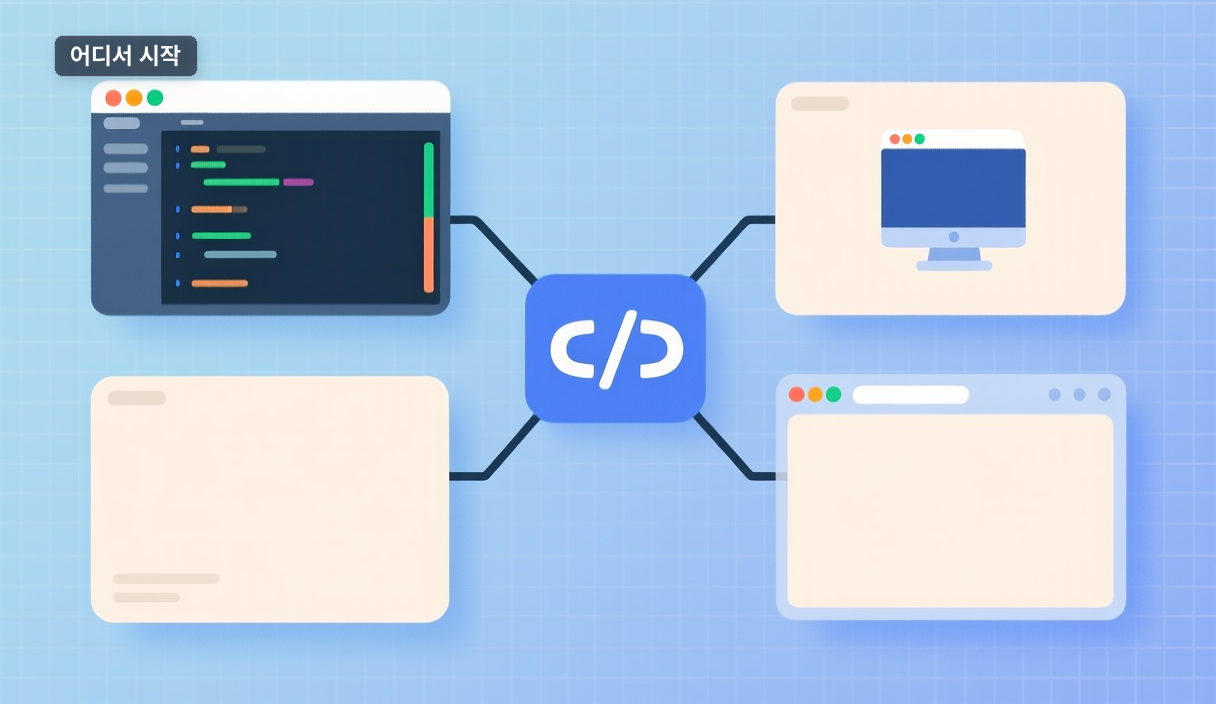
"They told me to try Claude Code, but where do I install it?" Search and you'll see terminal, VS Code, desktop, and web. The short answer: they're the same tool, and the only difference is where you already touch code.
What it actually does
The official Overview calls it "an agentic coding tool that reads your codebase, edits files, runs commands, and integrates with your development tools." Plain version: ordinary AI shows you fixed code; an agentic tool opens the file, runs the test, and fixes failures by itself.
claude "write tests for the auth module, run them, and fix any failures"
Which problems it reduces
The docs frame it as automating "the work you keep putting off": writing tests for untested code, fixing lint errors, resolving merge conflicts, updating dependencies, writing release notes. It also works directly with git — commits, branches, pull requests.
Picking your starting point
The docs list five surfaces. Choose by where you spend the most time: terminal CLI (full-featured), VS Code/Cursor (inline diffs, plan review), desktop app (visual diffs, scheduled tasks, paid), web at claude.ai/code (no local setup), or JetBrains. Most surfaces need a Claude subscription or Console account.
When you don't need it
If tests, lint, conflicts, and PRs aren't part of your daily work, there's little reason to add it now. Check exact install steps and paid requirements in the original docs before committing.
🐦 Faster updates on X: @baegseungh7061
📚 More in this series: Code Practical
💌 Subscribe: Follow on X or grab the RSS
댓글
댓글 쓰기