
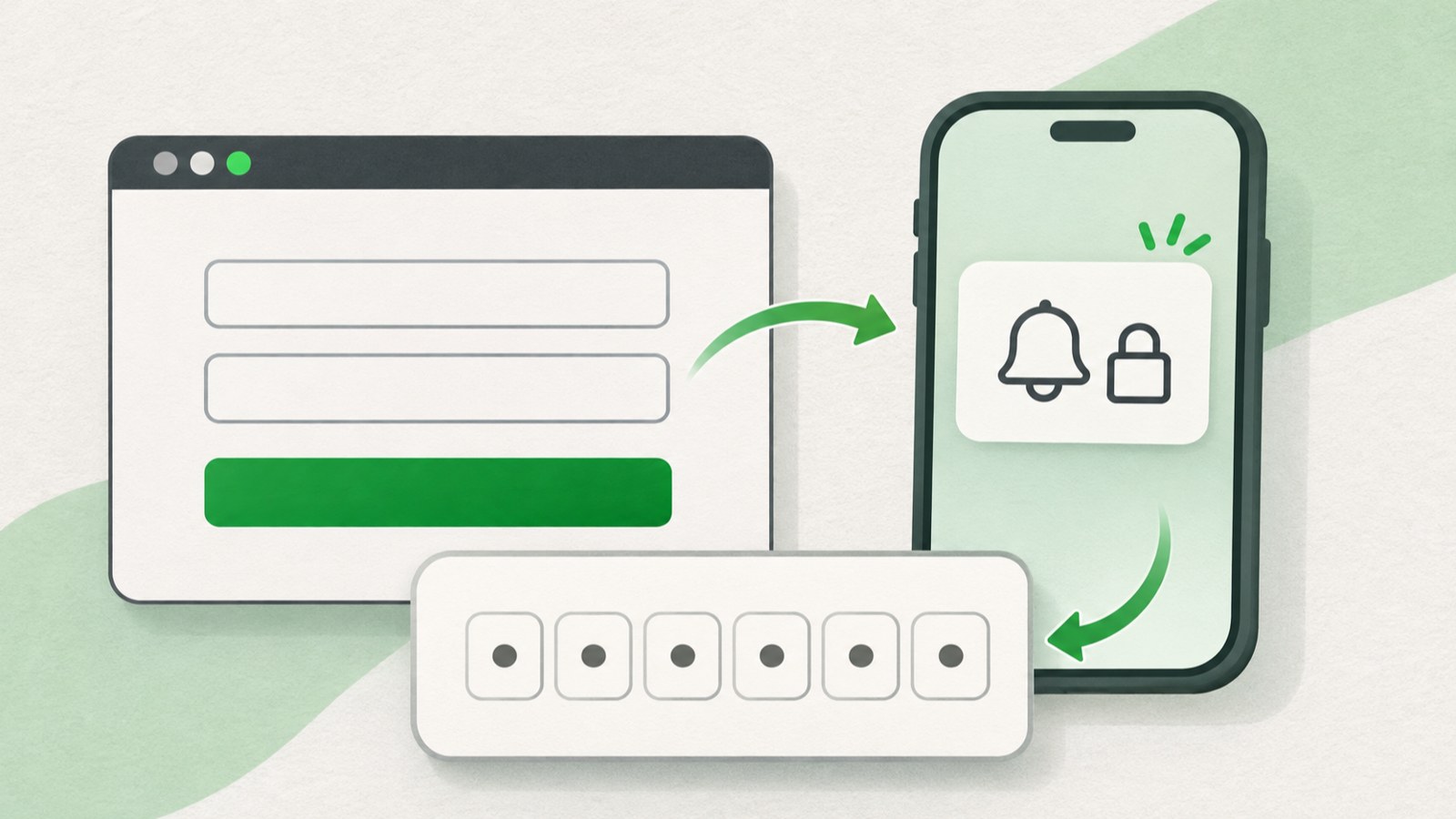
- Check that the Naver app is signed in to the account you are trying to verify, and review notification settings in both the app and your phone.
- You can resend the verification alert up to 3 times. If it still does not arrive, try logging in with Naver OTP.
- After changing phones or reinstalling the app, you may need to remove the old verification setup and register the device again.
If a Naver verification alert does not arrive, start by checking the account and notification settings. If you cannot use the app or your old phone, try OTP or verify your identity using the contact details registered to your account.
1. Check these settings when the verification alert does not arrive
First, confirm which account is signed in to the Naver app. It must be the same account you are trying to log in to, or you will not see the verification request.
Check push notifications in the Naver app, then check your phone settings to make sure notifications are allowed for the app. Confirm that you have the latest version of the Naver app, and try closing and reopening it.
Naver Customer Center says verification can fail if your device time differs from the actual time. Check that your phone is set to update its date and time automatically.
- Check the account signed in to the Naver app.
- Check that push notifications are enabled in the app settings.
- Allow notifications for the Naver app in your phone settings.
- Check that your date and time are set automatically.
2. Try OTP login if the alert still does not arrive
You can resend the verification alert from the login screen, up to 3 times. If it still does not arrive after all attempts, get an OTP code from the Naver app.
On the smartphone where verification is set up, open the Naver app. Tap the menu in the upper left, then open Settings and select Naver OTP. The app displays a one-time 8-digit code.
On the login screen, choose the option to log in with an OTP code and enter the number. This method works when you can open the Naver app to check the code.
- Tap the menu in the upper left of the Naver app.
- Open Settings and select Naver OTP.
- On the login screen, choose the OTP code login option.
- Enter the 8-digit code shown in the app.
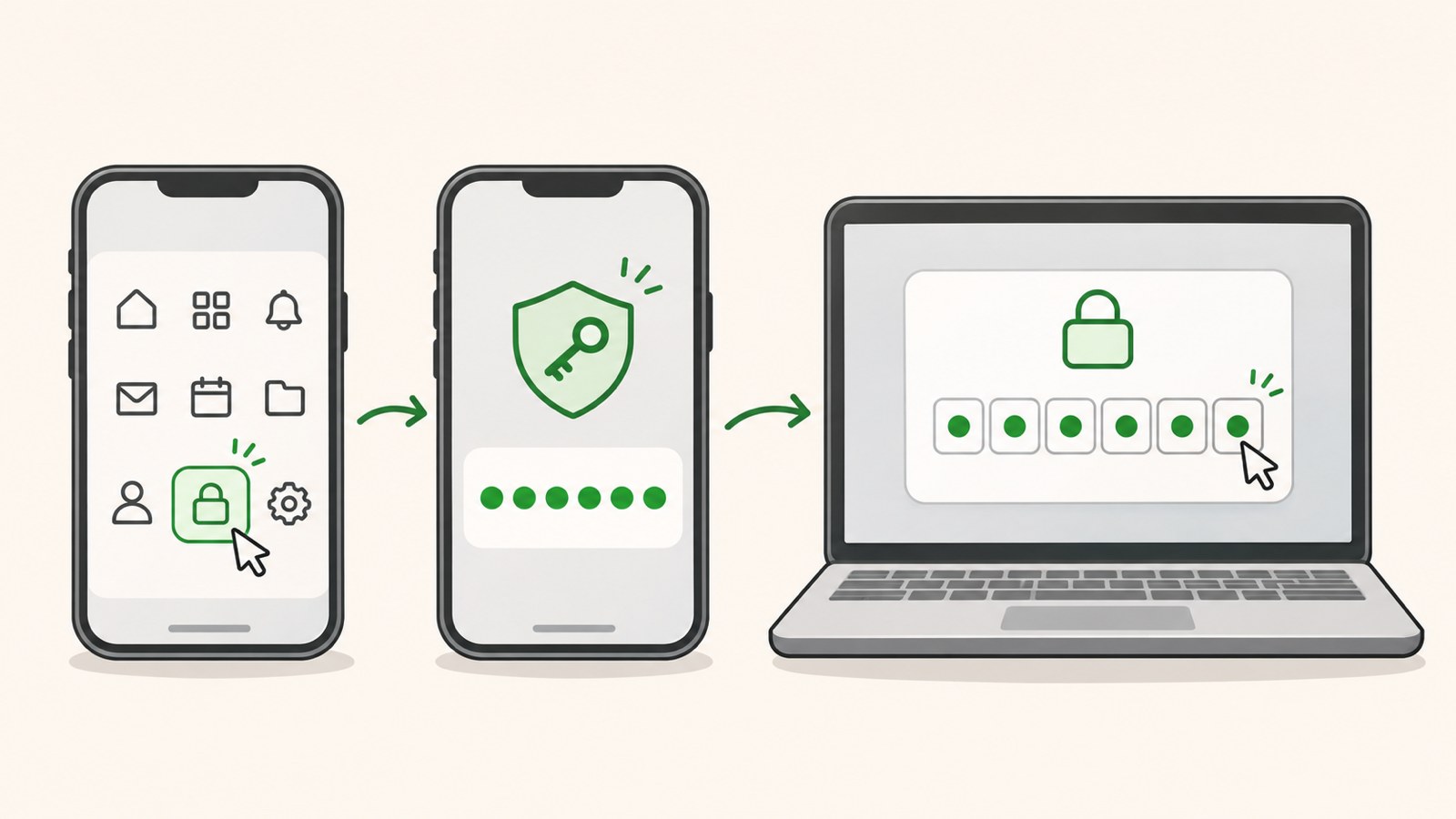
The app displays the OTP code you need to enter on the login screen.
3. If alerts still go to your old phone
Installing the Naver app on a new smartphone does not automatically change the device used for 2-step verification. If you can still use the old phone, remove its existing verification setup from a device where you are signed in, then register the new phone.
On a signed-in device, open the 2-step verification management menu in the Naver app, enter your password again, and remove the existing setup. On a computer, go to Security Settings in Naver ID and open 2-step verification management.
If you cannot use the old phone, check the OTP login option or the steps for removing 2-step verification on the login screen. After verifying your identity and signing in, register the new smartphone as a verification device in Security Settings.
- Open 2-step verification management on the old device, if you can still use it.
- Enter your password and remove the existing verification setup.
- Install the Naver app on the new smartphone and sign in.
- Register the new verification device in Security Settings.
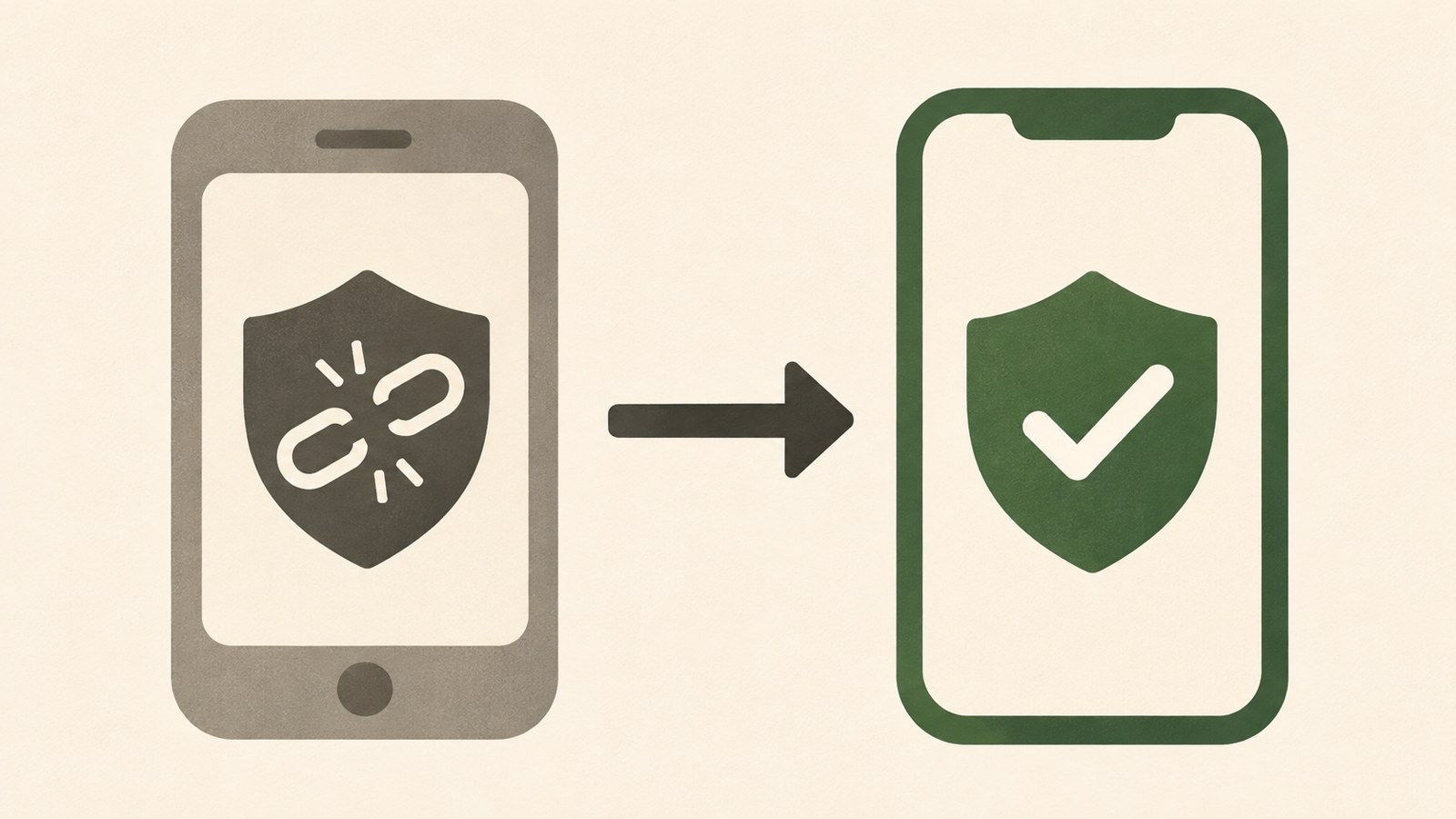
Remove verification from the old phone, then register the new device.
4. If you reinstalled the Naver app
Even on the same smartphone, deleting and reinstalling the Naver app can change the existing 2-step verification information. If alerts or verification stop working, check whether you can remove the old setup and configure it again.
If another Naver device is still signed in, use it to open 2-step verification management and remove the existing setup. Before repeatedly requesting alerts from the reinstalled app, check whether you have another device you can sign in with.
If you cannot use a signed-in device, try OTP from the login screen or choose the identity verification process for when you cannot use your device. Once you have verified your identity and signed in, set up verification again.
| Situation | Check first | Next step |
|---|---|---|
| Alerts do not arrive | App sign-in and notification settings | OTP login |
| App reinstalled | Signed-in device | Remove the old setup and configure it again |
5. Verify your identity if you cannot access OTP
If you cannot get an OTP code or sign in, select the option for when you cannot use your 2-step verification device on the login screen. You can verify your identity using the phone number or email address registered to your account.
After verification, you can remove 2-step verification and sign in. Then register your new smartphone as a verification device in Security Settings.
Check that the phone number and email address in your Naver account are still current. The identity verification process uses the contact details registered to your account.
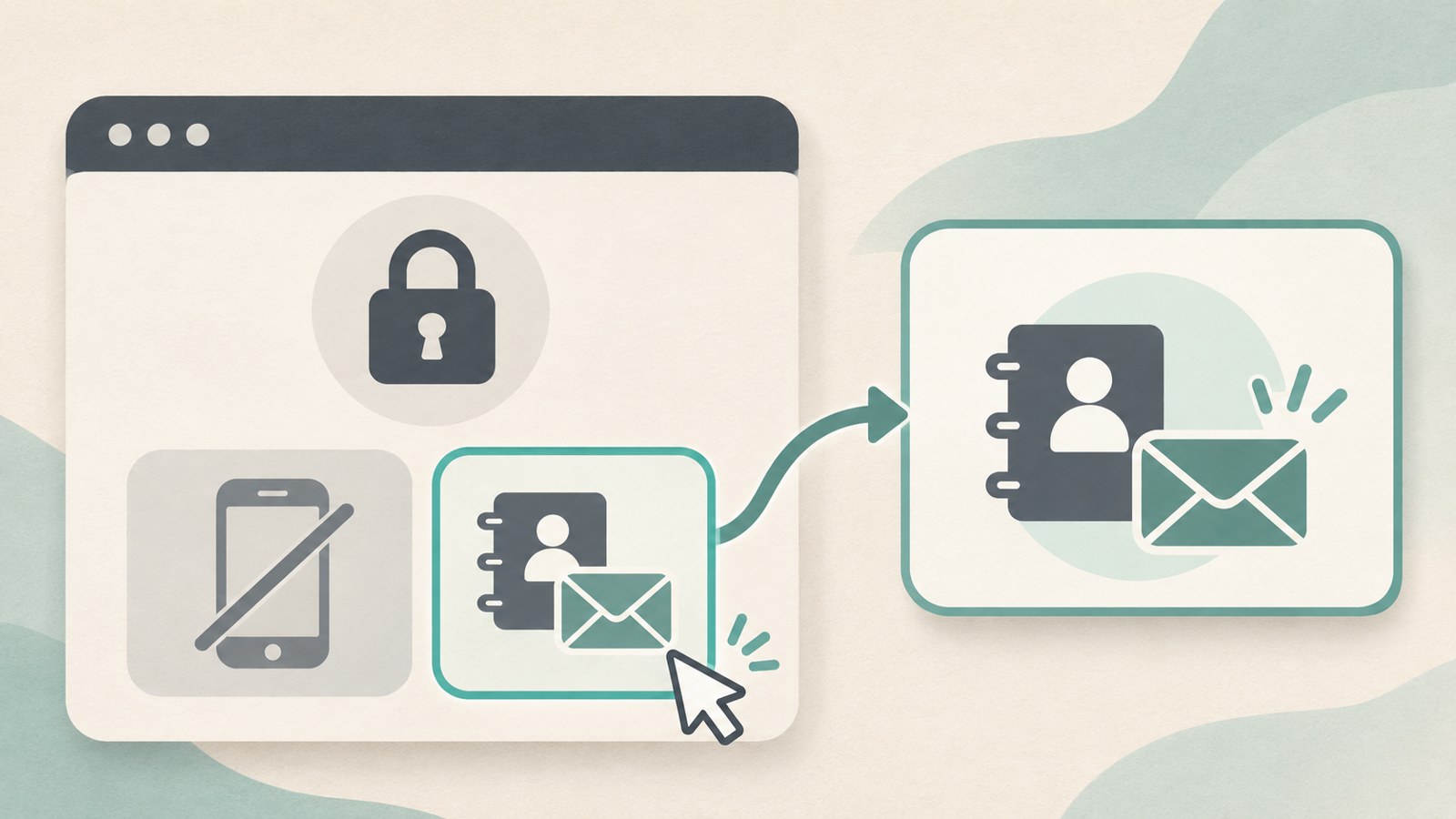
Choose the option for a device you cannot use, then verify your identity using a registered contact method.
6. Choose the next step for your situation
If the problem is limited to alerts and you can open the app, check the account and notification settings, then try OTP. Resending is limited to 3 attempts, so move on to another login method when those attempts are used.
If you changed phones, remove the old verification device and register the new one. If the problem started after reinstalling the app, check whether you can remove the existing setup and configure it again.
If you cannot use either OTP or the old device, try identity verification using the phone number or email address registered to your account. This option depends on having current contact details in your Naver account.
FAQ
I used all 3 alert resend attempts. Can I still log in?
If you can use the Naver app, log in with the 8-digit code shown on the Naver OTP screen. If you cannot use the app, try verifying your identity with the phone number or email address registered to your account.
The alert goes to my old phone after I installed the app on a new one. What should I do?
Installing the app on a new device does not automatically change the verification device. Remove verification from the old device, or complete OTP login or identity verification from the login screen, then register the new device.
Verification stopped working after I reinstalled the app on the same phone. What should I do?
Deleting and reinstalling the app can change the existing verification information. If you can, use a signed-in device to remove the old 2-step verification setup, then configure it again.
댓글
댓글 쓰기