
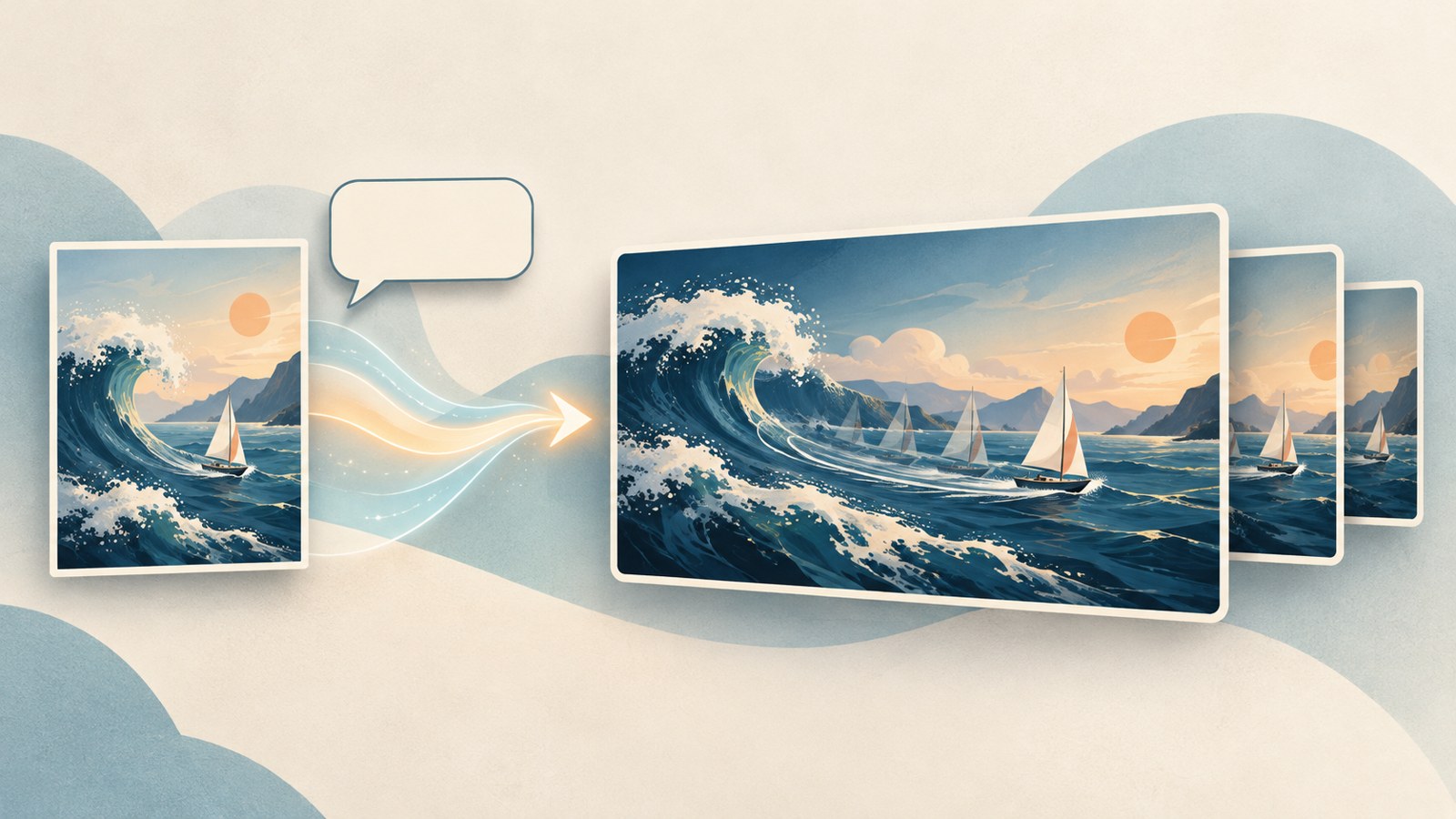
- You can generate a video from a text prompt without uploading a photo.
- Describe the subject, action, and camera movement clearly.
- Review the result, fix one awkward detail, and try again.
Choose how to create your AI video
AI video creation usually starts with text or an image. With text-to-video, you describe the scene in words. With image-to-video, you provide a photo and ask the model to add movement.
Arena’s Video Arena lets you compare two videos generated from the same request. Decide whether to start with a photo or a written scene description, then prepare the matching input.
| Input method | What to prepare | Useful when |
|---|---|---|
| Text-to-video | A scene description | You want to develop a scene from a written idea |
| Image-to-video | A reference photo | You want to specify a person or background |
Open Arena Video Arena
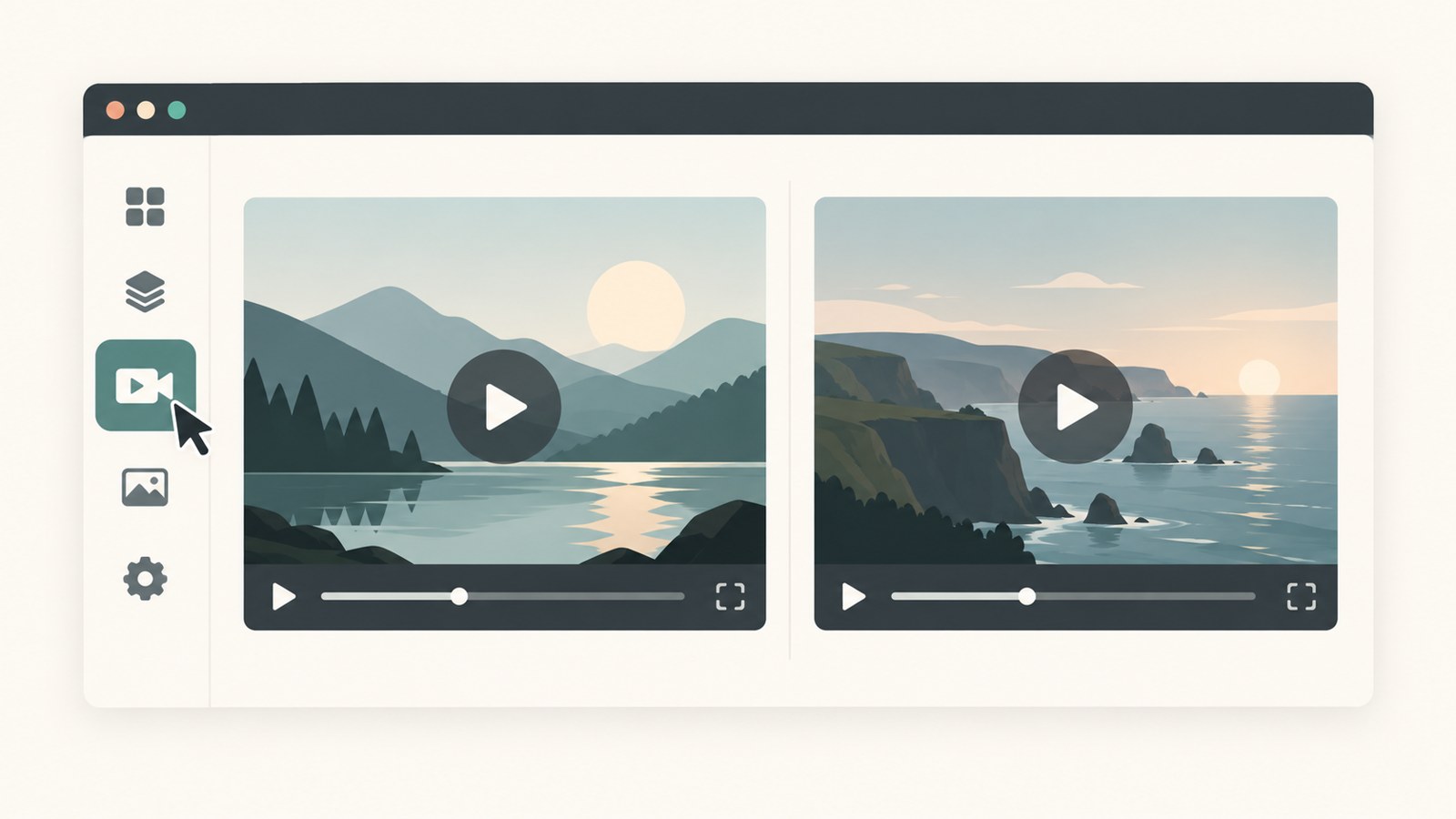
Arena is a service for comparing and rating results from multiple AI models. To use its video generation feature, open Video Arena and sign in.
- Go to the Arena website.
- Select the sign-in button and follow the instructions shown on screen.
- In the video generation menu, choose Video Arena.
Add a photo or describe the scene
If your video needs a particular person or setting, prepare a reference image and attach it. You can also request a video using text alone, without an image.
When choosing a photo, check that the person’s face, clothing, and surroundings are easy to see. A clear reference makes it easier to describe the scene you want.
- If you are using an image, select the [+] button to attach the file.
- If you are not using an image, type a description of the scene you want to create.
- Check that the image and description point to the scene you have in mind.
Write a specific motion prompt
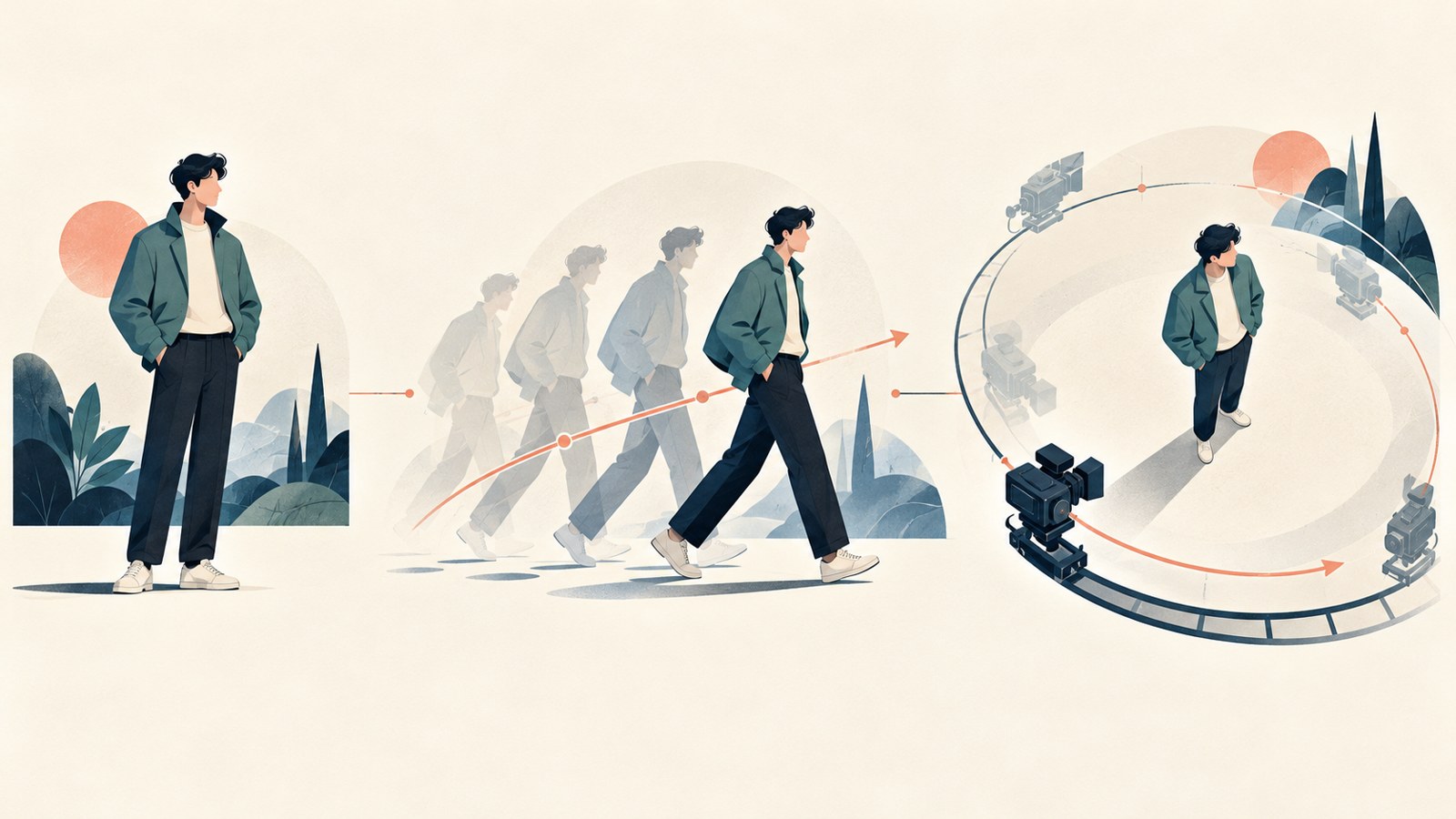
Describe who is doing what, and where. You can add the subject’s expression and movement, the camera movement, and how the scene should end.
For a short video, start with one action. When a prompt asks for too many movements, some may be left out or look unnatural.
- Name the main subject, location, and action.
- Add details about expression, movement, and camera framing.
- If needed, describe how the scene begins and ends.
Compare the results and revise one detail
Check whether the face, hands, movement, and background look natural. If Arena returns two videos, compare them and see which one is closer to the scene you want.
If something looks awkward, revise that part of the prompt instead of making the whole description longer. For example, you can ask for a fixed camera or slower movement from the subject.
- Review the people and background in the generated video.
- Choose the most awkward detail and revise its description.
- Submit the revised prompt and review the new result.
Decide where you will use the short video
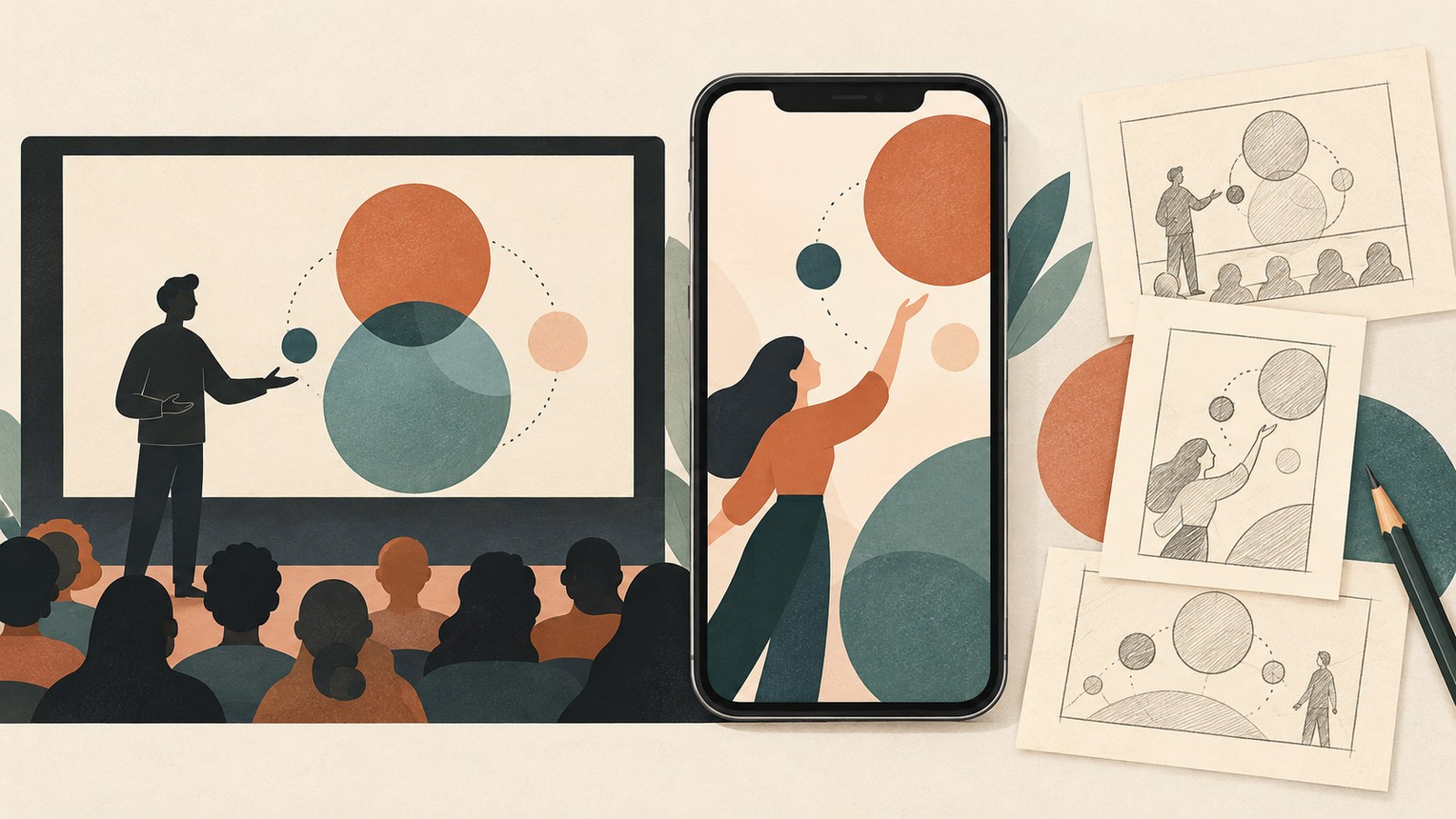
A finished video can work as a short scene for a lecture introduction or social media post, or as a draft for explaining an idea. Decide where you plan to use it before writing the prompt; that helps you focus the description.
Not every model supports audio, even if you include dialogue in the prompt. Check the generated result to see whether sound and speech are present.
Start with a photo or a brief scene description, then revise details that look off. Clear instructions about the intended use and movement can also help you shape the next prompt.
FAQ
Can I make an AI video without a photo?
Yes. Describe the scene in text and request a video without attaching an image.
What should I include in a prompt?
Describe the subject, location, and action, then add details such as facial expression or camera movement. For a short video, start with the one action you most want to show.
Will dialogue or audio appear in the video?
Not every model supports audio. Check the generated result to see whether sound and dialogue were included.
댓글
댓글 쓰기