
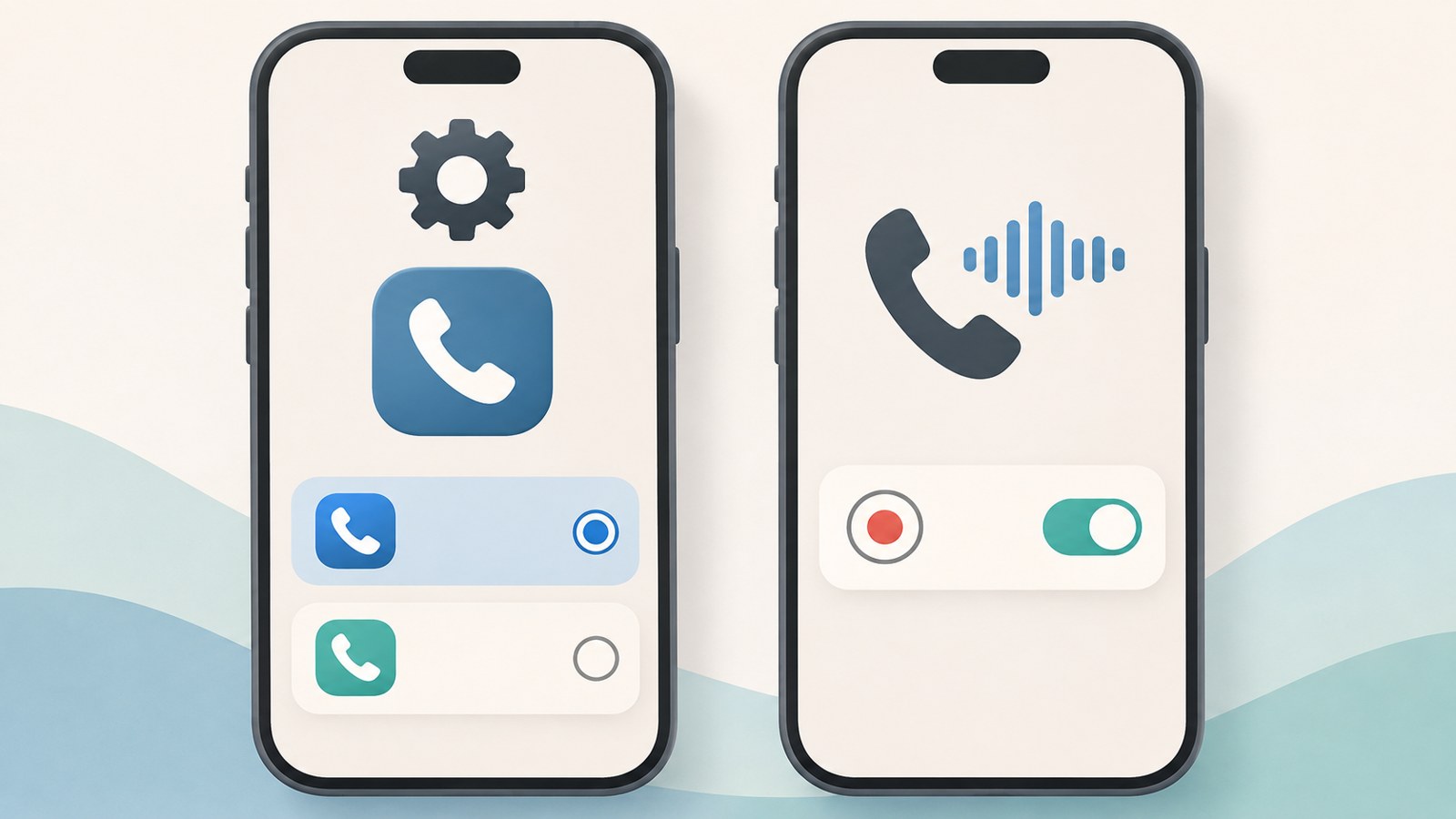
- Set A. Phone as the default calling app in iPhone Settings.
- Turn on auto-recording in A. Phone’s call settings.
- For a child’s phone, check the Family Link permission for changing default apps.
Set A. Phone as the default calling app on iPhone
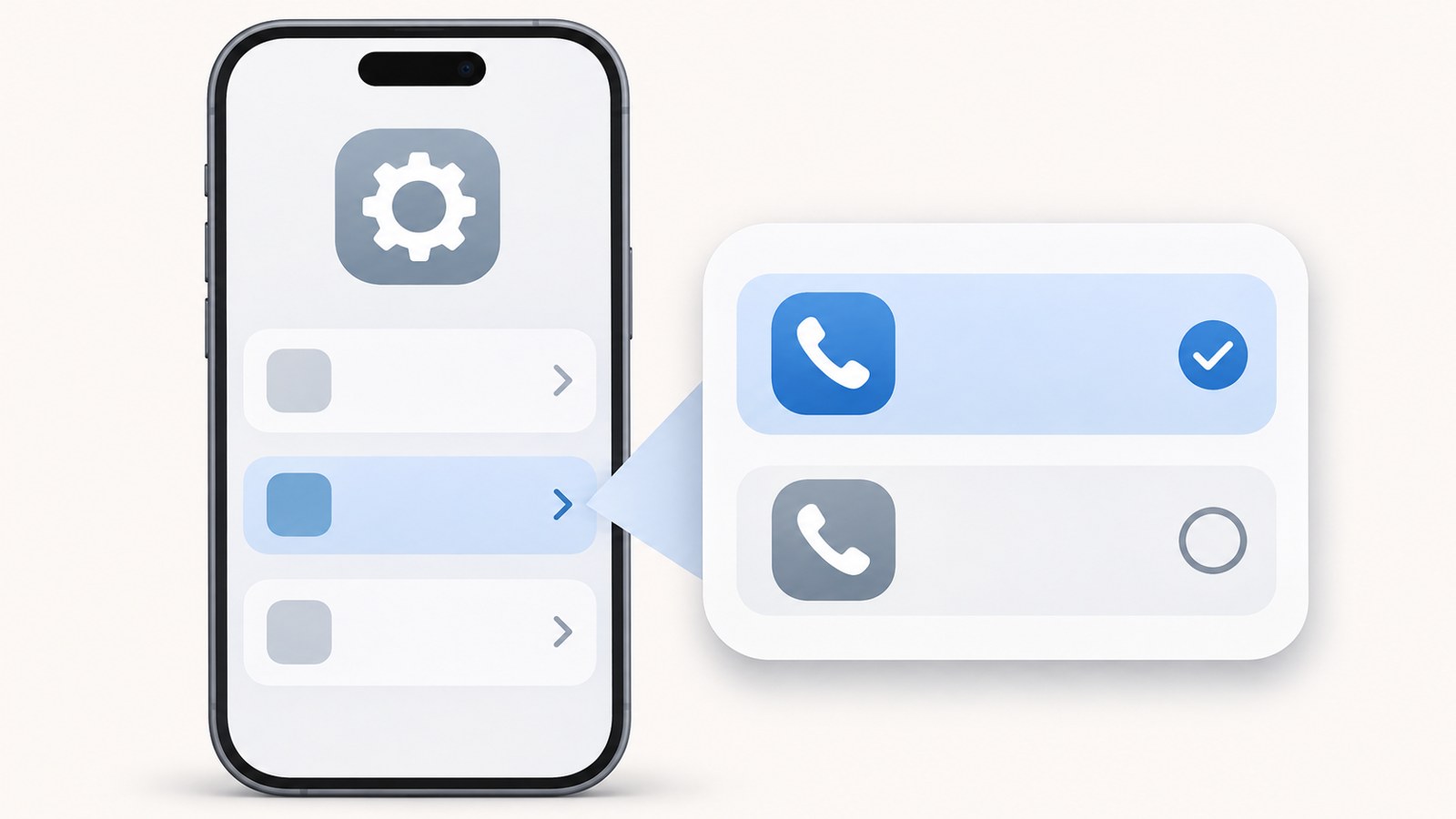
If A. Phone does not appear in iPhone Settings, install the app and sign in first. Then open Settings, tap Apps, choose Default Apps, and tap Calling to select A. Phone.
Choosing A. Phone here makes it the default calling app instead of Cellular. The default app setting and auto-recording setting are in separate menus.
- Install the A. Phone app from the App Store.
- Open the app and sign in.
- In iPhone Settings, tap Apps, then Default Apps.
- Tap Calling and select A. Phone.
Find the auto-recording setting
After setting the default calling app, turn on auto-recording in A. Phone. Tap the Phone tab at the bottom of the app to open your recent call history.
Tap Settings in the upper-right corner of the recent calls screen, then turn on the Call Auto-Recording toggle. If you cannot find the option, make sure you are viewing recent calls from the Phone tab.
- Tap the Phone tab at the bottom of the A. Phone app.
- Open Settings in the upper-right corner of the recent calls screen.
- Turn on Call Auto-Recording.
View call transcripts and recordings
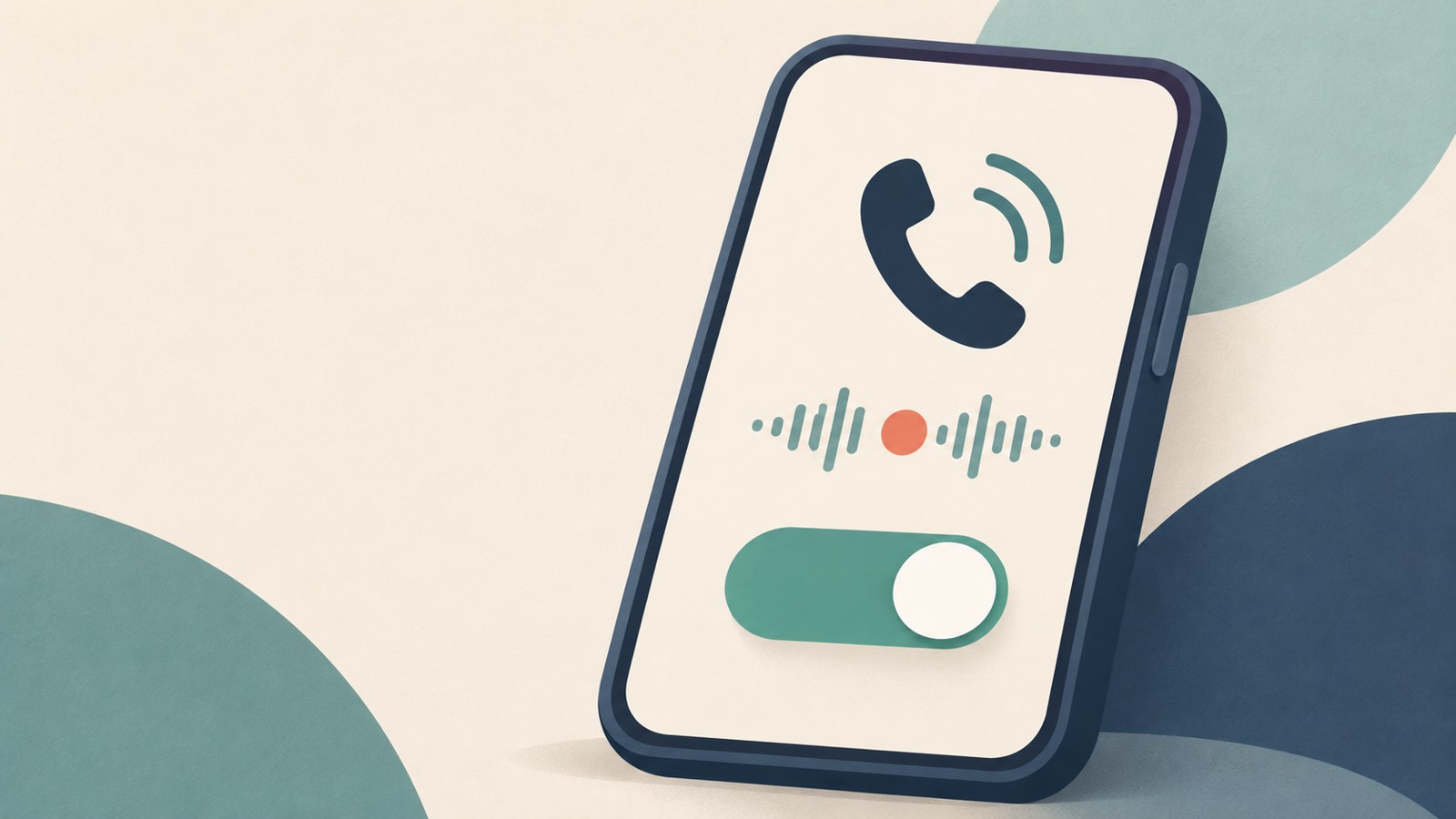
Recordings are available in the recent call history in A. Phone. Tap the call you want to check to find the Call Recording option.
Tap Call Recording to read the transcript. To listen to the recorded call, tap the play button near the bottom of the screen.
- Open recent call history in the A. Phone app.
- Tap the call you want to review.
- Tap Call Recording to view the transcript, or tap the play button below to listen.
Allow default app changes on a child’s phone with Family Link
If the option to choose a default app is locked on your child’s phone, check the permission to change default apps in the Family Link app on the parent’s device. If the child’s phone displays a security policy notice, a parent may need to change the permission.
On the parent’s device, select the phone your child uses and turn on the option to change default apps. After setting up A. Phone on the child’s phone, you can turn the option off again from the same menu.
- Open Family Link on the parent’s device.
- From the list of signed-in devices, select the one your child uses.
- Under device settings, turn on the option to change default apps.
- On the child’s phone, open A. Phone, go to the Phone tab, and set it as the default calling app.
- When setup is complete, turn off the option to change default apps on the parent’s device.
| Situation | Menu to check | Next step |
|---|---|---|
| Set the iPhone default calling app | Settings → Apps → Default Apps → Calling | Select A. Phone |
| Default app changes are blocked on a child’s phone | Family Link → child’s device settings | Turn on default app changes, then complete setup |
Check default calling and auto-recording separately
A. Phone setup has two parts: choosing the default calling app in iPhone Settings and enabling auto-recording in the app. Change the default calling app in iPhone Settings, then turn on auto-recording from A. Phone’s Phone menu.
Once A. Phone is the default calling app and auto-recording is on, check the recording in recent call history.
| Setting | Where to find it | What to select or do |
|---|---|---|
| Default calling app | iPhone Settings → Apps → Default Apps → Calling | Select A. Phone |
| Auto-recording | A. Phone → Phone → Settings | Turn on Call Auto-Recording |
FAQ
Where do I go if the A. Phone calling option does not appear in iPhone Settings?
Open Settings, then go to Apps → Default Apps → Calling. Select A. Phone on the Calling screen.
Default app changes are locked on my child’s phone. What should I do?
In Family Link on the parent’s device, select the device your child uses and turn on the option to change default apps. You can turn it off again after setup.
Where can I find the transcript and audio of a recorded call?
In A. Phone’s recent call history, tap the call and choose Call Recording to view its transcript. Tap the play button near the bottom of the screen to listen.
댓글
댓글 쓰기