
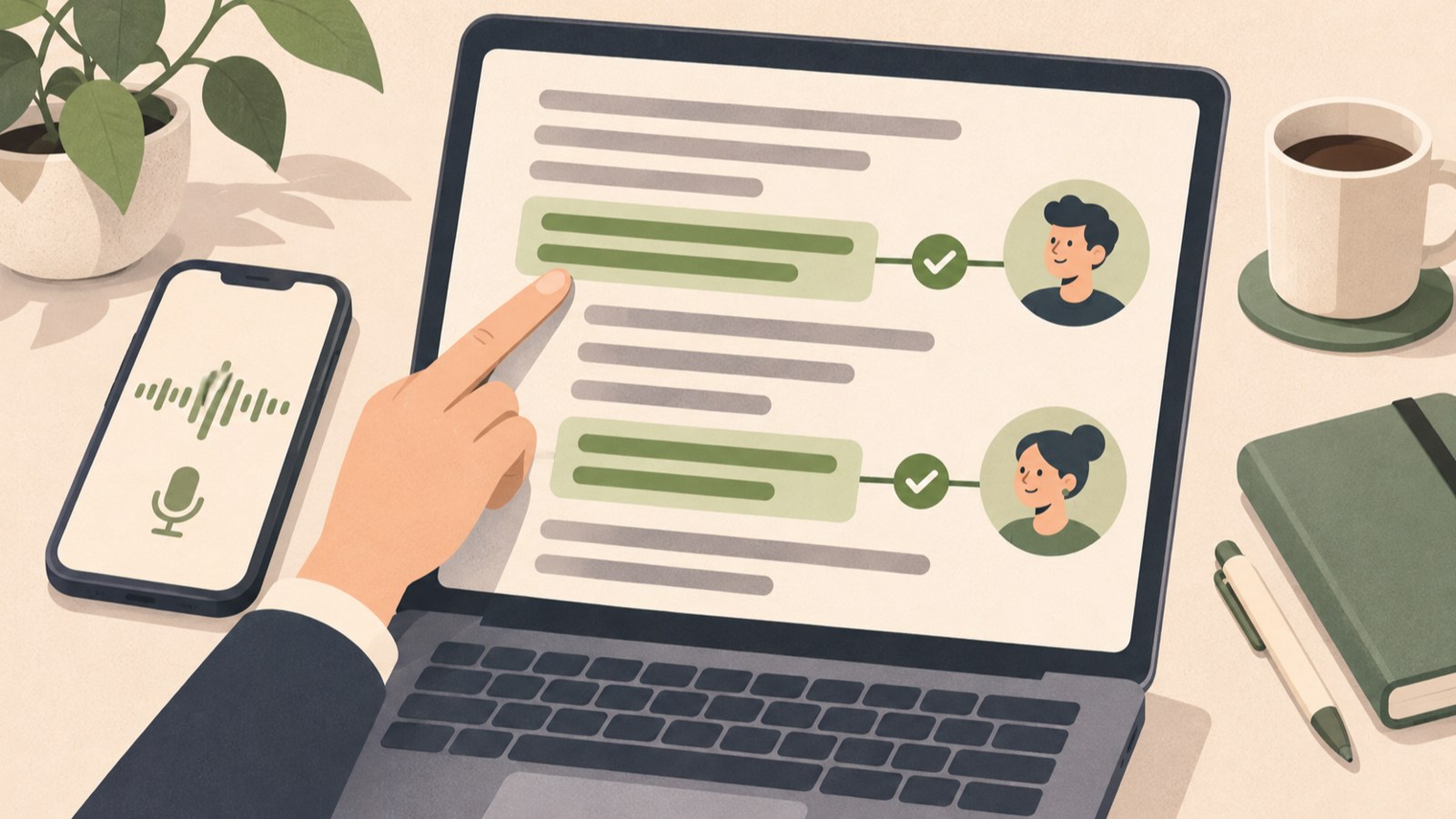
- Choose a tool that fits the meeting format.
- Check free limits and account requirements.
- Compare summaries with the recording before sharing.
1. Decide whether the meeting is in person or online
Your options for AI meeting minutes depend on how you record. For in-person meetings, consider ClovaNote or the Samsung Voice Recorder app.
If you keep meeting notes in Notion, check Notion AI Meeting Notes. For Google Meet or Teams meetings, look at the summary features built into those services. This table lists where to start and what to check for each setup.
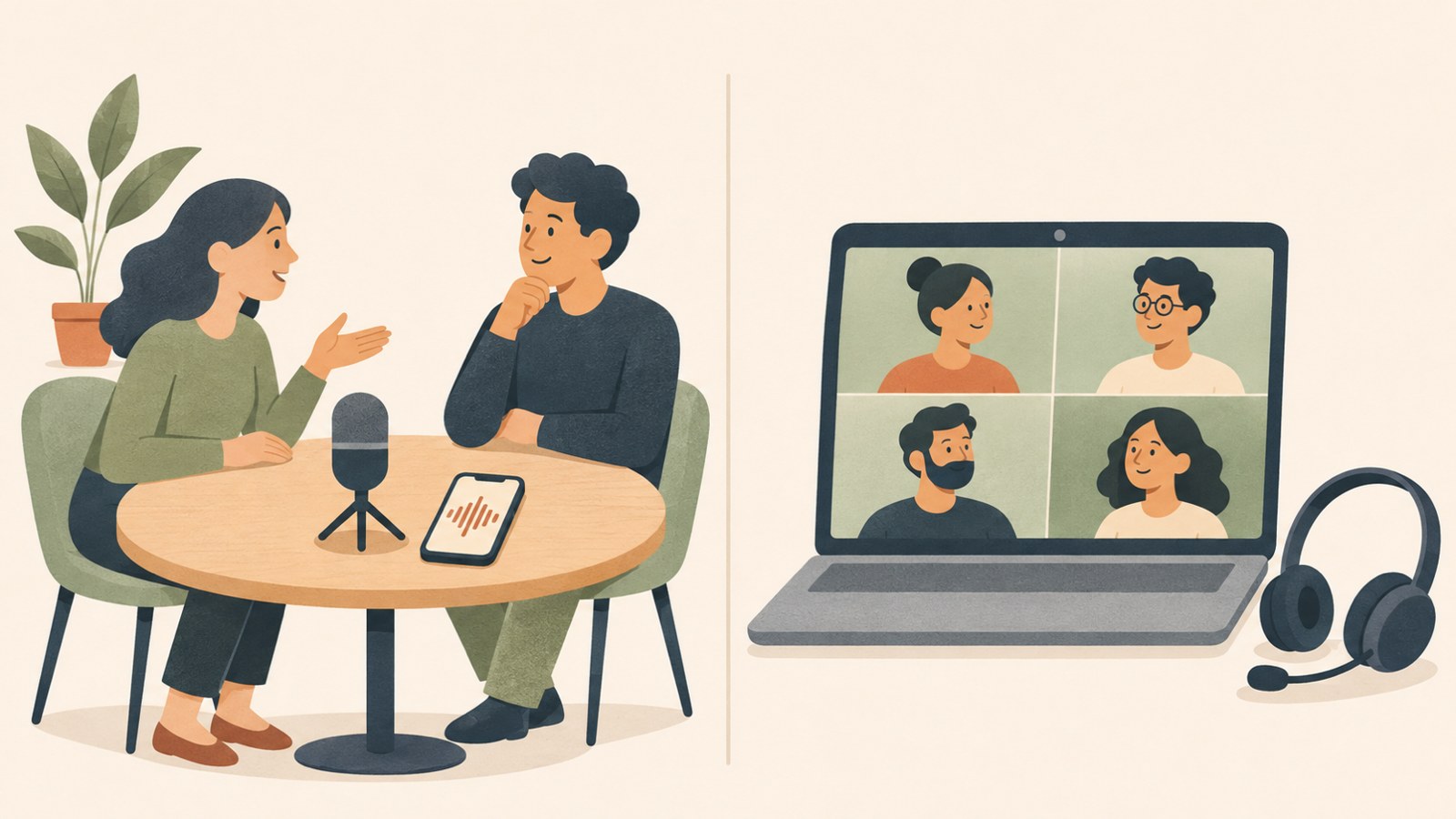
| Meeting setup | Tool to check first | What to check |
|---|---|---|
| In-person meeting or voice memo | ClovaNote | Free transcription limit and file requirements |
| Recording on a Galaxy device | Voice Recorder app | Model, network connection, and Samsung account |
| Video meeting | Meet, Teams, or Zoom | Plan and administrator settings |
2. What to check when the summary button is missing
If you do not see a summary or notes feature in the meeting interface, check your account plan and administrator settings. Google Meet meeting notes depend on a supported Workspace or Google AI plan and the relevant admin settings.
Teams Copilot and intelligent recap availability also depends on licensing and organizational policy. If the feature is missing, ask your administrator whether it is available before moving meeting files to a personal account.
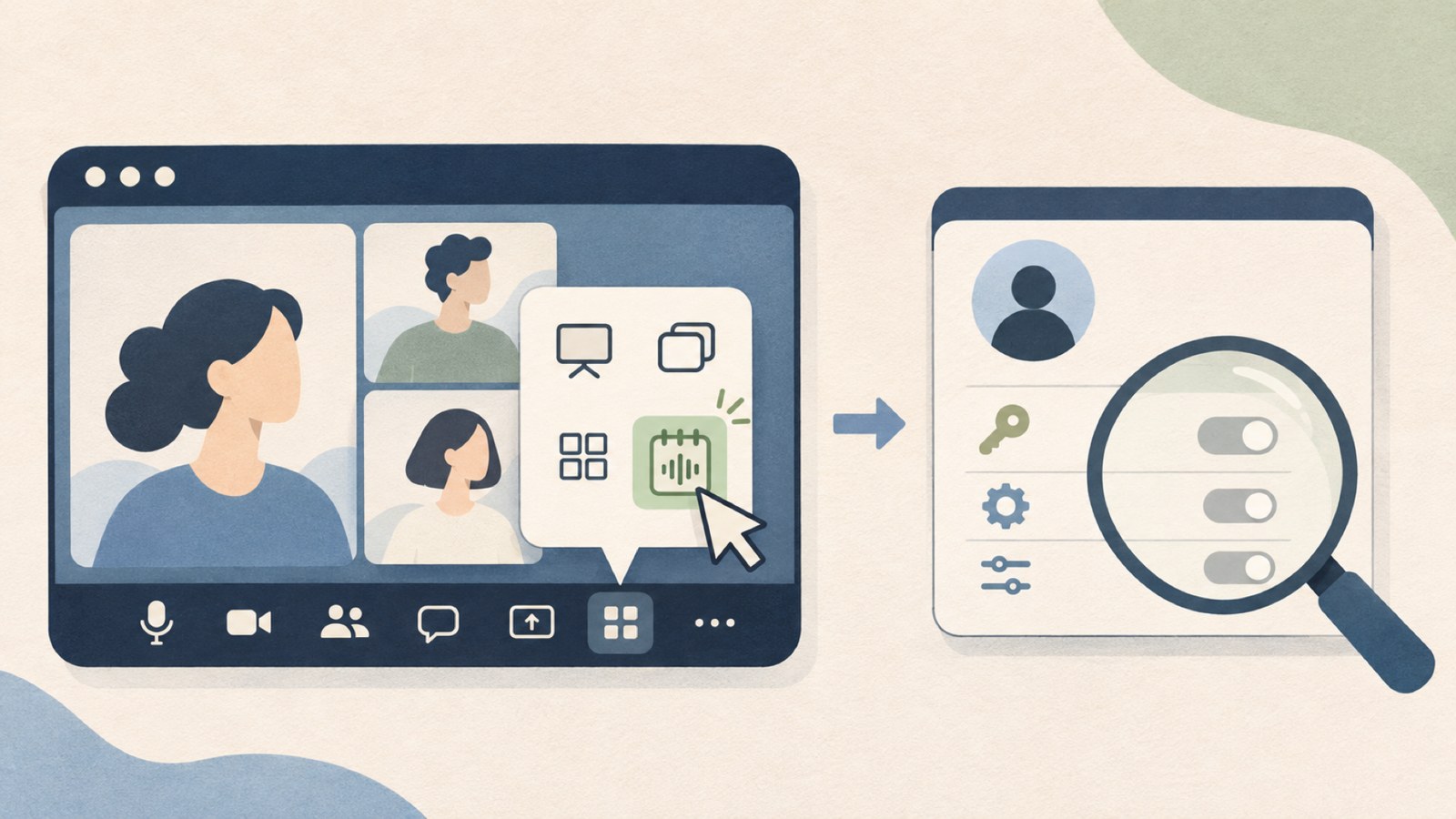
- Check which company account and meeting service you are using.
- Review the feature's license requirements.
- Ask your administrator whether the feature is allowed and what organizational policies apply.
3. Get started for free with ClovaNote or Galaxy
ClovaNote's personal plan includes 300 minutes of audio transcription and 15 AI summaries each month. Agreeing to data collection adds transcription time. Unused minutes do not roll over.
Sign in through the app or clovanote.naver.com, then choose Record or New Note. Each recording or uploaded file can be up to 180 minutes long. On a PC, ClovaNote records audio captured through the microphone only.
- Sign in to ClovaNote and choose Record or New Note.
- On a Galaxy device, open the recording in the Voice Recorder app and tap Transcription Assist.
- Select a language. When transcription is complete, open the Summary tab.
Galaxy transcription and summaries require a network connection and a signed-in Samsung account. According to Samsung's official FAQ, supported smartphones are S24 series models and later.
4. Check the plan before using Notion or video meeting tools
Notion AI Meeting Notes is available on Business and Enterprise plans. Free and Plus plans include only a limited trial, so check whether your current plan supports the feature.
In the Notion desktop app, type /meet on a page. When the meeting starts, select Start transcribing. Select Stop when the meeting ends to generate a summary. The desktop app can capture system audio, which makes it suitable for video meetings.
- Open the page for your meeting notes in the Notion desktop app.
- Type /meet and select Start transcribing.
- When the meeting ends, select Stop and review the generated summary.
5. Check recording notice and external upload rules
Whether you can record a meeting and whether you can upload its recording to an external AI service are separate questions. For a company meeting, first check that the tool is approved and that attendees have been told why you are recording and which tool you will use.
Check who can access the recording and transcript, how long they will be kept, and how they can be deleted. If clients or business partners are attending, review the contract and security requirements too. Ask the appropriate person at your company if the rules are unclear.
- Tell attendees why you are recording and which tool you will use.
- Check company policy and whether external uploads are allowed.
- Set access permissions, retention period, and deletion method.
6. Check decisions, owners, and deadlines against the recording
When asking AI to organize a transcript, have it separate decisions, owners, deadlines, and open questions. Also instruct it to mark information that needs checking instead of adding details that are not in the transcript.
Before sharing, compare the notes with the recording to check that speakers have not been mixed up and that suggestions are not presented as final decisions. Verify numbers, dates, and owners. Mark unresolved details for review instead of filling them in with guesses.
To see whether the tool saves time, track how long drafting and reviewing take for each meeting. Time will vary with meeting length, audio quality, and the amount of editing needed, so do not assume a set amount of time saved in advance.
- Ask for decisions, owners, deadlines, and open questions to be separated.
- Tell the tool to mark information missing from the transcript as needing review.
- Compare the draft with the recording and share the notes after review.
FAQ
What happens when I use up my ClovaNote transcription time?
The personal plan's monthly transcription limit is 300 minutes, and unused time does not roll over. Agreeing to data collection adds transcription time; check the service for the applicable conditions.
Why isn't the summary option working in Galaxy Voice Recorder?
Transcription and summaries require a network connection and a signed-in Samsung account. A recording that is too short may not produce a summary.
Can I record a company meeting and upload it to an external AI service?
First check company policy and whether external uploads are allowed. Review attendee notices and file access and retention requirements as well. Ask your company contact if the rules are unclear.
Start by checking the features and account requirements for your meeting setup. Compare AI summaries with the original recording, then share the notes after review.
댓글
댓글 쓰기