
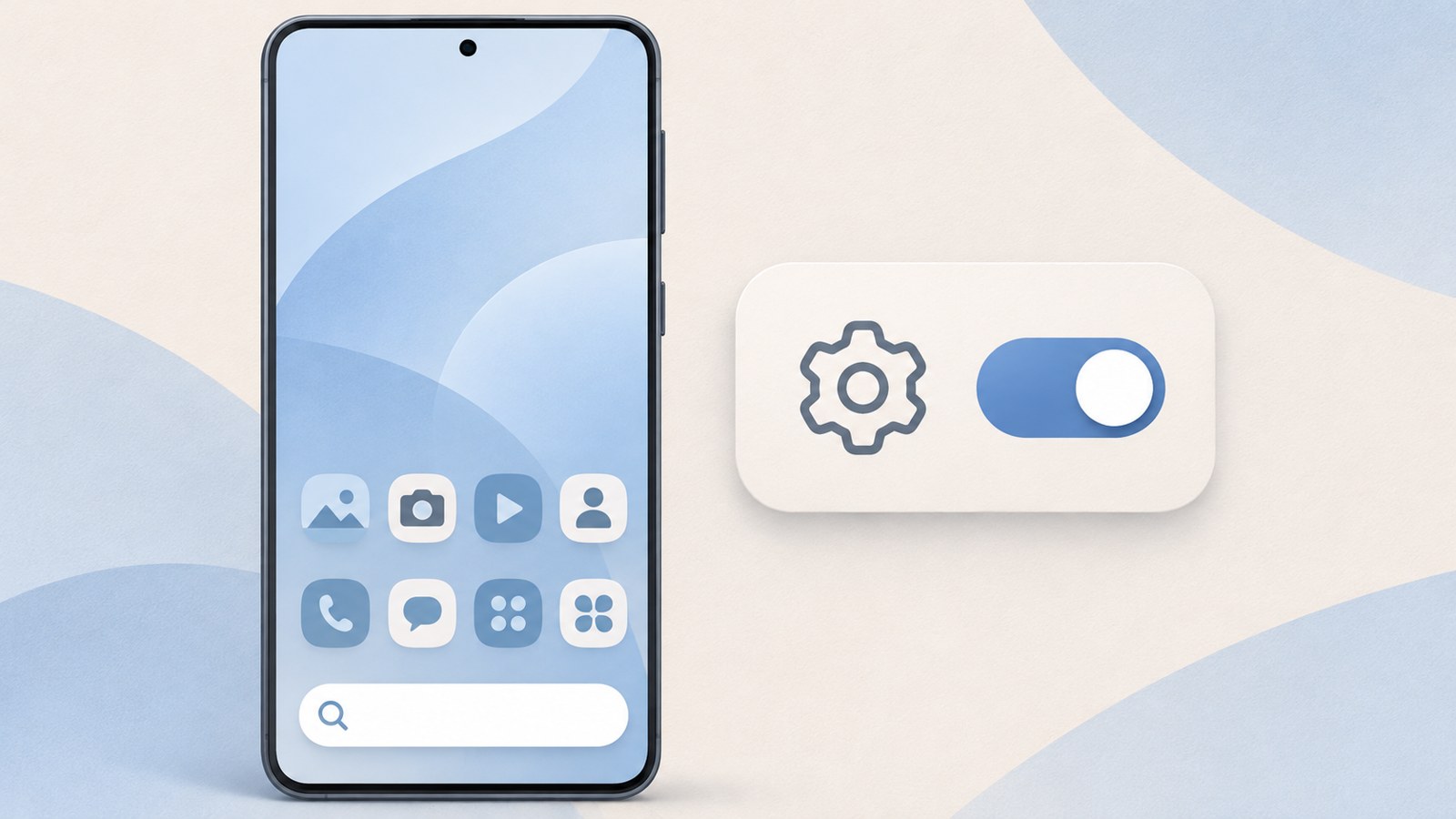
- Long pressing the search bar does not show a remove option.
- Change its visibility in Home screen settings.
- You can choose Google Search or Samsung Finder.
1. Why a search bar appeared on your Galaxy home screen
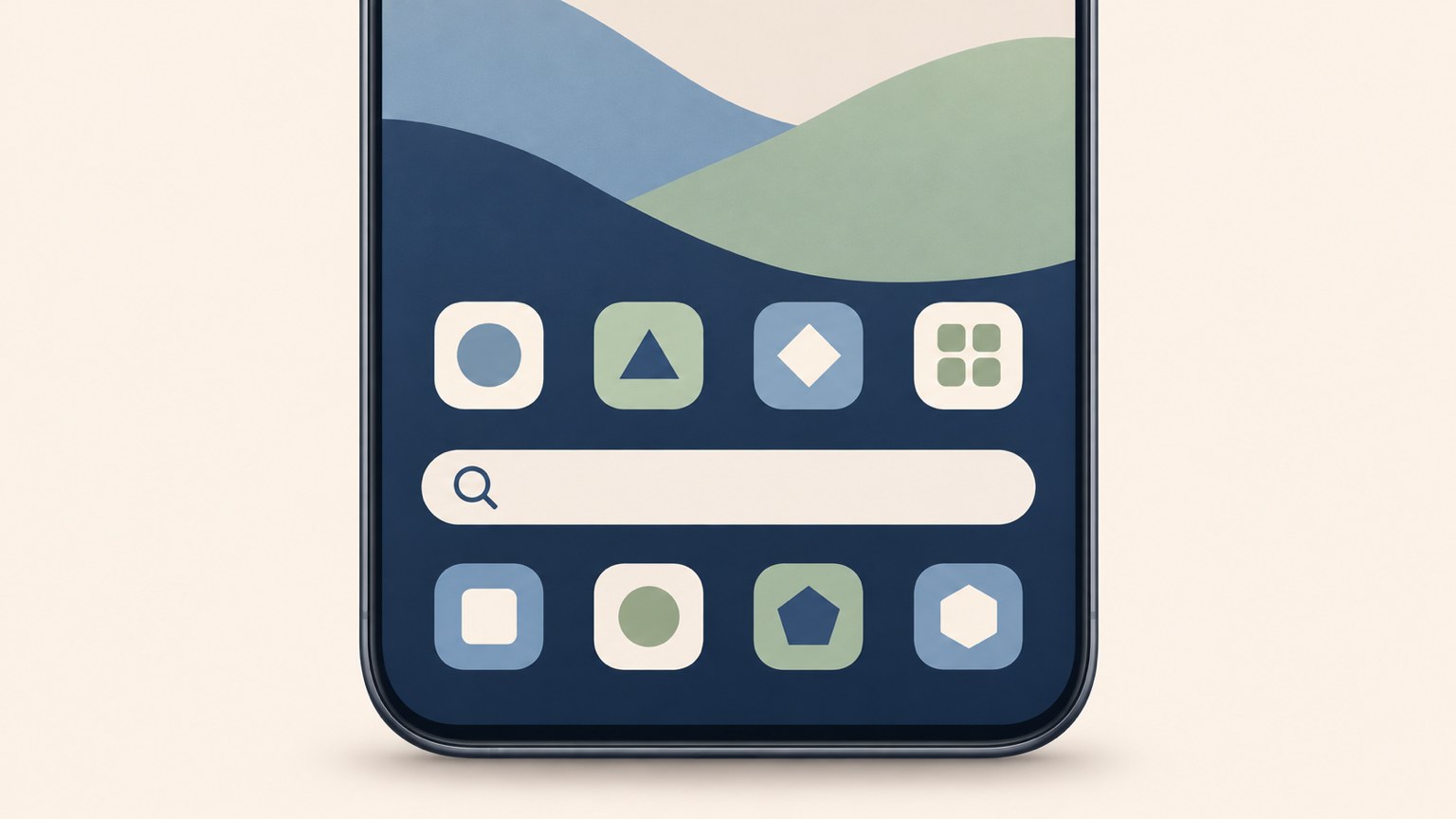
After the One UI 9 update, a search bar may appear near the bottom of the Galaxy home screen, between the app icons and the dock at the bottom.
The setting is called “Search from Home screen.” It is enabled after the update, with Google set as the default search engine.
This Android update Google search bar is controlled by a home screen setting. It is different from the Google Search widget used through One UI 8.5: it does not take up an app icon slot or move around like a widget.
2. Why long pressing does not show a remove option
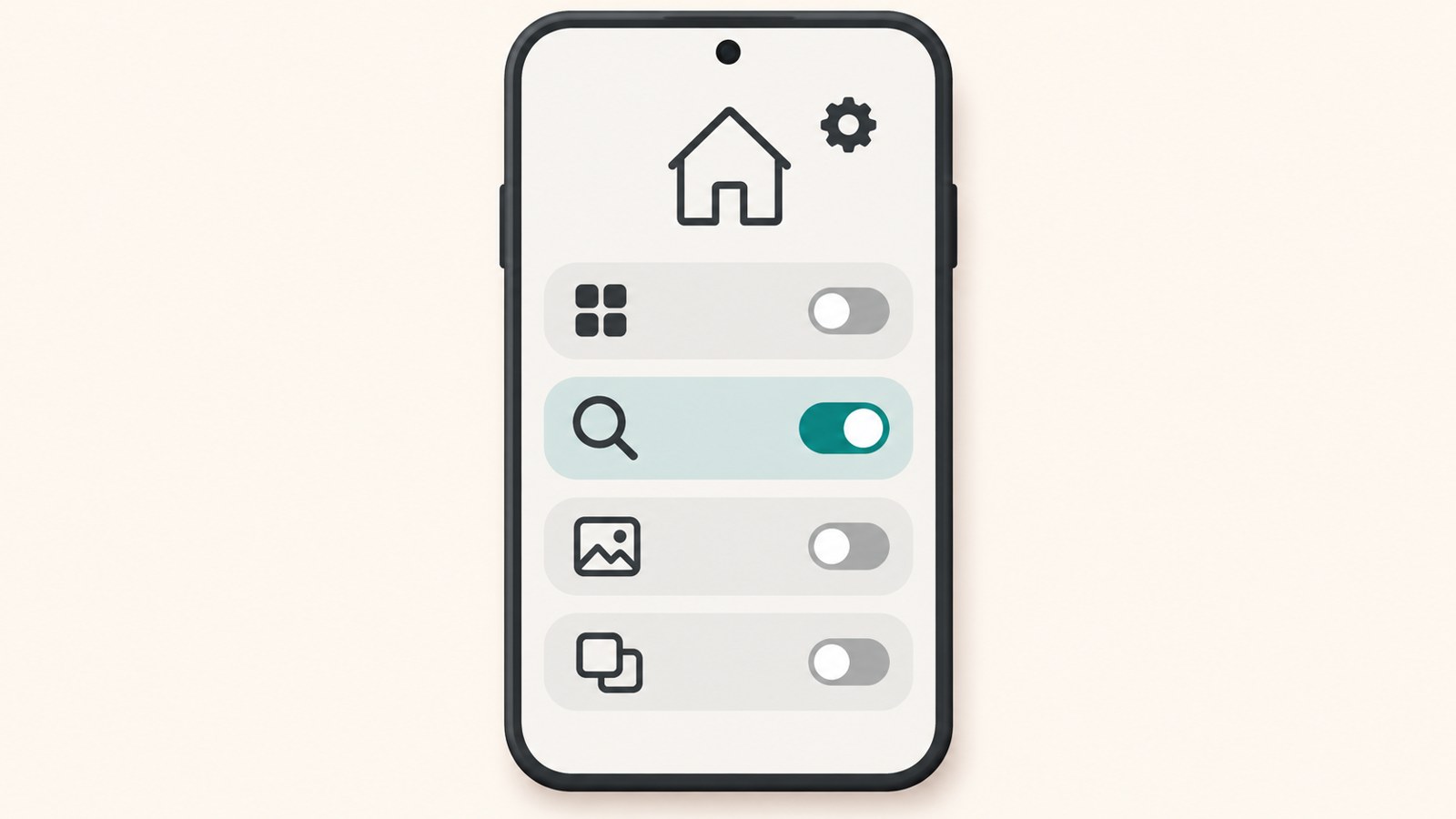
If long pressing the search bar does not bring up a remove option, it is likely controlled by a setting rather than acting as a regular widget. You cannot remove or reposition it directly on the home screen.
Use the switch in Home screen settings to change whether it appears. Long pressing the screen will not change that setting.
Turning off Google Search hides the bar from the home screen. It does not uninstall the Google app or remove its search function. You can turn the bar back on from the same menu.
3. Turn off the Google search bar in Settings
Open the Home screen menu in the Galaxy Settings app to find the search bar option. Depending on your device, it may be called “Search from Home screen” or “Show search bar on Home screen.”
Follow these steps to hide the Google search bar. To show it again, turn the switch back on in Settings.
- Open the Settings app.
- Tap Home screen.
- Select “Search from Home screen” or “Show search bar on Home screen.”
- Turn off the switch for “Search.”
- Return to the home screen and check that the search bar is hidden.
4. Use Finder instead of Google, or hide the search bar
The “Search from Home screen” menu has separate switches for “Search” and “Finder.” Depending on which switches are on, you can use Google Search or Samsung Finder. You can also turn off both.
Finder searches on your Samsung device. Use it to find apps, settings, files, and contacts on your phone instead of searching the internet.
When both switches are off, the page indicator dots return to the space where the search bar appeared. If you do not need Google Search but still want to find things on your phone, you can leave Finder on by itself.
| Search switch | Finder switch | Home screen option |
|---|---|---|
| On | Off | Google Search |
| Off | On | Samsung Finder |
5. Can you put a Naver search bar there?
The “Search from Home screen” menu offers Google Search and Finder. Naver and other search engines are not listed there.
If you mainly use Naver, turn off the home screen search feature and add the Naver app’s search widget separately. The built-in home screen search bar and app widgets are managed in different places, so choose the setup that suits your layout.
You can add the Naver search widget even after turning off the Android update Google search bar. Or leave Google Search on to keep using the search feature at the bottom of the home screen without adding a separate widget.
6. Check your home screen after an update
If your home screen looks different after updating to One UI 9, check the “Search from Home screen” menu. Choose the Search and Finder switches based on whether you use Google Search or often look for items stored on your phone.
If the search bar appears unexpectedly, it does not necessarily mean there is an error. It is a One UI 9 feature that you can turn off in Settings.
If your device has not received the update yet, open “Software update” in Settings and tap “Download and install” to check whether the update is available. After updating, check the search setting on the Home screen menu.
FAQ
Long pressing the search bar does not show a remove option. How do I turn it off?
This search bar is not a regular widget, so you cannot remove it by long pressing. Turn off the search switch in the Home screen menu in Settings.
Will turning off the Google search bar uninstall the Google app?
No. It only changes whether the search bar appears on the home screen. You can turn the search switch back on in the same settings menu.
Can I choose Naver Search for the search bar?
The menu offers Google Search and Finder. To use Naver, turn off the home screen search feature and add the Naver app’s search widget separately.
댓글
댓글 쓰기