
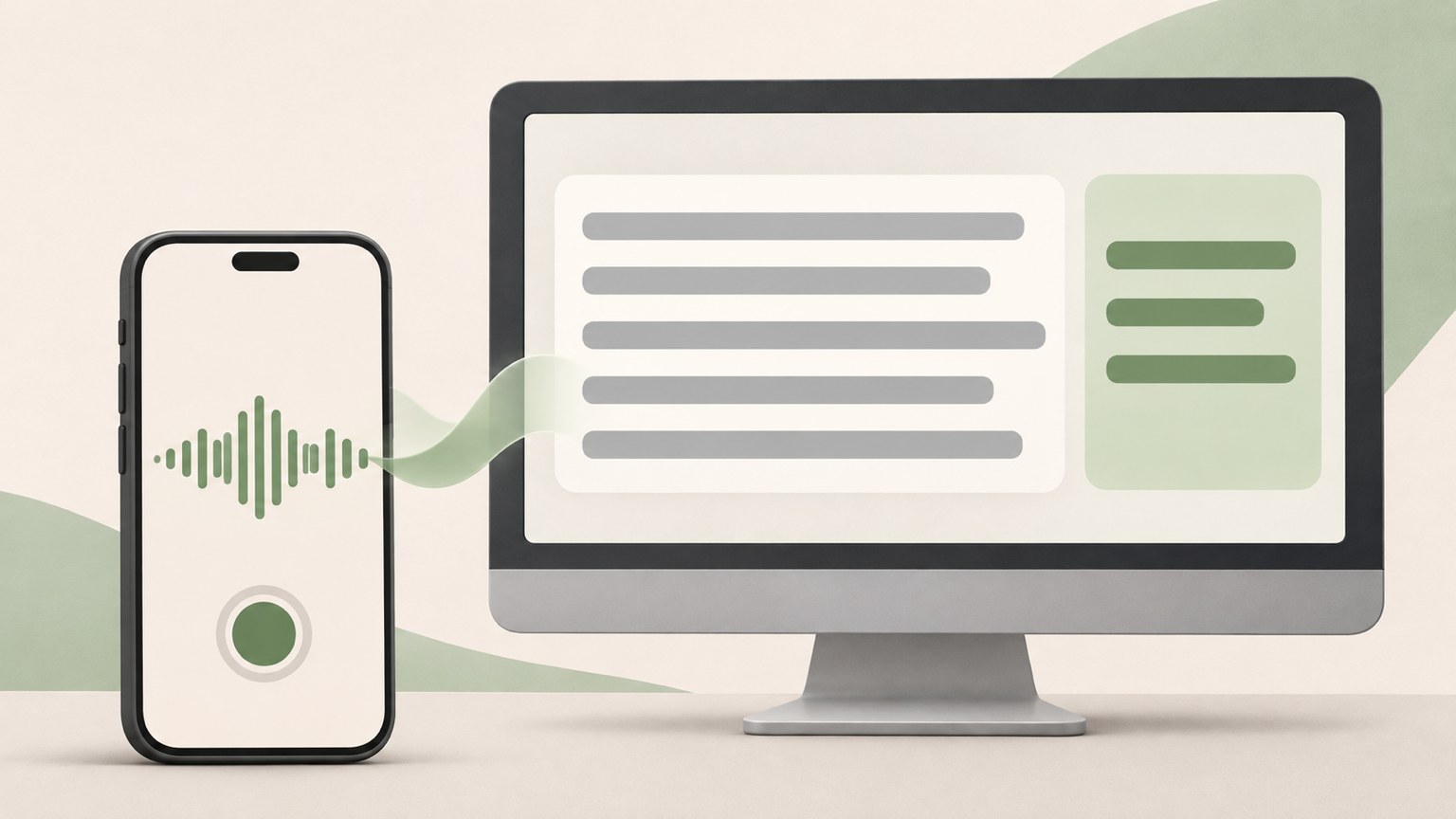
- Record audio or upload files in the app or on the PC website.
- AI summaries are available for notes transcribed in Korean.
- Check names, numbers, and personal information before sharing.
Choose the app or PC website
On a smartphone, install the CLOVA Note app and sign in with your Naver account. On a computer, open CLOVA Note in a browser and sign in. You do not need to install a separate program.
Sign in with the same Naver account to open app notes on your computer. The app is handy when you want to start recording right away. The PC website can be useful when you need to review and edit a long transcript. Both let you record, edit, and view summaries.
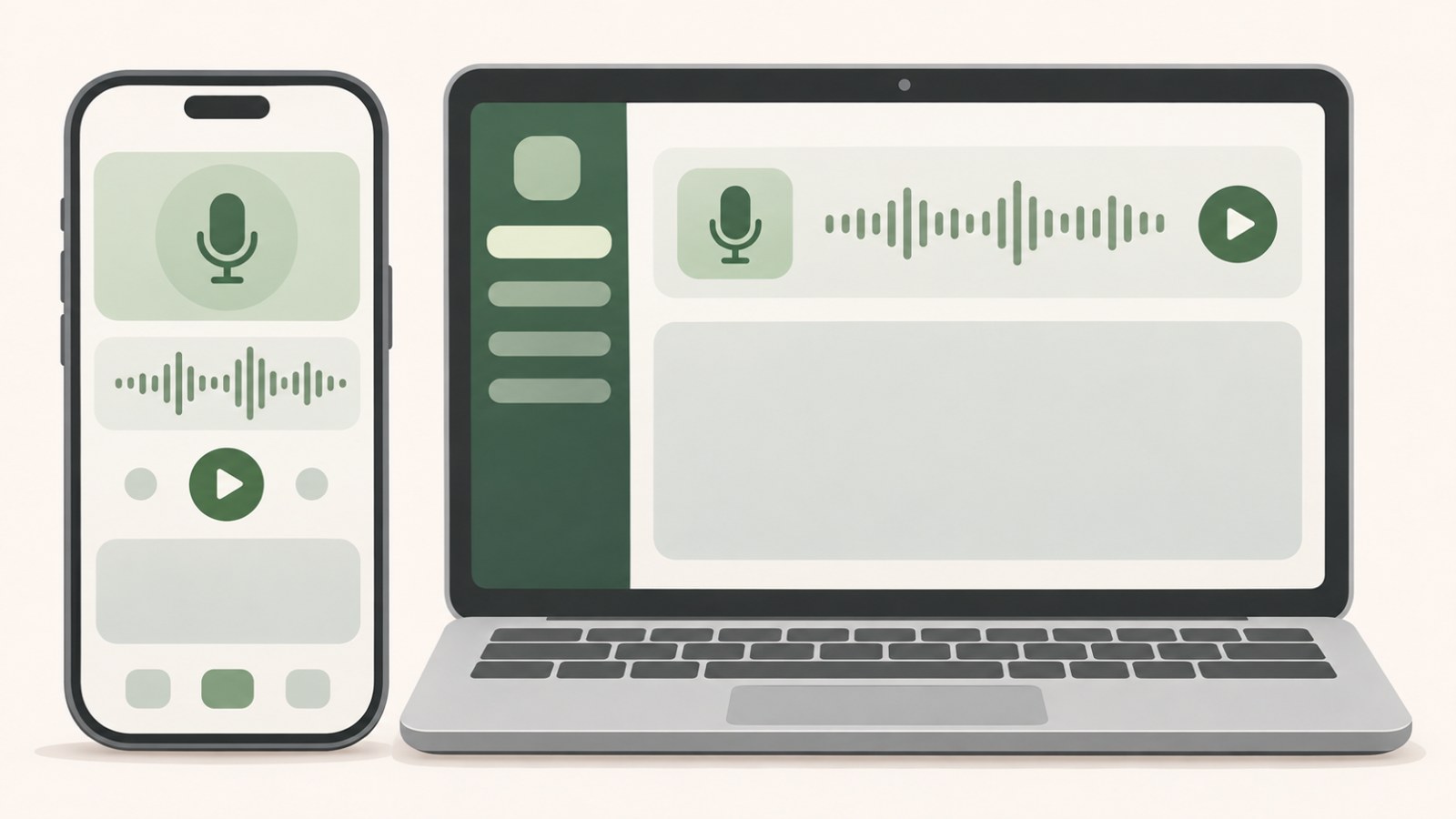
| Category | Smartphone app | PC website |
|---|---|---|
| Getting started | Install the app and sign in | Sign in in a browser |
| Recording and editing | Record and edit in the app | Record and edit on the website |
Start a recording
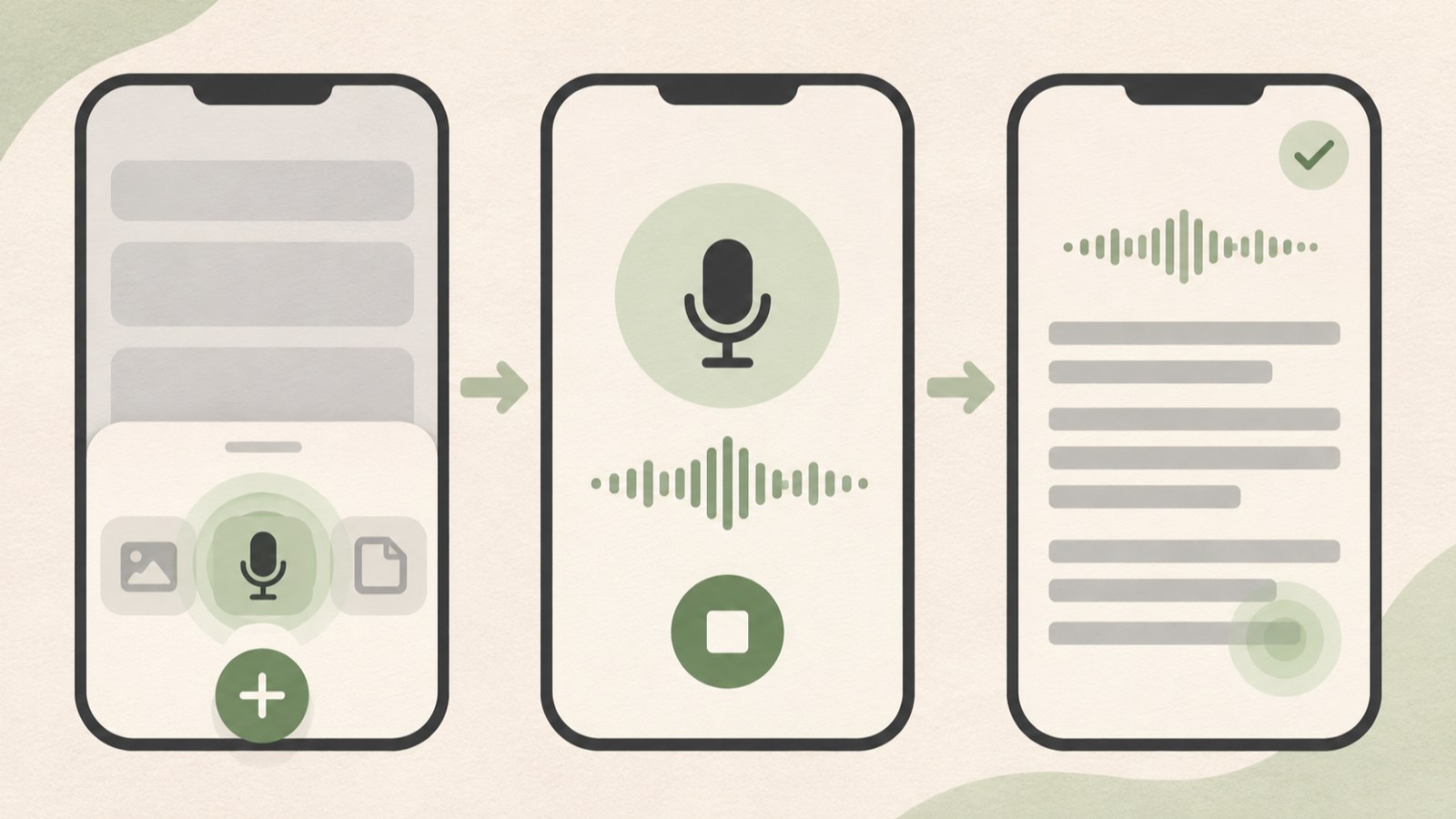
The recording controls may be in different places in the app and on the PC website. In the app, tap [+] and choose [녹음] (Record). On a computer, click [녹음하기] (Record) in the upper left. Menu names can vary by app version, so check the recording options on screen if you cannot find the button.
- Install the app and sign in with your Naver account.
- In the app, tap [+] and choose [녹음] (Record), or click [녹음하기] (Record) on the PC website.
- Tap or click the stop button when you finish recording.
- Wait for the upload and transcription to finish.
- Open the note to review the transcript and AI summary.
Upload an audio file
You can add an existing recording to a note by uploading the file. On a computer, sign in to CLOVA Note in a browser and follow the on-screen prompts to select it. In the smartphone app, tap [+] and choose file upload.
To upload a Voice Memos recording from an iPhone, open the More menu and choose “Save to Files.” Move the recording to iCloud Drive or the On My iPhone folder, then select it for upload.
Choose the recognition language before uploading. The available choices are Korean, Korean + English, English, Japanese, and Chinese (Simplified or Traditional). You cannot change the language after uploading.
- Open the file upload menu on the PC website or in the app.
- Select the audio file to transcribe.
- Check the recognition language before uploading.
- When transcription finishes, open the note and review its contents.
Review the transcript before relying on the summary
AI summaries are based on the transcribed text. If a summary seems off, first find and correct any words the transcription got wrong.
To change a participant's name, tap the name in the transcript. In the app, press and hold the relevant passage, choose “Change speaker,” and select how much of the recording to update.

Replay the original audio to check numbers, dates, and proper names. If names or specialist terms are often transcribed incorrectly, add them under “Frequently used words” in settings.
Create an AI summary and share a note
Open the summary menu in a note to view its summary. On the PC website, use the button in the “Summary” tab. In the app, tap “AI Summary.”
An AI customized summary picks out the main topics and next tasks. A time-based summary groups paragraphs by topic and includes timestamps. Tap a timestamp to play that part of the recording.
Summaries can be created for notes whose recognition language is Korean. To share a note, open the sharing menu and create a link. Anyone who receives the link can view the note, so check it for personal information before sending.
- Open the summary menu in the note.
- Review the topics and tasks in the summary.
- Create a link from the sharing menu.
- Check for personal information, then send the link.
Recording limits and privacy
A single recording or upload can be up to 180 minutes long. For a longer meeting, stop before the 180-minute limit and continue in a new note so you do not miss the rest.
Personal users cannot purchase more usage time. Additional time may be provided depending on your consent to data use. That consent includes conditions under which some voice data may be used for AI training. Consider those terms before recording a sensitive meeting.
Tell the people present that you are recording and ask for their consent. Check company rules before recording a meeting that includes personal information or company secrets. PC website recording captures microphone audio. It does not recognize audio playing in a browser, such as YouTube or a video call.
FAQ
Does PC recording capture audio from the browser?
PC website recording recognizes microphone audio only. It does not capture sound playing in the browser, such as YouTube or a video call.
Can I change the recognition language after uploading a file?
No. You cannot change the recognition language after uploading. If you need a Korean summary, select Korean before uploading the file.
What should I check before sending a share link?
Anyone who receives the link can view the note, so check it for personal information. Before recording, ask the people present for their consent.
댓글
댓글 쓰기