

- Reopen saved side chats after restarting Codex.
- Sign in to supported gateways over SSH with a device code.
- Project settings in untrusted folders stay disabled, even with --sandbox workspace-write.
Codex terminal update 0.169.0 adds side chat tabs and gateway sign-in, and clarifies when project settings can run in untrusted folders. It applies to Codex users working in the optional terminal workspace or connecting to a supported gateway.
1. Save and reopen side chat tabs

In the optional terminal workspace, Codex 0.169.0 supports multiple side chat tabs. Switch between them with the keyboard or mouse.
Saved local side chats remain available after you restart Codex. You can use them to keep separate conversations going in the terminal workspace, then reopen one when you need to continue.
2. Find earlier tasks and collapse completed activity
In the agent command center, search past tasks by name, prompt preview, or working directory. If you remember a task name or folder, either can help narrow the search.
In the full-screen transcript, completed activity can be collapsed beneath each prompt. Answers remain visible, and tool output stays searchable.
| Feature | What you can find or organize | Where to use it |
|---|---|---|
| Task search | Name, prompt preview, working directory | Agent command center |
| Collapse activity | Completed activity, answers, tool output | Full-screen transcript |
3. Configure a gateway provider in the terminal
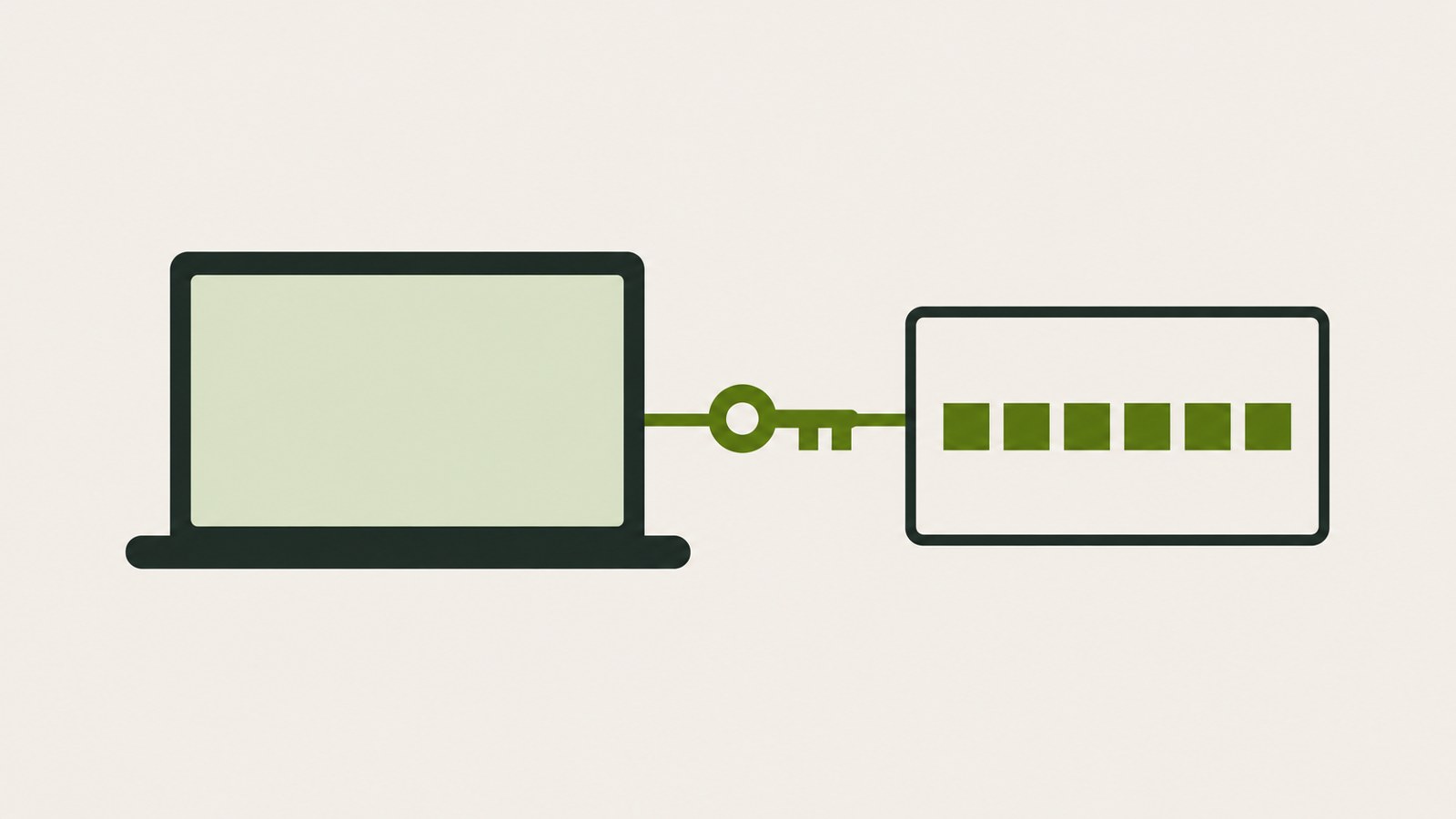
Codex terminal update lets you add or edit custom model providers from the terminal. This setting is available when custom gateway onboarding is enabled.
You can create a provider during sign-in. For supported gateways, device code authentication works in environments that do not have an SSH connection or a local browser.
- Enable custom gateway onboarding.
- Create or edit a custom provider during sign-in.
- Use device code authentication with a supported gateway.
4. Manage conversations in the terminal with optional Cloud connection
Sending images and choosing a model are available while composing a conversation. You can also archive or restore existing Cloud conversations to keep them organized.
5. Block project settings in untrusted folders
codex exec disables project settings and MCP servers in untrusted directories. This remains the case even when you specify --sandbox workspace-write.
To explicitly save project trust in Codex terminal update, use --trust with codex exec or codex review. Write access in the sandbox alone does not enable project settings.
FAQ
Can I use Cloud features on Windows?
The release notes describe the optional Cloud connection for macOS and Linux. They do not specify support for other operating systems.
Will --sandbox workspace-write apply settings from an untrusted folder?
No. codex exec disables project settings and MCP servers in that folder. You can explicitly save project trust by using --trust with codex exec or codex review.
Before signing in to a gateway, check that custom gateway onboarding is enabled and that your gateway supports device code authentication.
댓글
댓글 쓰기