
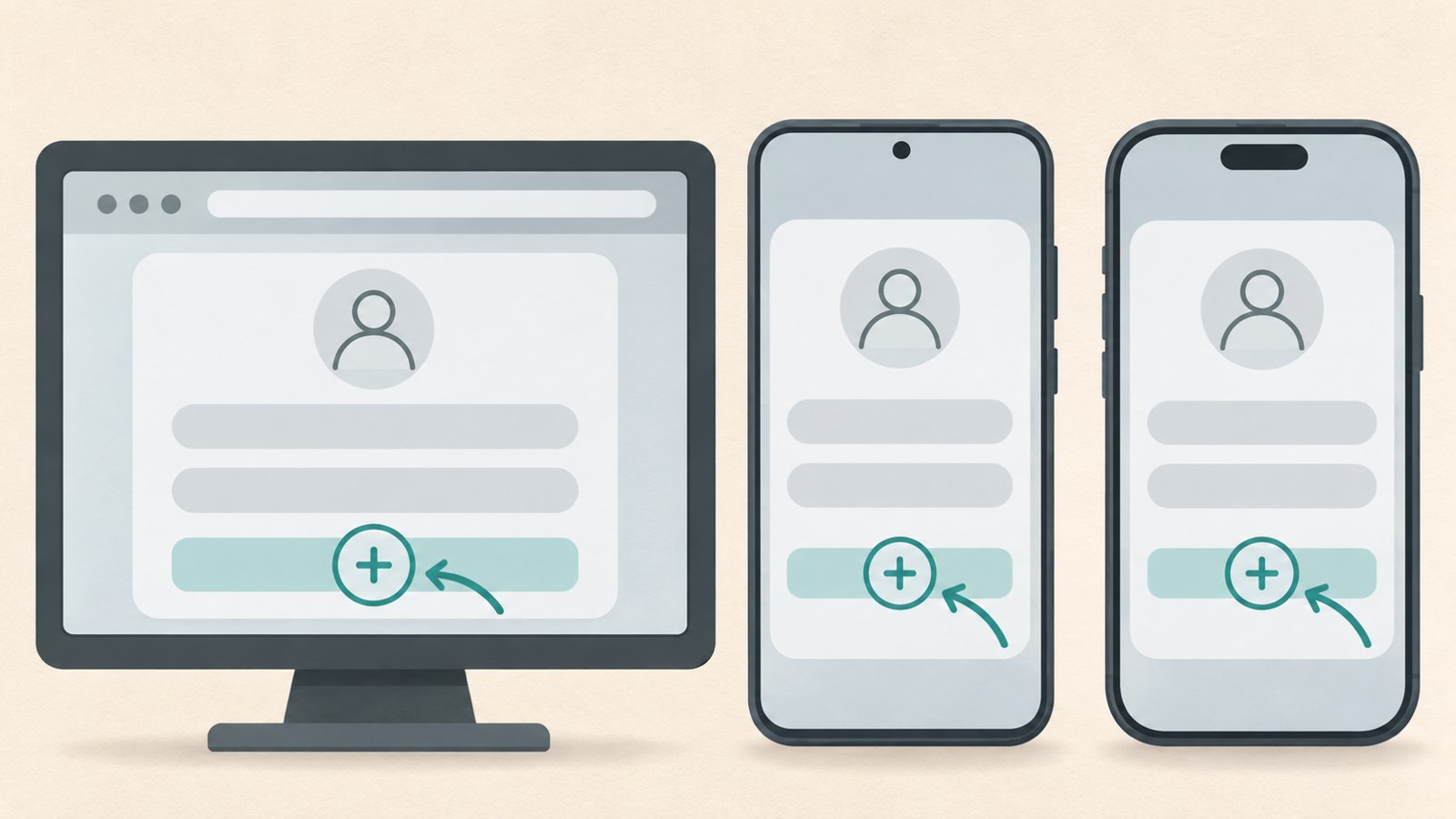
- The menu for adding an account differs by device.
- Whether you can skip phone verification depends on the signup environment.
- Keep your recovery email and login details up to date.
Before you create a Google account
You may need a new account to use YouTube or Gmail, or to keep personal and work sign-ins separate. You can add another account while signed in to an existing one.
On the signup screen, choose to create an account and select the personal use option. Enter the requested details, such as your name and date of birth, then choose a Gmail address and password.
- Decide what you need the new account for.
- On the signup screen, choose to create an account and select the personal use option.
- Enter the requested information and choose a Gmail address and password.
Create an account on a PC
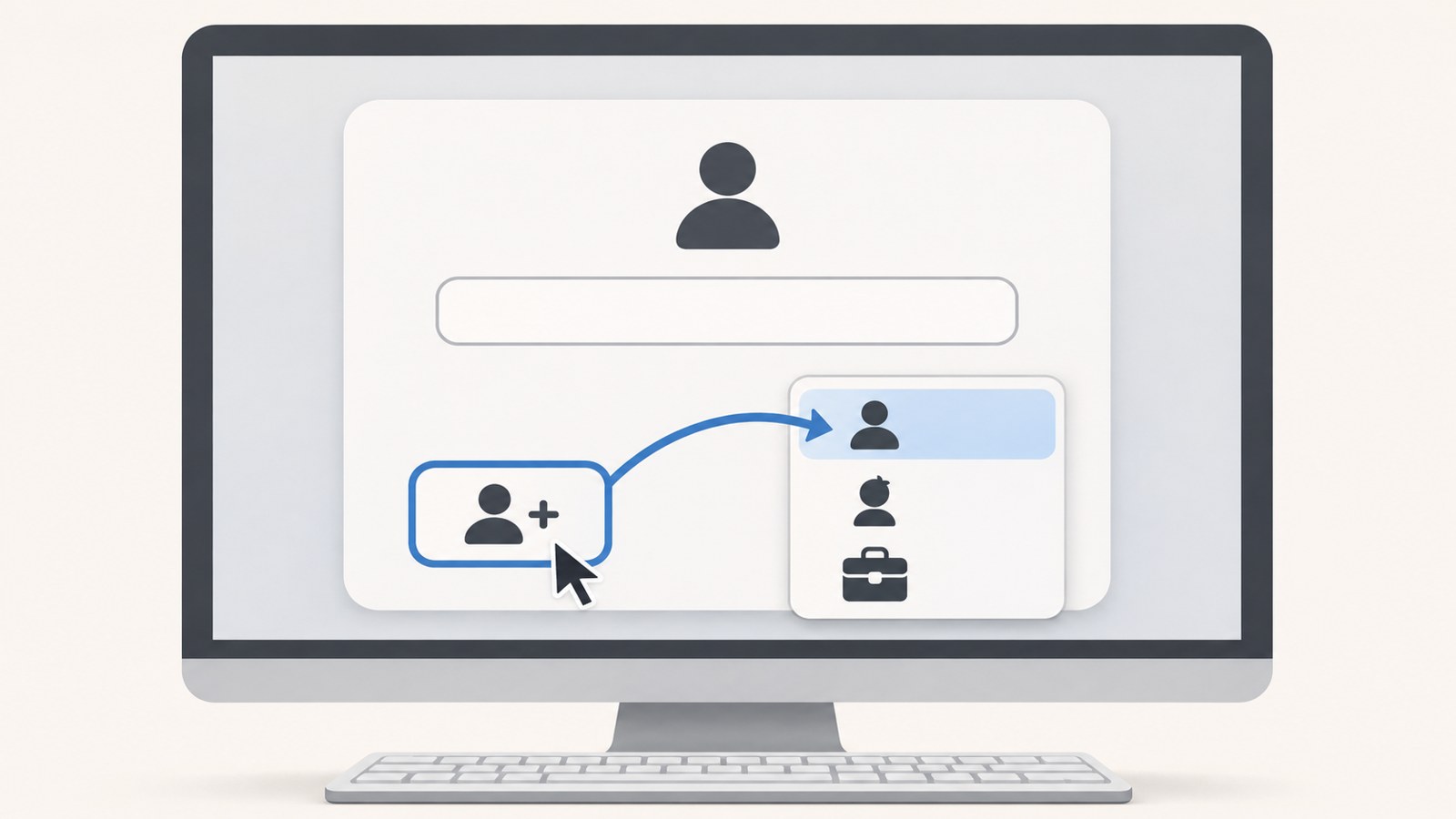
On a PC, start from the Google sign-in page by selecting the option to create an account. Choose the personal use option, enter the requested information, and set a new Gmail address and password.
You may see a prompt to verify with a phone or QR code during signup. If the phone number field offers a skip option, you can select it. Google may still require verification as a security check.
Once you find the signup menu, follow the instructions shown on the verification screen.
- On the Google sign-in page, select the option to create an account.
- Choose the personal use option and enter your signup information.
- If phone or QR code verification appears, follow the instructions on screen.
Add a new account in Galaxy settings
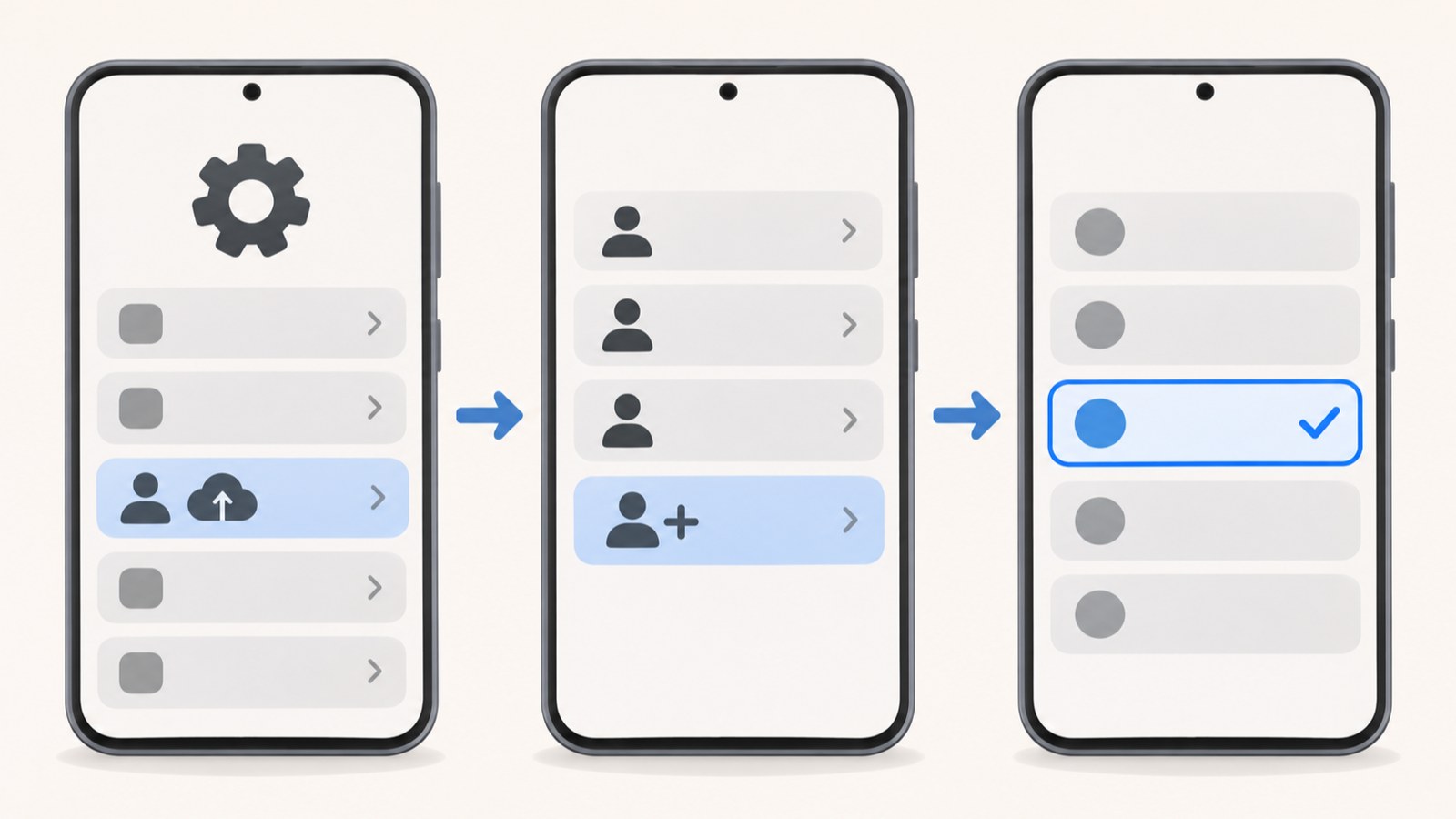
On a Galaxy phone, open Accounts and backup in the Settings app to add an account. Check the accounts already connected under Manage accounts, then tap Add account and select Google.
When the sign-in screen opens, choose to create an account and select the personal use option. Enter your name, date of birth, Gmail address, and password to continue.
You can add another account even if a Google account is already connected to your Galaxy phone. After creating it, switch to whichever account you need.
- Open Accounts and backup in the Settings app.
- Tap Manage accounts, then Add account.
- Select Google, then choose to create an account for personal use.
- Enter your name, date of birth, Gmail address, and password.
Sign up in an iPhone app and switch accounts
You can add an account through the Google app or Gmail app on an iPhone. Open the app, tap the profile icon, and choose Add another account to go to the Google sign-in screen.
On the signup screen, choose to create an account for personal use. Enter your name, date of birth, Gmail address, and password. The account switcher may be in a slightly different place in each app.
After signup, choose an account from the profile menu. Tap the account you want to use from the list of signed-in accounts.
- Open the Google app or Gmail app.
- Tap the profile icon and choose Add another account.
- Choose to create an account for personal use.
- Enter the requested signup information, then switch accounts from the profile menu.
Signup paths and phone verification by device
The menu you use to start signup depends on whether you are on a PC or a phone. On any device, choose to create an account for personal use, then enter the requested information.
Some signups let you continue without a phone number, but a skip option is not available for every device or account. If Google asks you to complete a security check, you may need to verify your account as directed on screen.
Use this table to find where to start and which menu to choose next. Check the signup screen to see whether you can skip phone verification.
| Device | Where to start | Next menu to select |
|---|---|---|
| PC | Google sign-in page | Create an account, personal use |
| Galaxy | Accounts and backup in Settings | Manage accounts, Add account, Google |
| iPhone | Google app or Gmail app | Profile, Add another account |
Manage your login details and recovery options
If you use more than one account, keep track of the login details for each one. Add a recovery email in case you forget your password, and set up any available security features.
Creating many accounts repeatedly in a short time may trigger extra verification or account creation limits. Separate Chrome profiles can help you manage bookmarks, browsing history, and settings for each account.
After signup, check your login details and recovery options. If you use separate personal and work accounts, keep track of what each one is for.
- Keep the login details for each account organized.
- Add a recovery email and set up available security features.
- If you use Chrome profiles, check the bookmarks and browsing history for each account.
FAQ
What should I do if I don't see an option to skip phone verification?
Depending on the signup environment, you may not be able to continue without entering a phone number. If Google requests a security check, follow the on-screen instructions to complete verification.
Can I add a new account while signed in to an existing one?
Yes. You can use the Add account menu in Galaxy settings or in an iPhone app.
What should I do if a QR code verification screen appears during PC signup?
Signup may prompt you to verify with a phone or QR code. Follow the instructions shown on screen.
After creating your Google account, check your password and recovery email. Follow the signup screen instructions if phone verification is required.
댓글
댓글 쓰기