
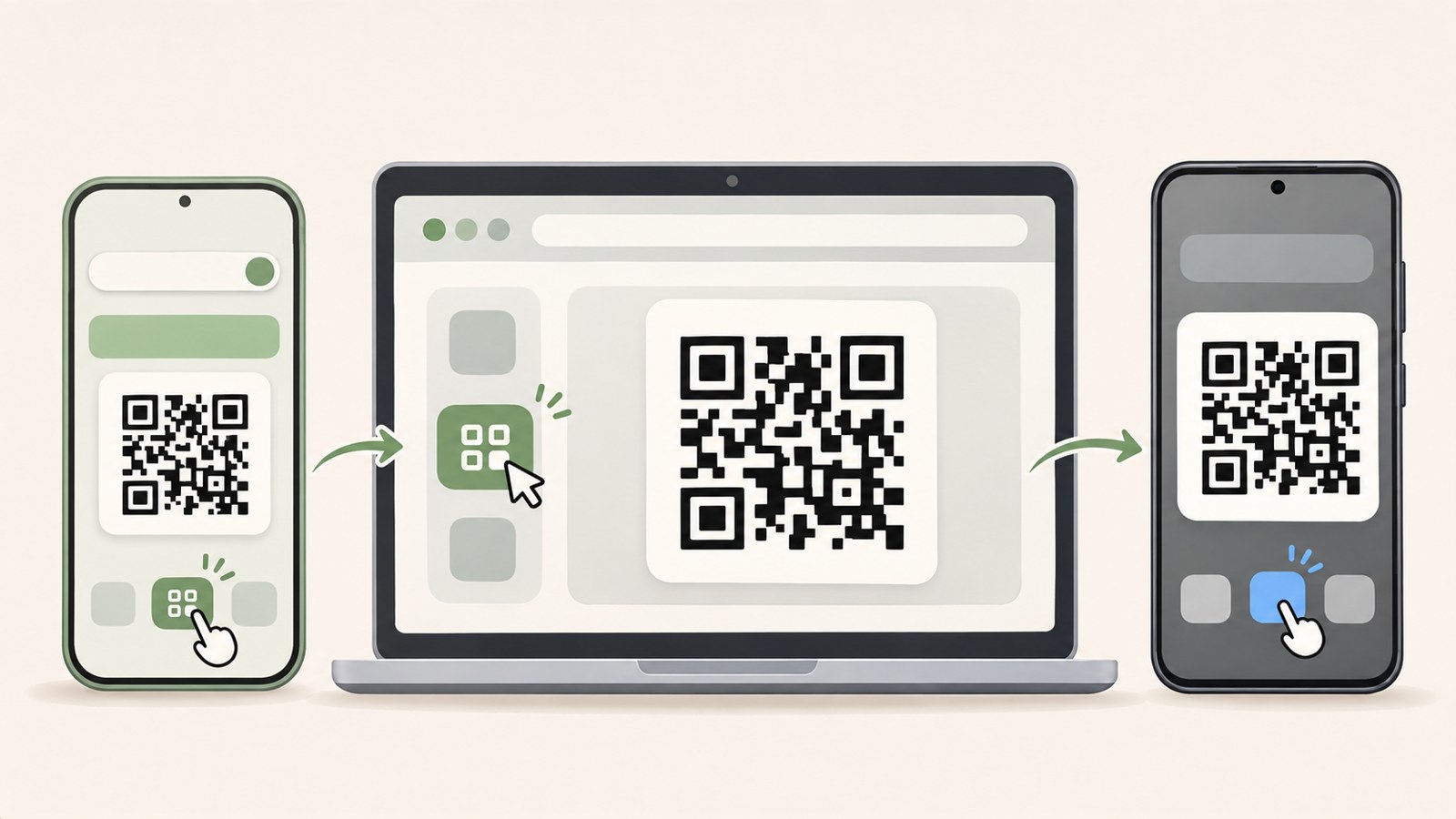
- Naver QR codes let you edit their linked content after creation.
- Chrome turns the address of the current page into a QR code.
- If you plan to print a code, scan the printed copy with a smartphone first.
Create a link QR code with Naver
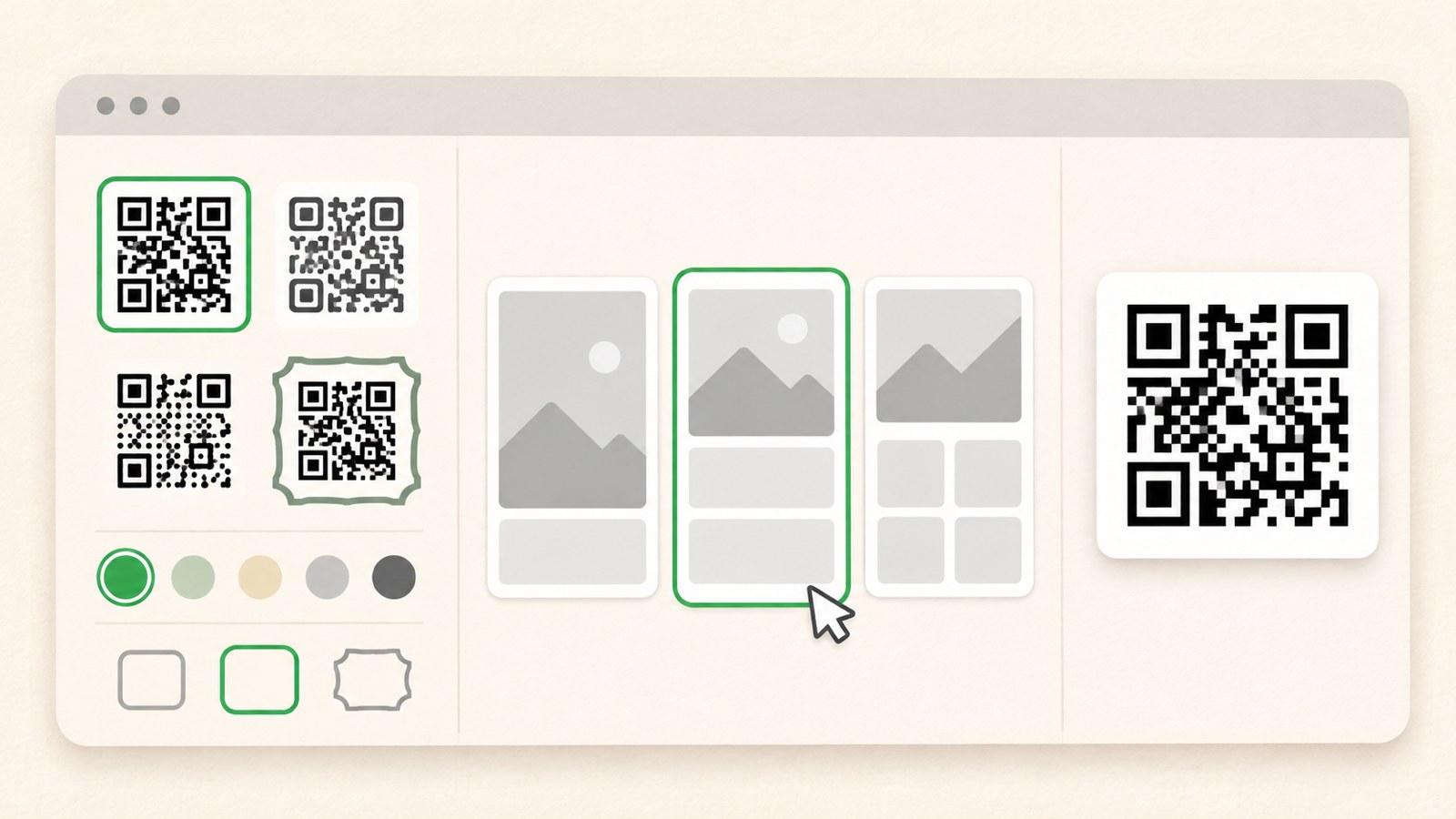
Naver QR Code is a useful option for codes on business cards, notices, and other printed materials. Sign in with your Naver account, then choose a design and page type in the code creation menu.
To link directly to a webpage, select URL link and enter the address. Other available page types include business cards, menus, invitations, Wi-Fi, coupons, notices, and custom pages.
- Go to qr.naver.com and sign in with your Naver account.
- Select Create Code, then choose a basic or skin design.
- Choose a page type and enter the URL or other required information.
- Save or share the code.
Create a QR code for the current page in Chrome
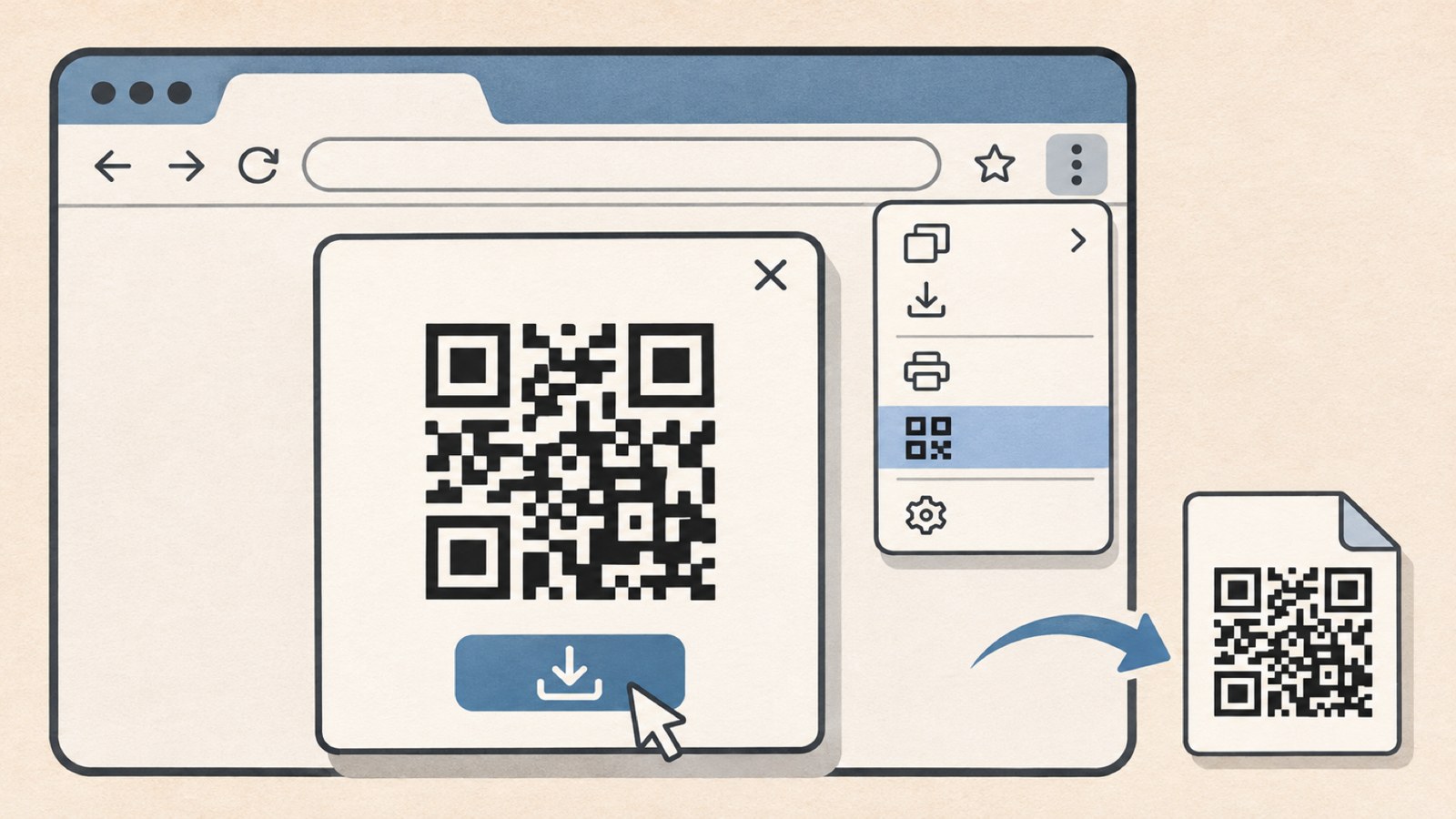
When you want to share the webpage you have open, Chrome can turn its address into a QR code. You can do this from the browser without visiting another site.
In Chrome on a PC, open the three-dot menu in the upper-right corner and select Cast, save, and share. Menu names can vary by version. Select Create QR code, then download it to save a PNG image.
- Open the page you want to share as a QR code.
- Open the ⋮ menu in the upper-right corner and select Cast, save, and share.
- Select Create QR code and download it.
Choose between Naver and Chrome
Choose based on whether you may need to change the linked content later. You can edit a Naver QR code from code management. A Chrome QR code contains the current page address, so if that address changes, you need to create a new code.
For a notice or business card that you have already distributed, use Naver if you may need to update the destination. For sharing the address of a blog or product page you are viewing, Chrome is a quick option.
| Feature | Naver QR Code | Chrome QR Code |
|---|---|---|
| Information included | Page type and entered content | Current page address |
| Edit later | Linked content can be edited | Create a new code if the address changes |
If you cannot find Edit or your content disappears
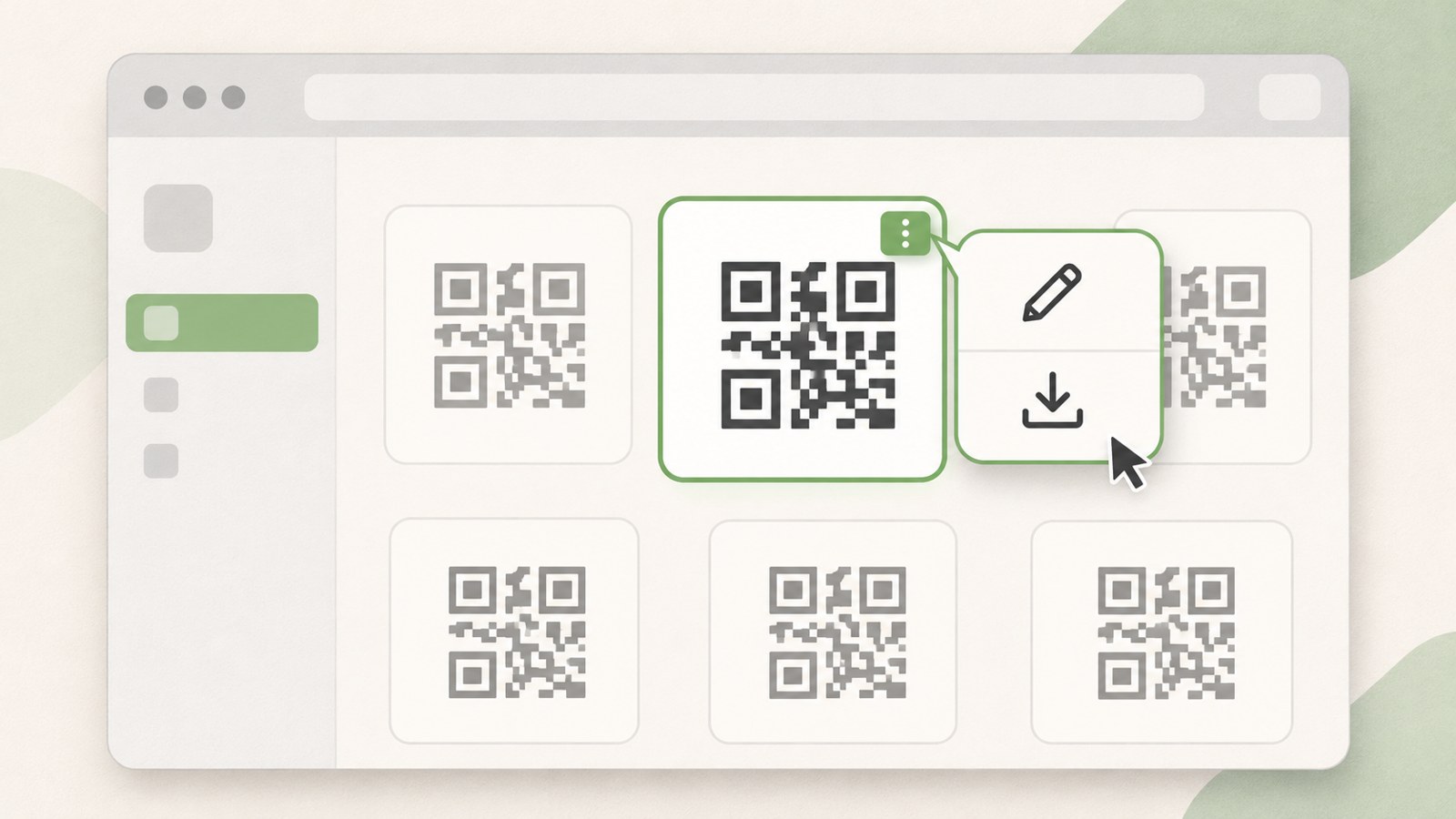
You can create up to 10 Naver QR codes per day. According to Naver QR Code guidance, a code that has not been scanned for 6 months or longer may be deactivated. You can reactivate it.
Deleted codes cannot be restored, and leaving Naver deletes all the codes you created. For printed materials you plan to use for a long time, check the code’s status in code management and keep the saved image somewhere you can find it.
- Find the QR code in code management and open its Edit menu.
- Keep the page type and update the linked content.
- In Save Code, choose GIF, JPG, PNG, or SVG.
Check who can access a Wi-Fi QR code
On a Galaxy phone, you can display a QR code from the settings for the Wi-Fi network you are connected to. Someone who scans it on another device can connect without entering the password. There is also an option to save the code as an image.
A Wi-Fi QR code may contain an unencrypted password. If you post its image in a group chat or on social media, the password could be exposed. If you have a guest Wi-Fi network, share that network’s code instead.
- Open Settings, then select Connections and Wi-Fi.
- Tap the gear icon next to the network you are connected to.
- Open the QR code near the bottom of the screen, then show it or save it as an image.
Test the QR code on the printed page
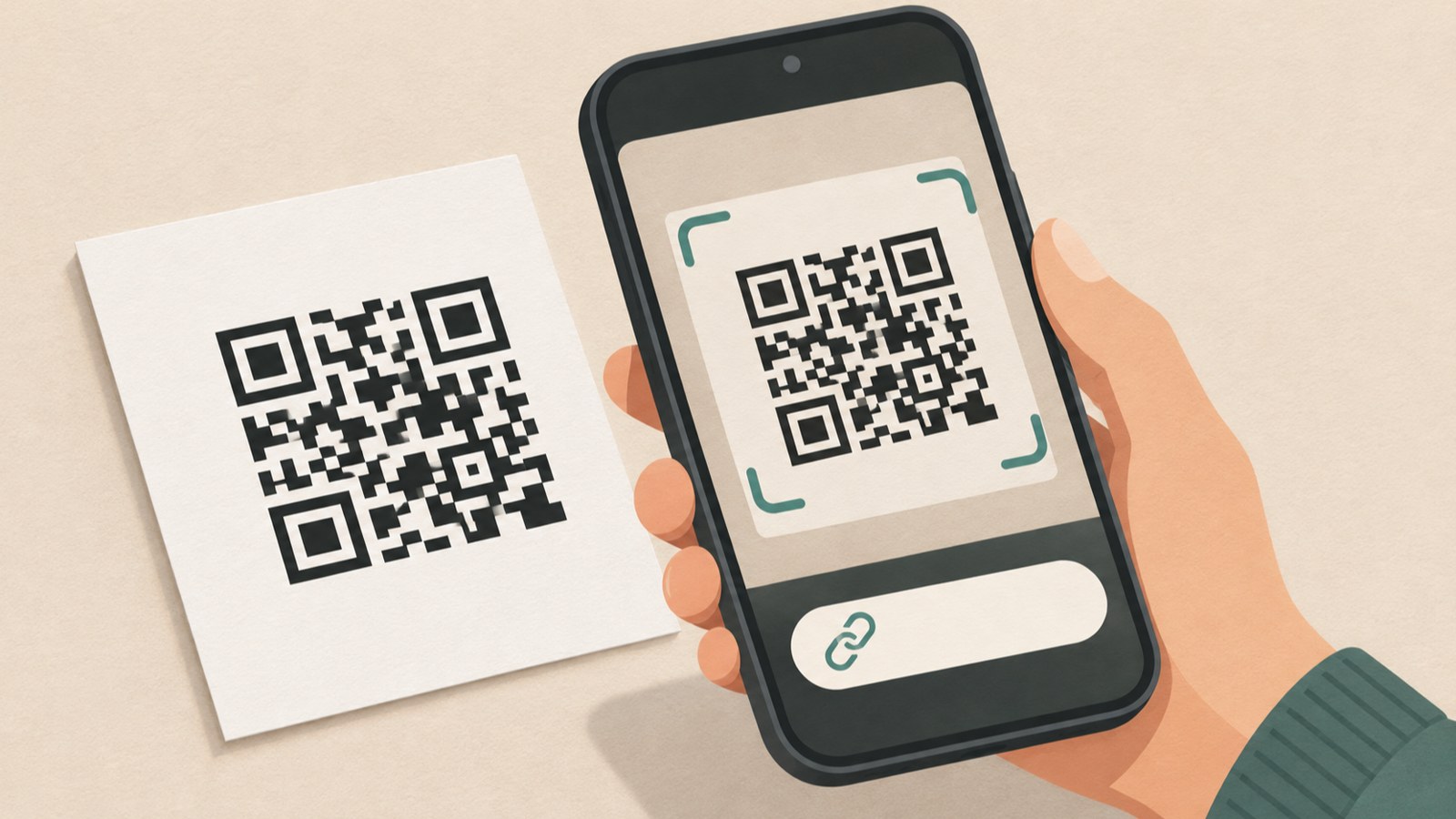
After creating a code, scan it with your smartphone camera and check that the linked address opens correctly. If you plan to print it, scan the printed page too. A code that works on screen may be harder to read on paper.
If the camera does not read the code, place it in the center of the screen and point the camera straight at it. A black code on a white background is easier to scan. A code that is too small or has an image placed in the center may occasionally fail to scan.
Before sharing the code, scan it once more with a smartphone. Check both that the address opens and that it leads to the intended page.
FAQ
Will my entered content remain if I change the page type in Naver QR Code?
Changing the page type may delete the additional page information you entered. Choose the page type before you start creating the code.
Can I change the address in a QR code made with Chrome?
A Chrome QR code contains the current page address. Create a new code if you need to use a different address.
What should I do if my printed QR code does not scan well on a smartphone?
Point the camera straight at the code and check that it appears black on a white background. Make sure it is not too small, then scan the printed copy again.
댓글
댓글 쓰기