
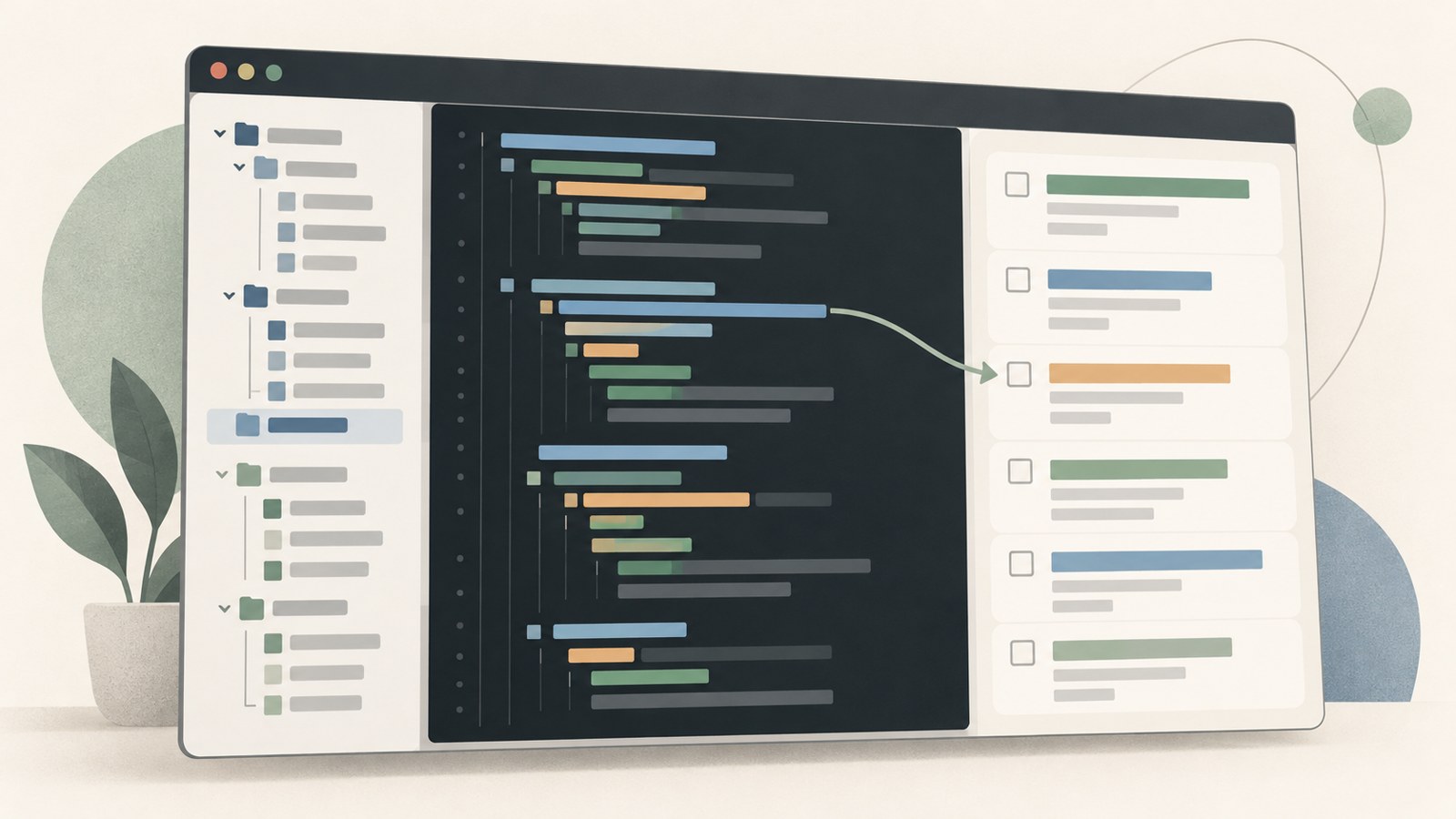
- Use Cursor AI to explore a codebase and plan features.
- Ask it to help find bugs, then review its proposed changes and checks.
- Build quick prototypes or internal tools to test ideas and support team work.
What is Cursor AI?
Cursor AI is a coding agent that helps build and refine software. It can inspect a project’s codebase, help plan features, and work through bug fixes.
Cursor’s official documentation also explains how to review and inspect code changes. A useful workflow is to define the task, review what Cursor produces, and decide what to do next.
Explore a project and plan a feature
When you are new to a project, Cursor can help you understand how the codebase is organized and where to start. Before building a feature, you can use it to think through the scope and a possible work plan.
Describe the outcome you want and the problem you are trying to solve. Once Cursor suggests a plan, check whether it fits the project and use that review to choose the next task.
- Choose what you want to understand or change in the project.
- Ask Cursor to find a good place to start in the codebase.
- Review the proposed feature scope and work plan.
Find bugs and review changes
If a bug appears, ask Cursor to help reproduce the problem and narrow down its cause. After it suggests a fix, inspect the code changes and the results of any checks.
Cursor’s official documentation recommends reviewing changes and running checks before merging. If you do not understand a change, do not ship it to a live service until you have reviewed it.
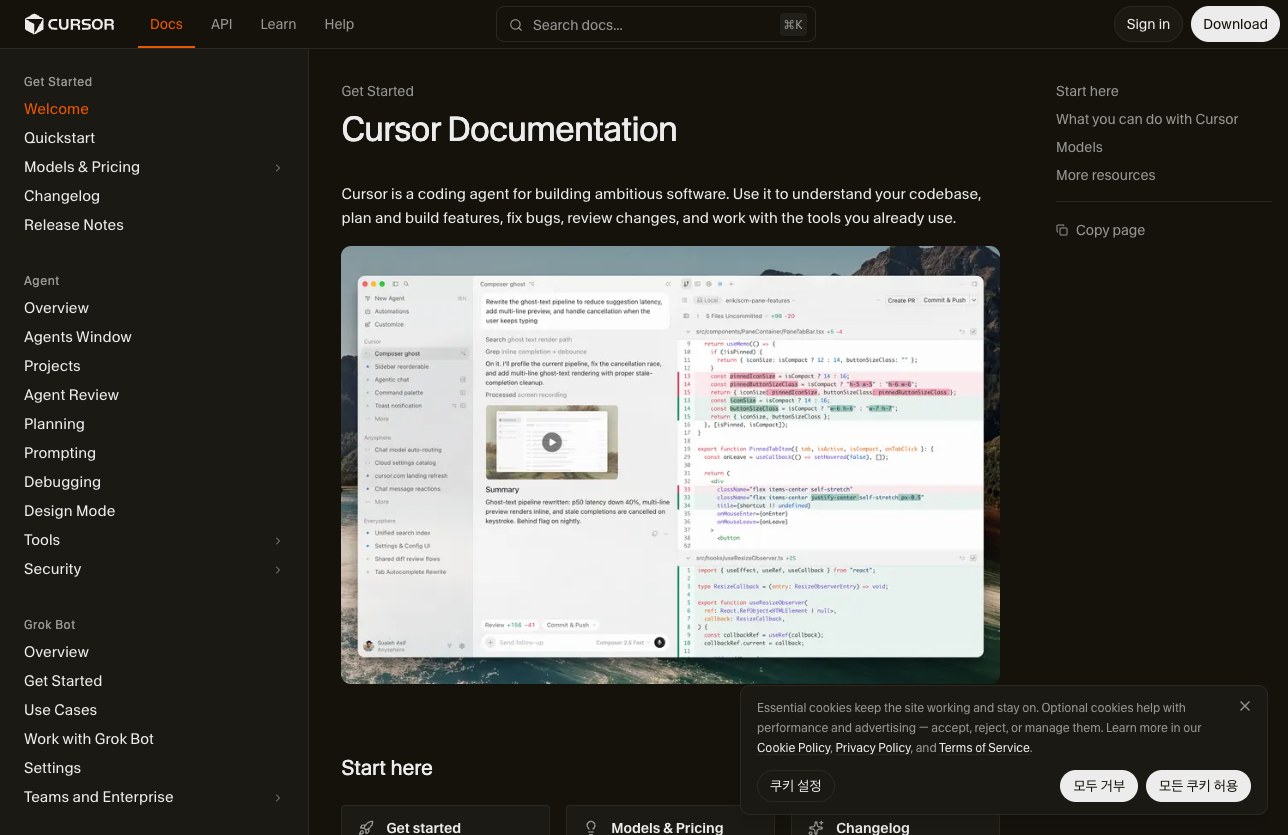
Review the changed code and check results before applying the fix.
Build prototypes and internal tools
Cursor AI can help you quickly put together a prototype or experiment. Cursor’s official documentation gives examples of designers turning ideas into prototypes and product planners making internal tools.
Check whether the result serves the purpose you started with. A prototype can help test an idea, while an internal tool can support the team’s work.
| Purpose | Example request | What to check |
|---|---|---|
| Test an idea | Turn this idea into a working prototype. | A prototype that lets you test the idea |
| Support team work | Build the internal tool we need. | An internal tool the team can use |
Fit Cursor into your workflow
You can break work into steps: understand the codebase, plan a feature, implement it, fix bugs, and review the changes. Checking the result at each step makes it easier to see whether the code matches the request.
Cursor’s official documentation also covers integrations with GitHub, GitLab, Azure DevOps, and Bitbucket. If your team already uses one of these development tools, check the documentation for its integration details.
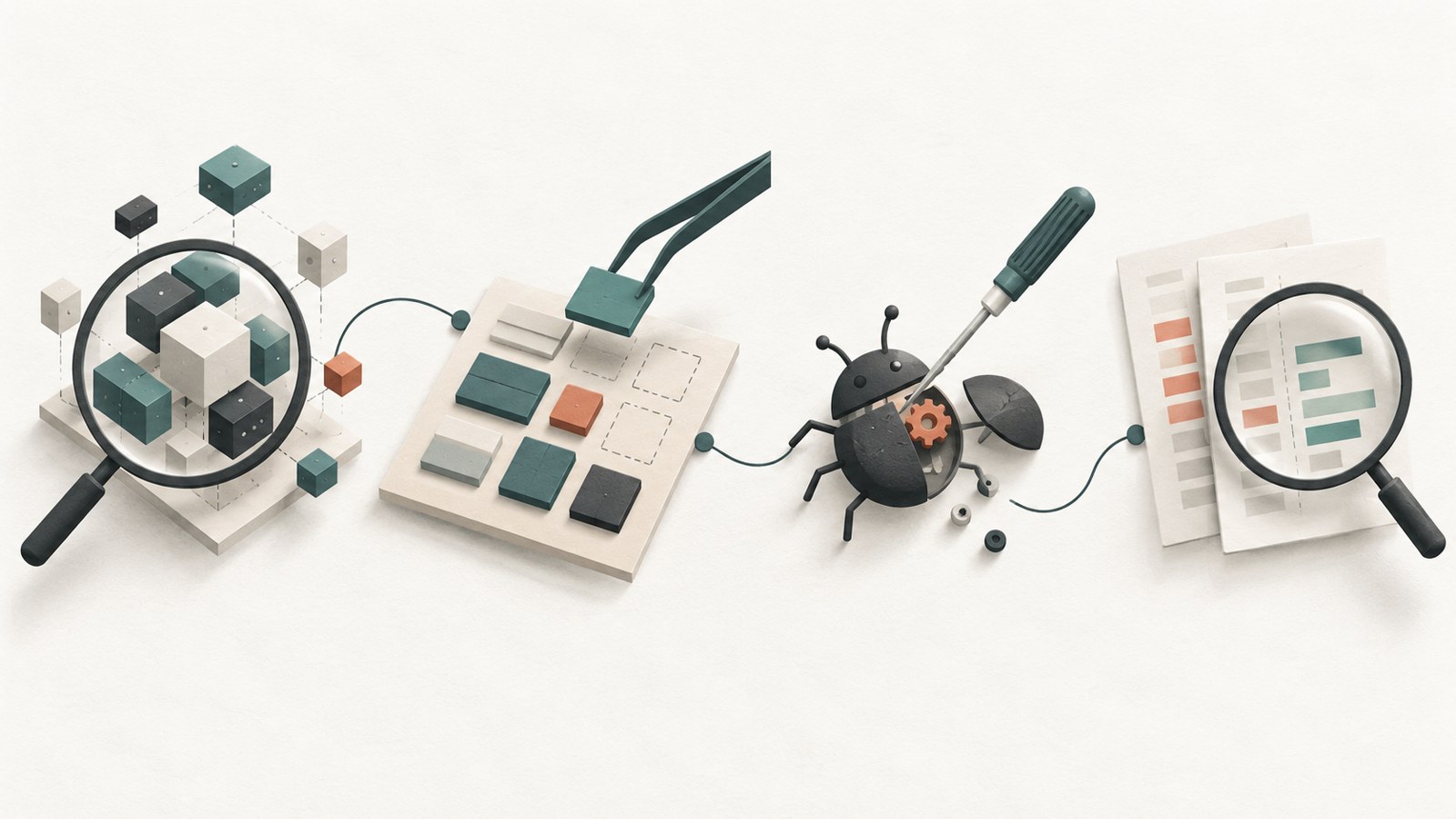
A practical sequence is to inspect the project, plan the work, fix bugs, and review the changes.
Start with a small task
For your first request, choose something easy to evaluate, such as asking Cursor to explain the project or plan a small feature. When you ask it to fix a bug or review changes, include the problem and the result you expect. That gives you a clear basis for checking its work.
Ask for an explanation when a change is hard to understand, and review the check results. Before putting code into a service, inspect both the changes and the results yourself.
FAQ
What can I use Cursor AI for?
You can use it to understand a codebase, plan and implement features, fix bugs, and review code changes.
Can I use Cursor AI if I’m not a developer?
Cursor’s official documentation describes designers creating prototypes and product planners building internal tools.
Can I ship AI-written code straight to a live service?
Cursor’s help guidance advises against shipping code you do not understand. Review the changes and run checks first.
댓글
댓글 쓰기