
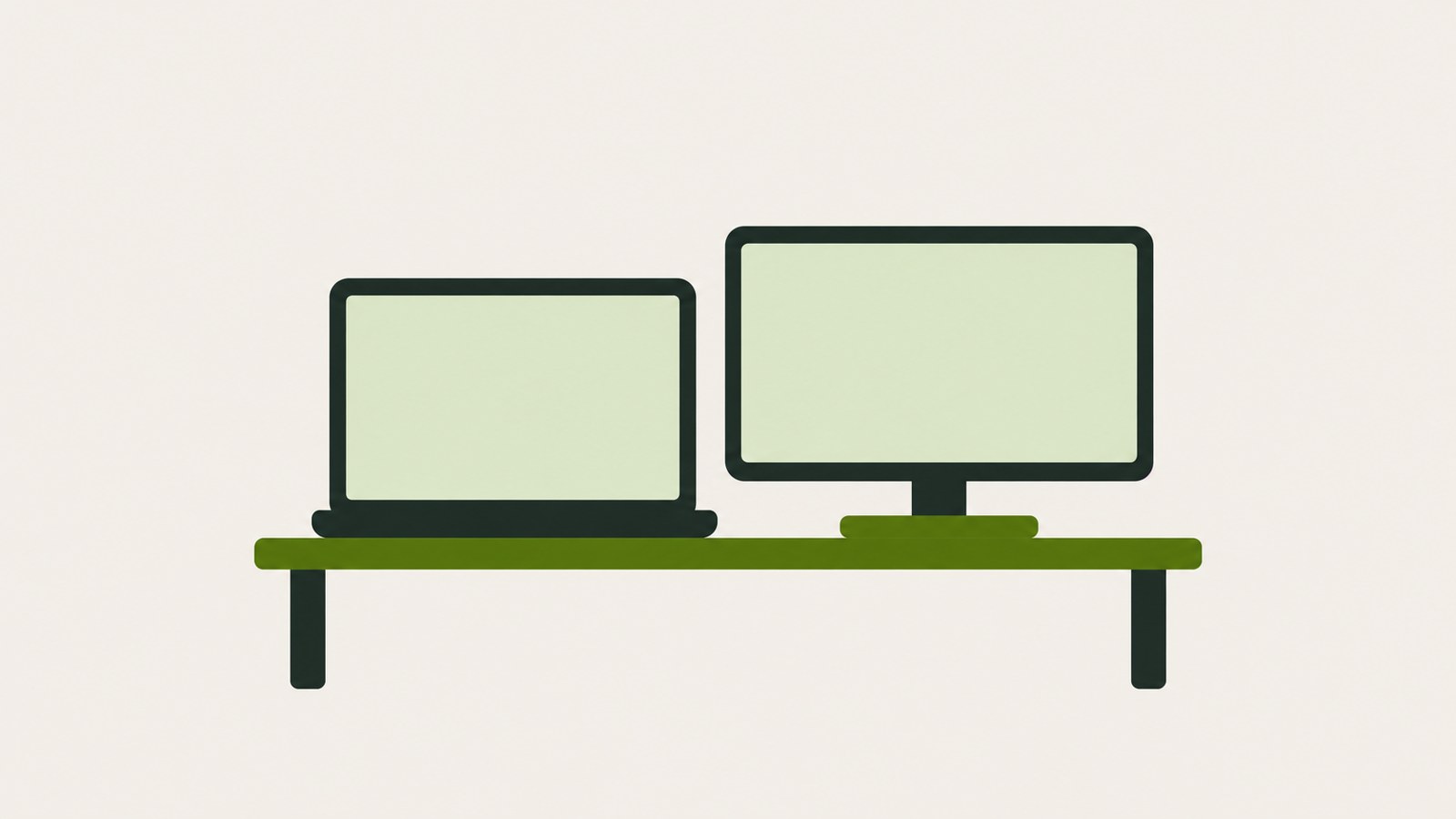
- Choose Extend to use the two screens as separate workspaces.
- Set the monitor input to match the port where you plugged in the cable.
- Use Identify to check the screen numbers and arrange them to match your desk.
Check ports and cables before connecting
Check the ports on your laptop and monitor first. If both have HDMI ports, connect them with an HDMI cable.
If your laptop has no HDMI port, check for USB-C. USB-C ports do not all support video output. Look for a display or lightning symbol beside the port.
- Check the video input and output ports on your laptop and monitor.
- For HDMI ports, use an HDMI cable. For a USB-C port that supports video output, use a USB-C to HDMI cable or hub.
- If you use Mini DisplayPort, get an HDMI adapter.
| Laptop port | What you need | What to check |
|---|---|---|
| HDMI | HDMI cable | Check that the monitor also has an HDMI port |
| USB-C with video output support | USB-C to HDMI cable or hub | Check that the port supports video output |
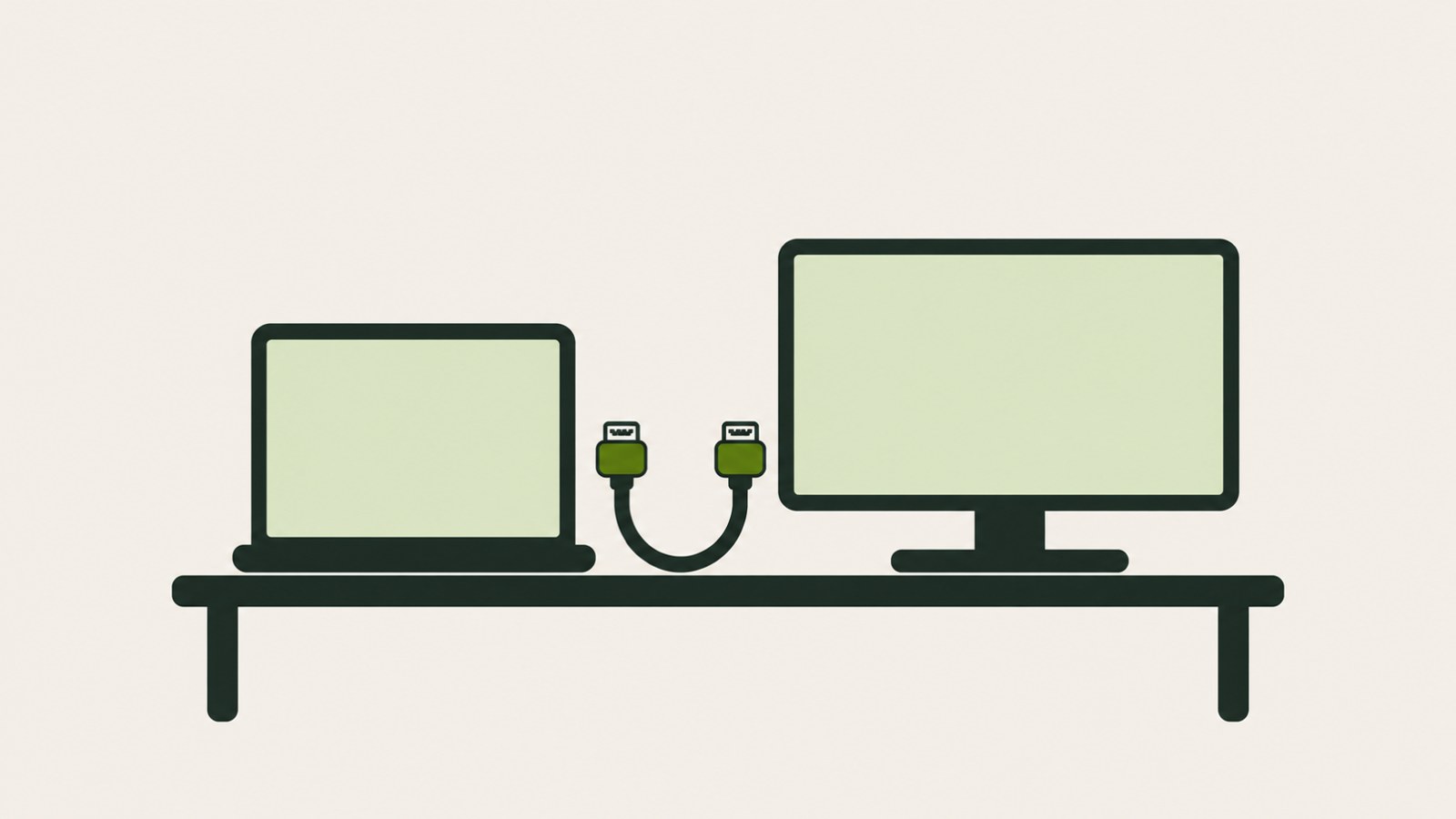
Choose a cable that matches the ports on your laptop and monitor.
Extend your screen in Windows
After connecting the cable, press Windows key + P to choose a display mode. If both screens show the same content, select Extend instead of Duplicate.
Extend lets you use each screen separately. For example, you can keep a document on one screen and a web page on the other.
- Connect the cable to the ports on your laptop and monitor.
- On the monitor, select the input that matches the port you used.
- Press Windows key + P on your keyboard.
- Choose Extend from the display options.
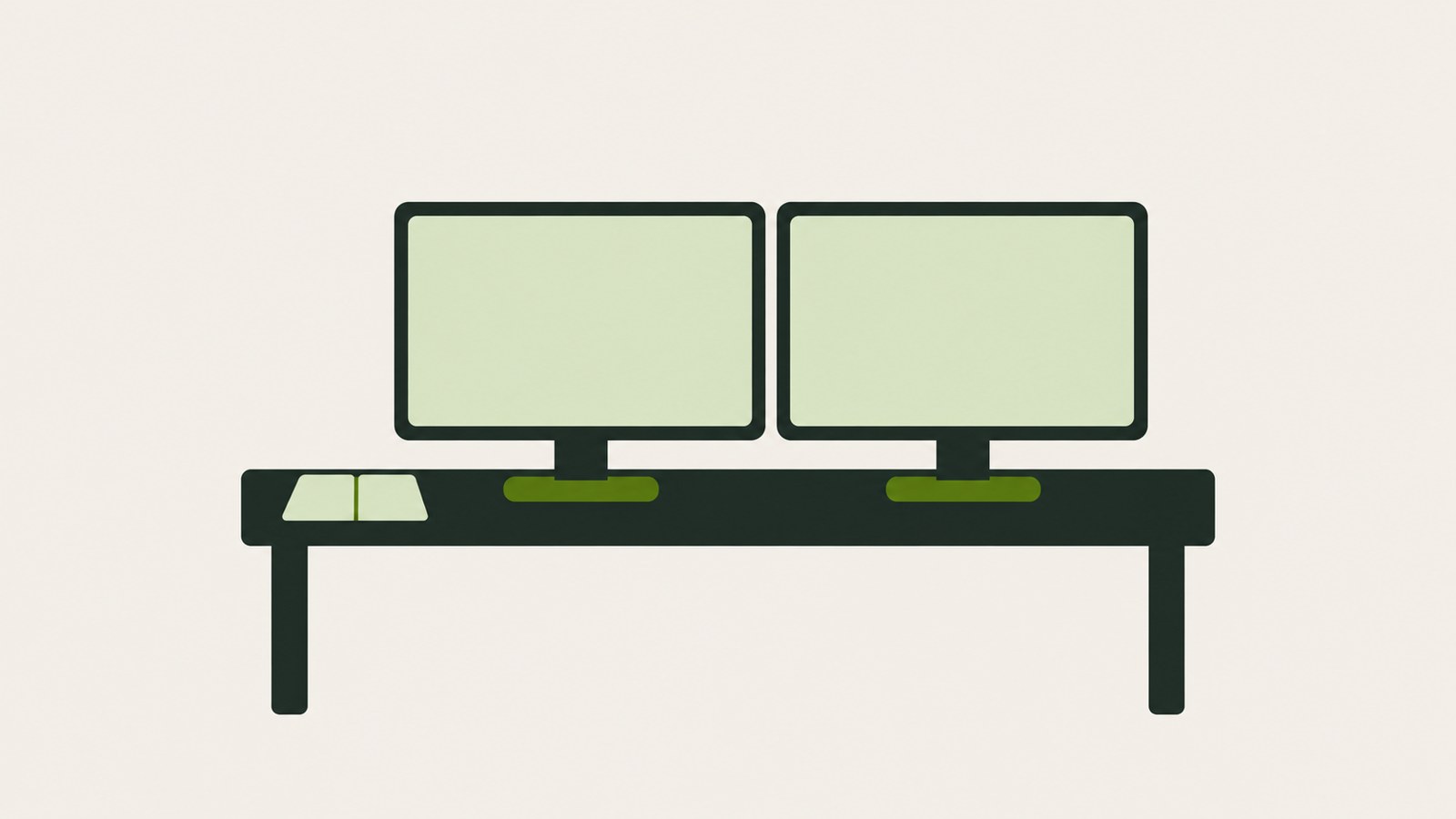
Keep a document on one screen and a web page on the other.
Match the screen arrangement to your desk
If the screen is extended but the mouse moves in the wrong direction, adjust the monitor arrangement in Display settings. Select Identify near the top of the settings to show a number on each screen.
If the numbered screens do not match their left-to-right positions on your desk, drag the screen boxes into the correct positions. The mouse will then move between screens in the direction that matches your monitor layout.
- Right-click an empty area of the desktop and open Display settings.
- Select Identify to check the screen numbers.
- Drag the screen boxes left or right to match the monitors' positions.
- Select the screen you use most and check Make this my main display.
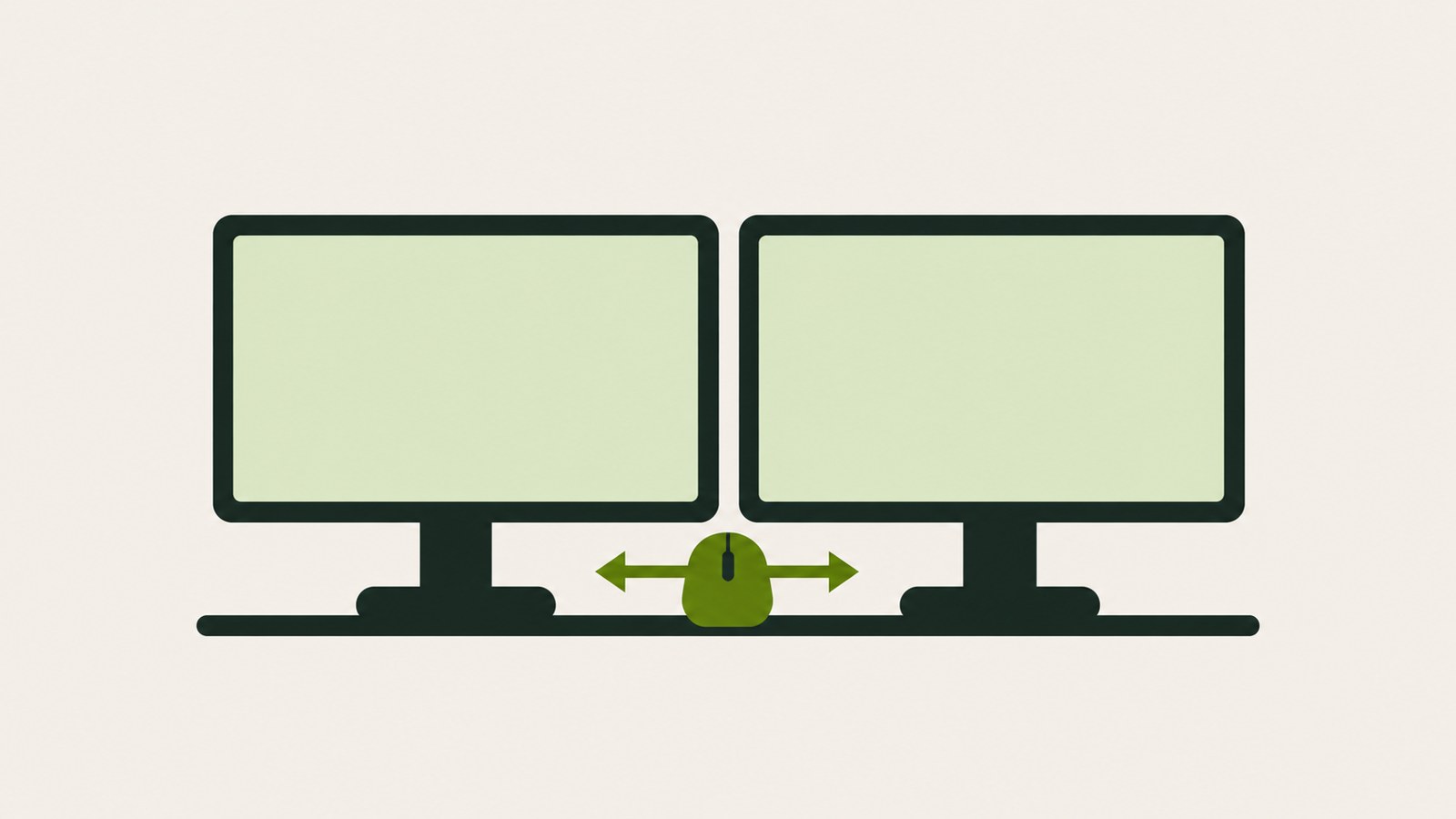
Arrange the displays to match the direction your monitors sit on the desk.
Choose a display mode and size for your work
Windows key + P offers PC screen only, Duplicate, Extend, and Second screen only. Choose the mode for the screen or screens you want to use. For example, select PC screen only to use the laptop display, or Second screen only to use the external monitor.
Duplicate shows the same content on both screens. If text or icons look different in size, select each monitor in Display settings and check that Scale and Display resolution are set to their Recommended values.
- Press Windows key + P and choose a display mode for your current task.
- If the screens look different in size, select each monitor in Display settings.
- Check the Recommended values for Scale and Display resolution.
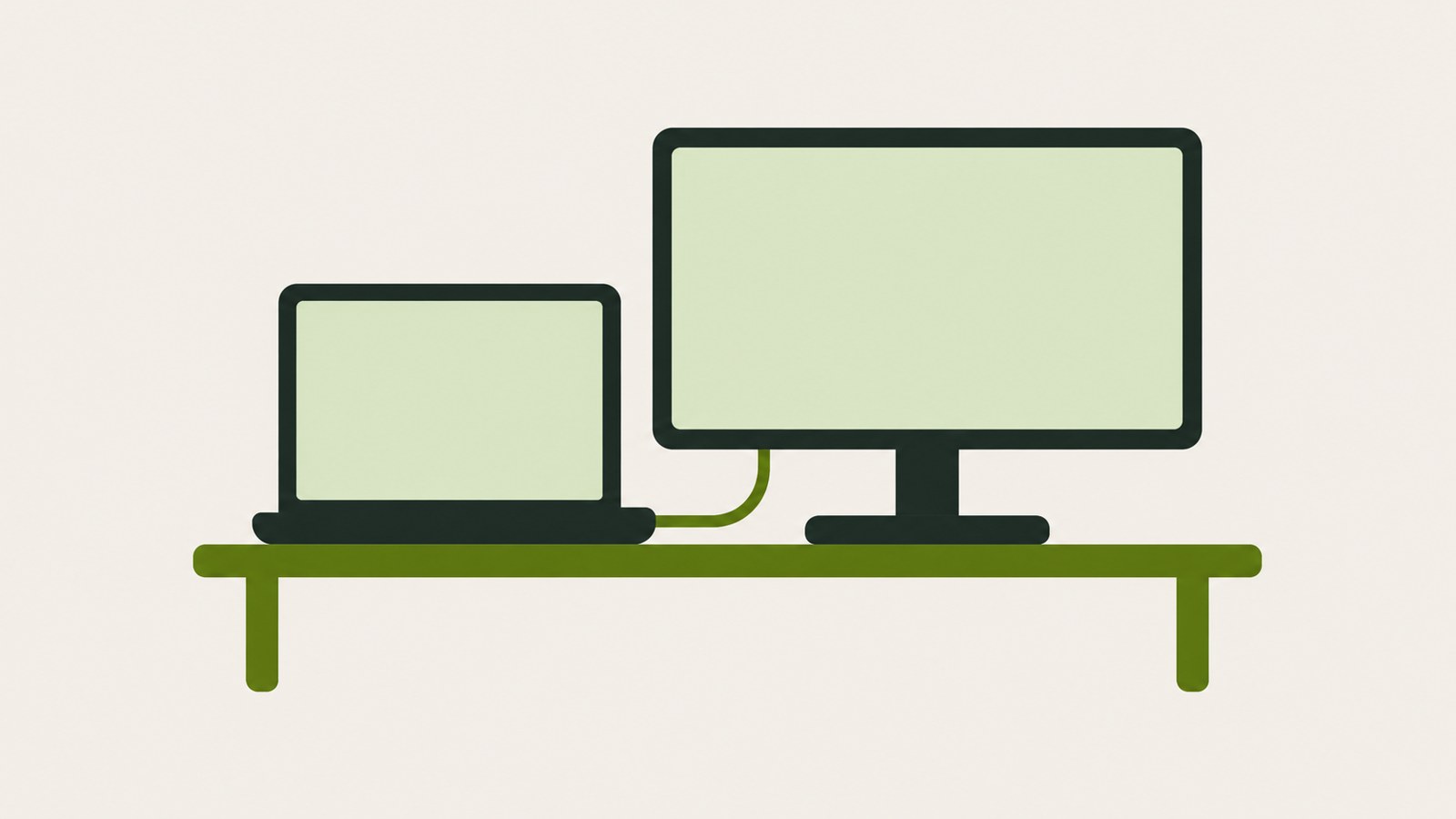
Choose whether to show the same content on both screens or use them for separate tasks.
Check the input if the monitor says No signal
If the monitor displays No signal, check its input and the cable before changing display modes again. For example, if the cable is plugged into HDMI 2, set the monitor input to HDMI 2.
If the screen still does not appear after you check the input and cable, try another HDMI port or cable. In Windows Display settings, select Detect to look for the monitor. If Windows still does not recognize it, you can restart the laptop or update the graphics driver.
- Check that the monitor input matches the port where the cable is connected.
- Unplug the cable and reconnect it securely.
- Try another HDMI port or cable.
- Select Detect in Display settings.
- For a USB-C connection, check again that the port supports video output.
Check both ends of the cable and the monitor input if the display has no signal.
FAQ
Can I connect a monitor to any USB-C port?
A USB-C port does not always support video output. Check for a display or lightning symbol beside the port. If it supports video output, use a USB-C to HDMI cable or hub.
Can an HDMI splitter extend the desktop across two monitors?
One guide explains that a basic HDMI splitter duplicates the signal and does not support separate extended screens. To use each display independently, check whether you can connect the monitors to separate video output ports on your PC instead.
Should I check the cable if my monitor has a high resolution?
Yes. If the resolution and refresh rate are high, check that the cable and adapter support those specifications.
댓글
댓글 쓰기