

- Choose a tool based on what you want to make.
- Free limits and conditions vary by service.
- Start with one tool and learn it through a few tasks.
What can you use free AI tools for?
Start by deciding what you want to create. For questions and writing, try a conversational AI tool. For images, use an image generator. For a presentation, start with a slide tool.
Generative AI tools have different uses. ChatGPT, Gemini, Wrtn, and Copilot can help with questions and writing. Canva and Bing Image Creator can help create images and cards.
No single service is the best choice for every task. Narrow your search to one thing you need right now, such as chatting on your phone or organizing a long document.
| Task | Example tools | What to check |
|---|---|---|
| Questions and writing | ChatGPT, Gemini, Wrtn, Copilot | Sign-in method and free usage limits |
| Images and presentations | Bing Image Creator, Canva, Gamma | Generation limits and free features |
What to check when free usage limits are unclear
A service may be labeled free while limiting how often you can use it or which features are available. These limits can change over time. Check the current usage and free plan details shown in the service, rather than relying on a number from an older blog post.
After signing up, check for free credits, usage caps, and paid feature labels before you begin generating or editing. This can help avoid having work interrupted midway. Check the limit first for tasks such as image and music generation, where you may want to create several versions.
Signing up for several tools at once can make their terms harder to compare. Try one service a few times on the same topic, then check the results and remaining usage before choosing another.
- Choose one thing you want to make.
- Pick one service suited to that task.
- After signing up, check the free limits and features shown on screen.
- Make something with a short prompt, then check your remaining usage.
Start small with a free AI writing tool
If you want to write or ask questions, try a conversational tool such as ChatGPT, Gemini, Wrtn, or Copilot. Wrtn is often described as convenient for its Korean-language menus, while Copilot is described as a tool that can help with web searches and source citations.
Give your first prompt a clear goal and enough context. For example, when asking for a friendly check-in text, say who will receive it and what you want to tell them. Review the short response, then ask for changes where needed.
Read an AI response before copying it to make sure it answers your question. Treat a long draft or summary as a starting point. Check the wording you need and look for missing conditions as you revise it.
Generate an AI image by describing one scene
AI image tools create pictures from written descriptions. Instead of writing a long prompt right away, describe who is doing what and where in one sentence. Add the subject and style first so you can judge the result.
Choose a subject and a visual style, then review the image. If the colors look too dark or the composition feels too distant, pick one issue and change only the words related to it before generating again.
Bing Image Creator, Canva, and Adobe Firefly are tools you can try for image generation. Check each service's current generation limit. If you plan to use an image on a blog or product page, read that service's terms of use separately.

Choose tools for music, presentations, and document summaries
Try Suno AI to make a song from lyrics, Gamma to create a presentation draft from a topic, or NotebookLM to work through a long document. These tools are used for music generation, slide creation, and document summaries, respectively.
Check your account and the service's current screen to see what is available for free. Some services may provide credits or free features at sign-up, but generation limits and terms differ from one service to another.
After making slides or a summary, compare the result with the source material and the message you want to convey. If it misses the mark, make the topic more specific or identify the material you want it to use, then try again.
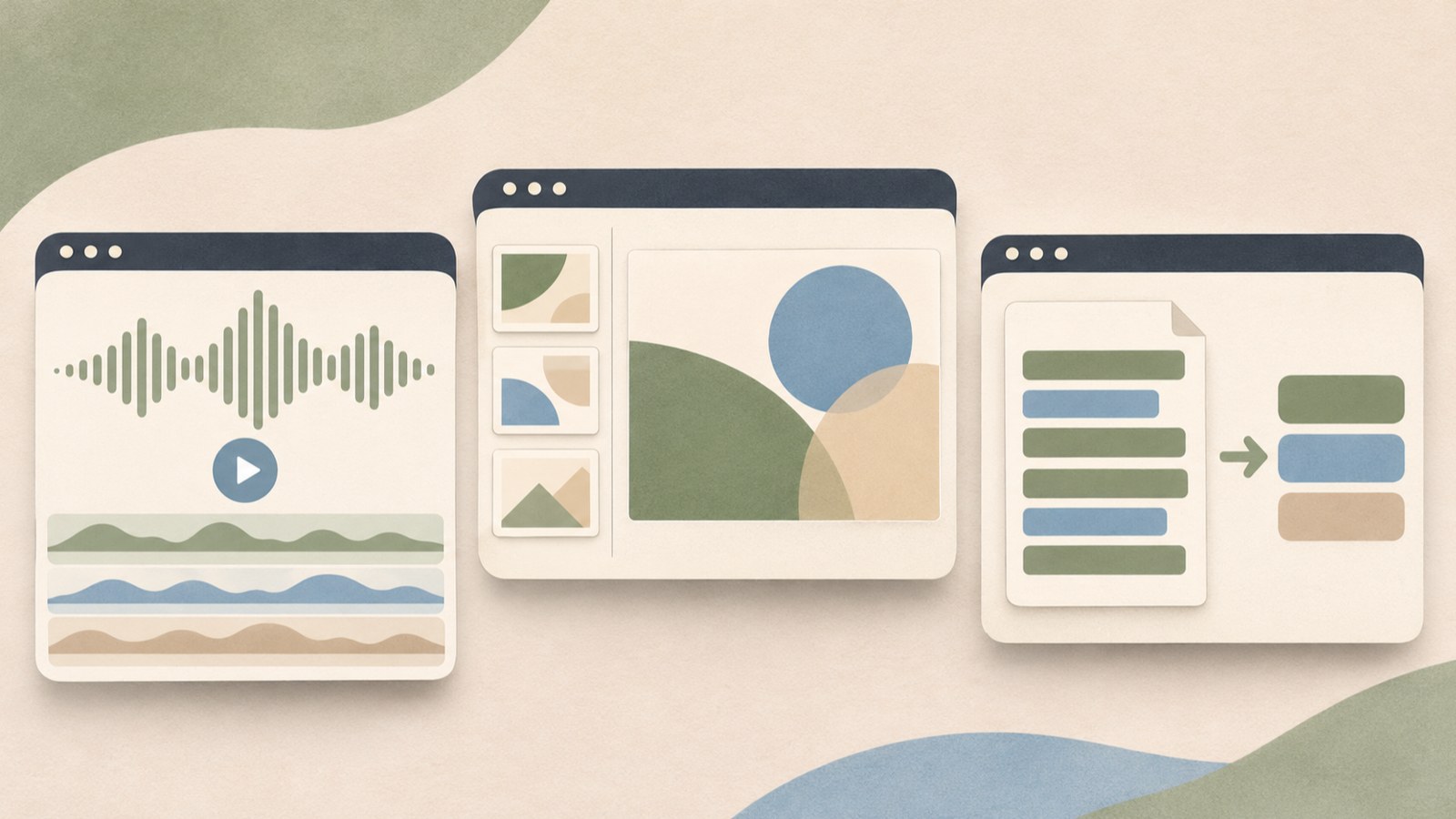
How to choose and keep using your first free AI tool
Choose one task you care about and try one tool. If you need an image, keep refining the same scene. If you need writing help, start with a short question. Keeping the task focused makes it easier to compare results.
If the first result does not work, change one condition instead of rewriting the whole prompt. When you change several things at once, it becomes harder to tell which wording affected the result.
Use the service's current screen and terms of use to check its free limits and commercial use rules. Personal experiments and work you plan to publish or sell may have different requirements, so read the relevant terms before posting.
FAQ
What should I check if there are fewer free generations than I expected?
Free usage varies by service and can change over time. Check the remaining usage and free features shown on the service's current screen.
Can I use images or writing made with free AI for commercial purposes?
Terms vary by service. Check the commercial use section in the service's latest terms of use.
Which tool should I try first?
Choose a tool for the result you want to make. For example, start with a conversational tool for questions and writing, or an image generator for pictures.
Pick one task and check the free limit first. Refine the result a little at a time as you find a tool that works for you.
댓글
댓글 쓰기