
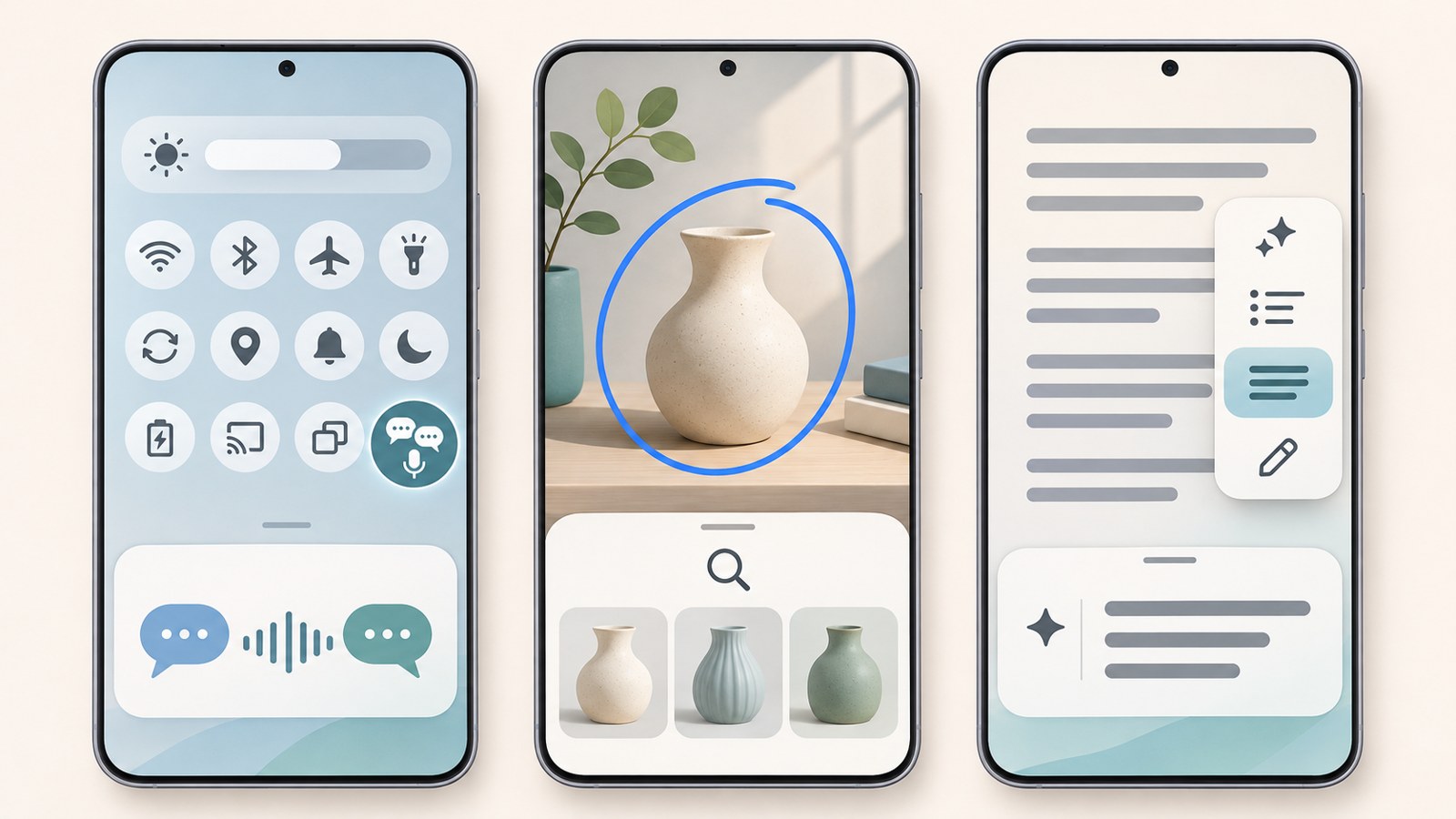
- Open Interpreter from Quick settings for in-person conversations. For calls, use Live Translate in Call Assist.
- Circle an item on screen to search for it with Circle to Search.
- Samsung Notes summaries need at least 200 characters and an internet connection.
1. Check your device if Galaxy AI is missing
Before following this Galaxy AI guide, check your device and settings. Available features can vary by One UI version, region, and carrier, even on the same model.
If you see the Galaxy AI menu, open the setting for the feature you want. Call translation also requires a Samsung account and a network connection. The sections below cover Interpreter, screen search, and Note Assist summaries.
- Open Settings and check whether Galaxy AI appears in the menu.
- For call translation, sign in to your Samsung account and connect to a network.
- Go to Settings > Galaxy AI > Call Assist > Live Translate and turn it on.
2. Open Interpreter from Quick settings for in-person conversations
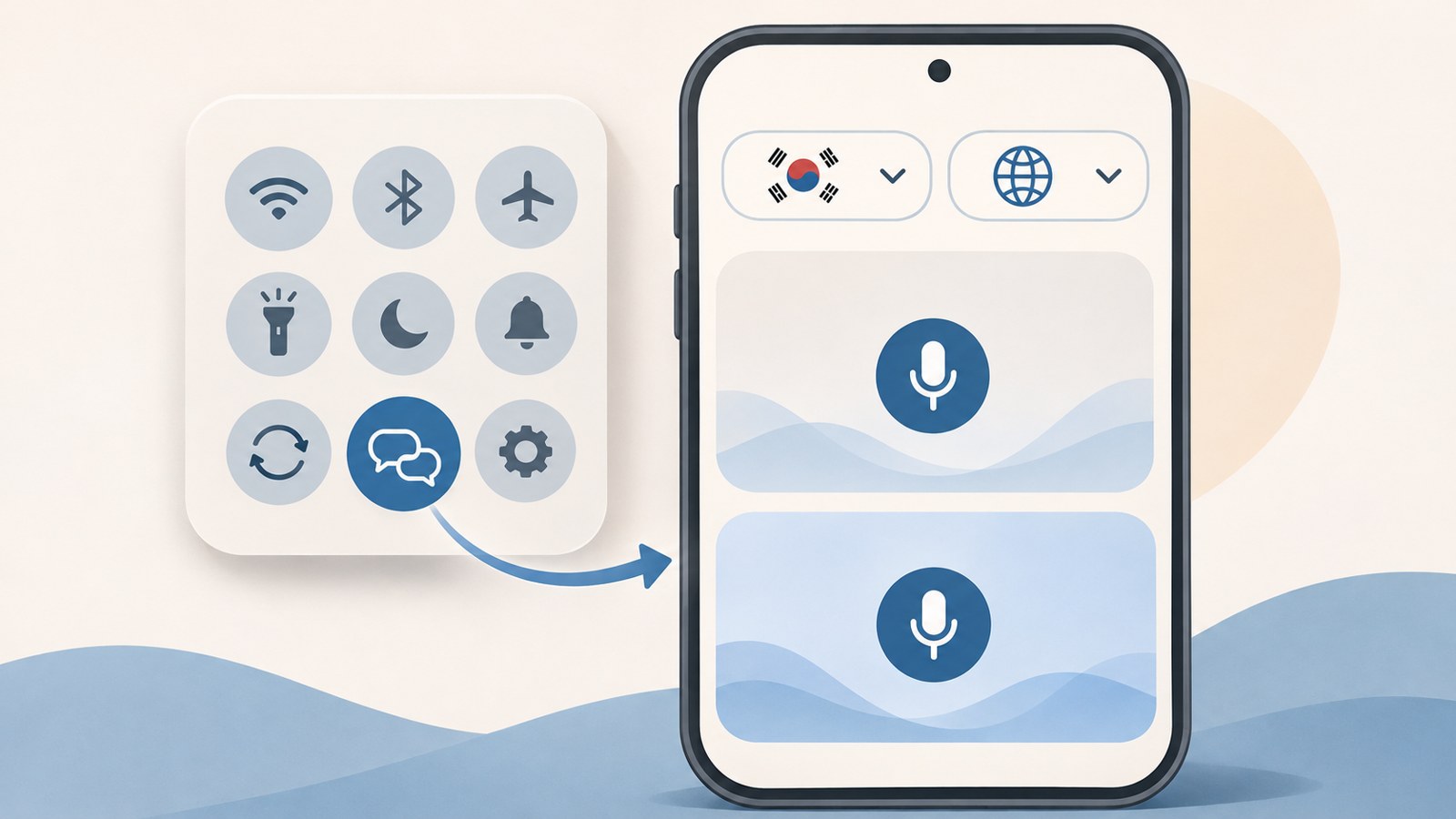
Use the Interpreter app when you are speaking with someone face to face. It opens from a different place than Live Translate, which you use during phone calls.
Open Interpreter from Quick settings to see both languages on screen, one above the other. Change the viewing mode to make the text easier for the other person to read. For a lecture or public announcement, choose Listening mode.
- Swipe down twice from the upper-right corner of the screen to open Quick settings.
- Tap Interpreter, then choose your language and the other person's language.
- Tap the microphone icon and speak.
- For a lecture or public announcement, choose Listening mode from the menu, then tap the microphone.
3. Find Live Translate during a call
For phone translation, tap Live Translate in Call Assist after the call connects. Turn on the feature and choose the languages you will use in Settings before looking for the button during a call.
The menu location can vary by One UI version. On older versions, you may find it under Settings > Advanced features > Advanced intelligence > Phone. For important details such as appointment dates, check the translated text as well.
- Go to Settings > Galaxy AI > Call Assist > Live Translate.
- Turn it on and select your language and the other person's language.
- If a language has a download icon, tap it to download.
- Once the call connects, tap Call Assist, then Live Translate on the call screen.
4. Search for something on screen with Circle to Search
Circle to Search can help identify something on screen, such as a flower or an item of clothing. Circle the item in a photo, video, or text screen to search for it.
Start the search with either the navigation button or gesture, depending on which you use. When the screen dims, draw a circle around the item with your finger. Browse the results shown on screen for related information.
- Open the photo, video, or text that shows the item you want to search for.
- Press and hold the Home button at the bottom of the screen, or press and hold the bottom center of the screen and swipe up.
- When the screen dims, draw a circle around the item.

5. Fix Samsung Notes summary issues
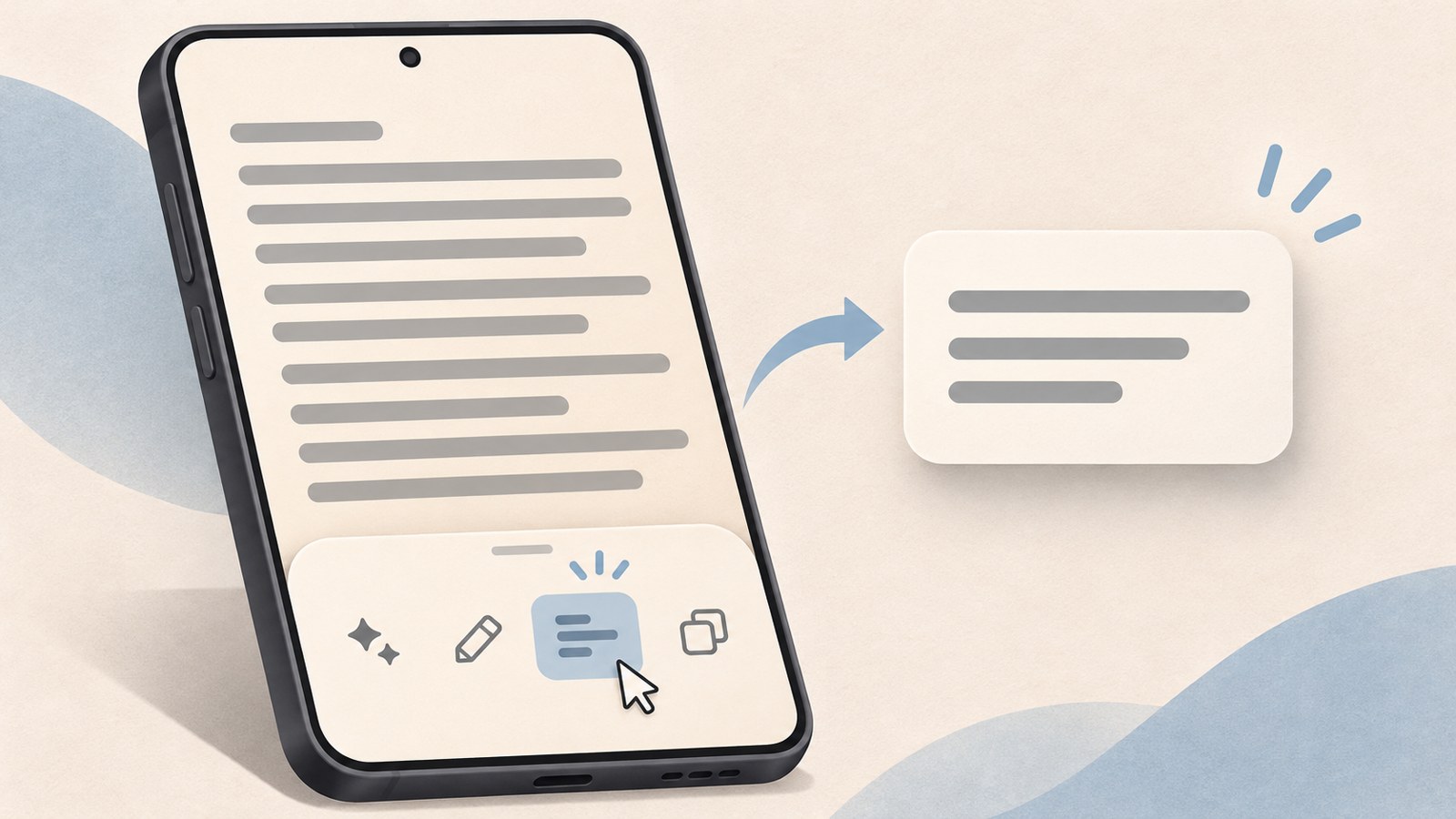
Note Assist in Samsung Notes analyzes the context of your text and organizes the main points into bullets. The text must be at least 200 characters long, and the server processing requires an internet connection.
If you do not see the star-shaped icon in the top toolbar, check the three-dot menu in the upper-right corner. Choose Summarize to see the result in a pop-up at the bottom. You can also create a cover that fits the note from the Note style menu.
- Open the note you want to summarize in Samsung Notes.
- Tap the Note Assist icon in the top toolbar. If it is missing, check the three-dot menu in the upper-right corner.
- Choose Summarize and review the result.
| Feature | Where to open it | What to check first |
|---|---|---|
| Live Translate | Call Assist | Samsung account and network connection |
| Samsung Notes summary | Note Assist | At least 200 characters and an internet connection |
FAQ
Where can I find Live Translate during a call?
Turn it on under Settings > Galaxy AI > Call Assist > Live Translate. Depending on your One UI version, older devices may have the menu under Settings > Advanced features > Advanced intelligence > Phone.
Why does Samsung Notes show no summary after I tap the button?
Check that the text you want to summarize is at least 200 characters long. The feature uses server processing, so it also needs an internet connection.
Where do I open Interpreter for in-person conversations and phone calls?
For an in-person conversation, open Interpreter from Quick settings. For a phone call, choose Live Translate from Call Assist on the call screen.
댓글
댓글 쓰기