
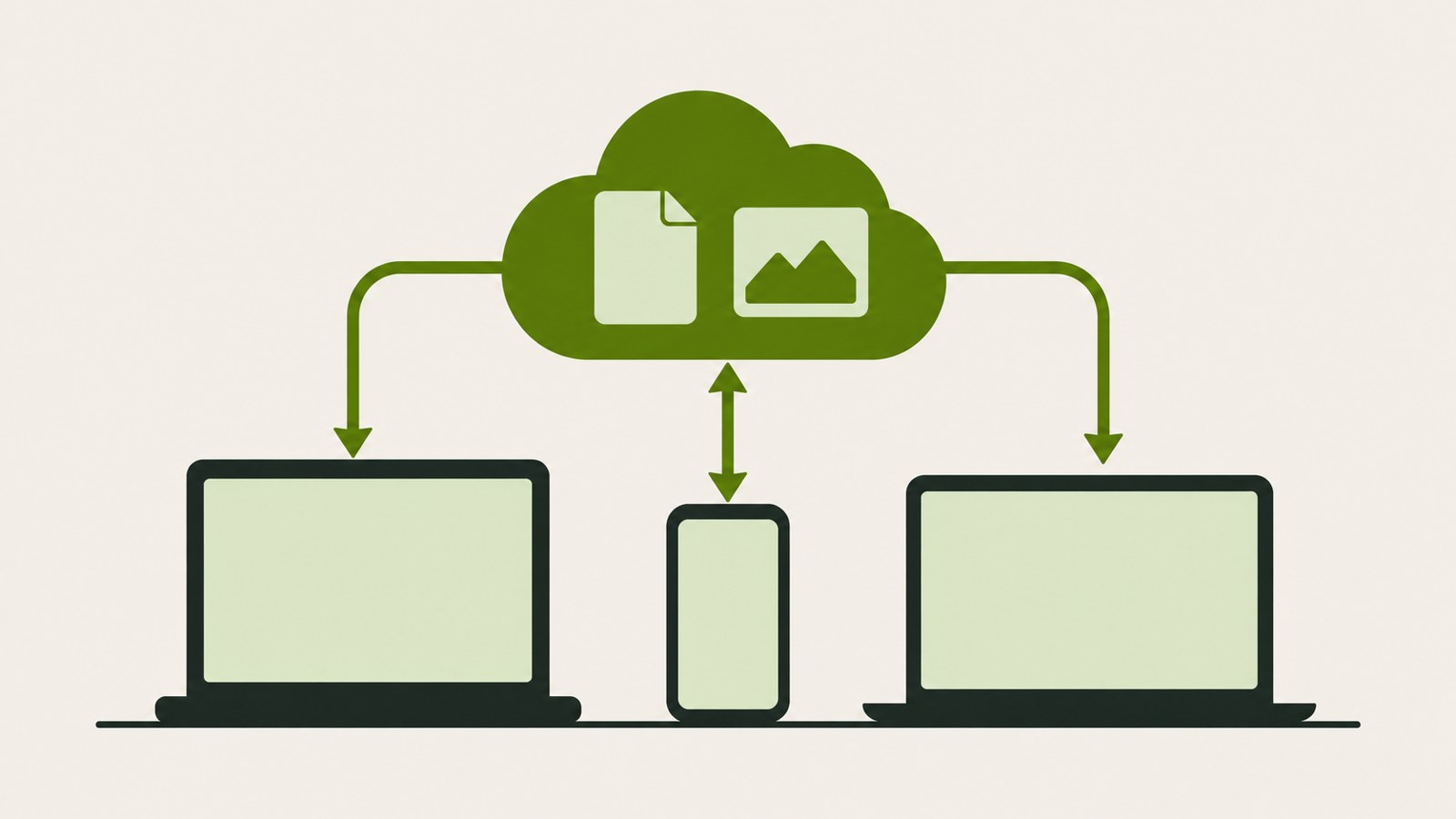
- Upload files on the web with New or by dragging them into the browser.
- Choose computer folders to sync with Google Drive for desktop.
- Check the recipient’s email and access level before sharing.
Google Drive lets you upload and share files on the web, or sync folders through its desktop app. Once you know how to check upload status and sharing permissions, you can find your files on other devices.
1. Upload and download files
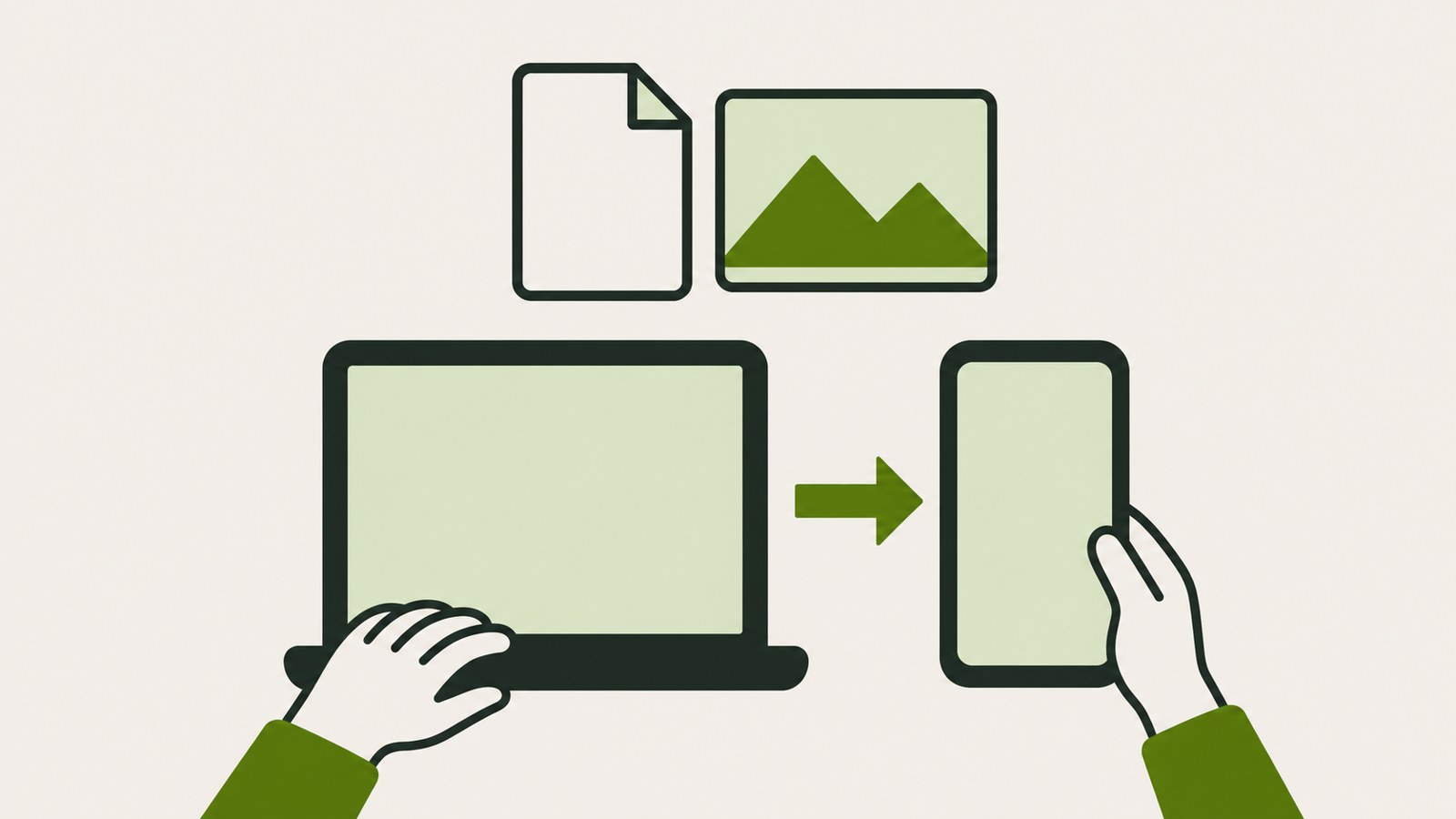
To get started, upload a file and check it from another device. On a PC, open Google Drive in a browser and sign in. You can create a folder first to make files easier to find later.
To upload, click New in the upper left and choose a file or folder, or drag files from your computer into the browser window. Wait for the upload to finish, then open the file to check it. Other devices may not show the latest version while an upload is in progress.
To download a file, select it and click Download. Folders are exported as ZIP files. On a smartphone, you can view files in the Google Drive app.
- Sign in to Google Drive in a PC browser.
- Click New, then choose file upload or folder upload.
- When the upload finishes, open the file and check its contents.
- Select the file you want and click Download.
2. Sync folders on Windows and macOS
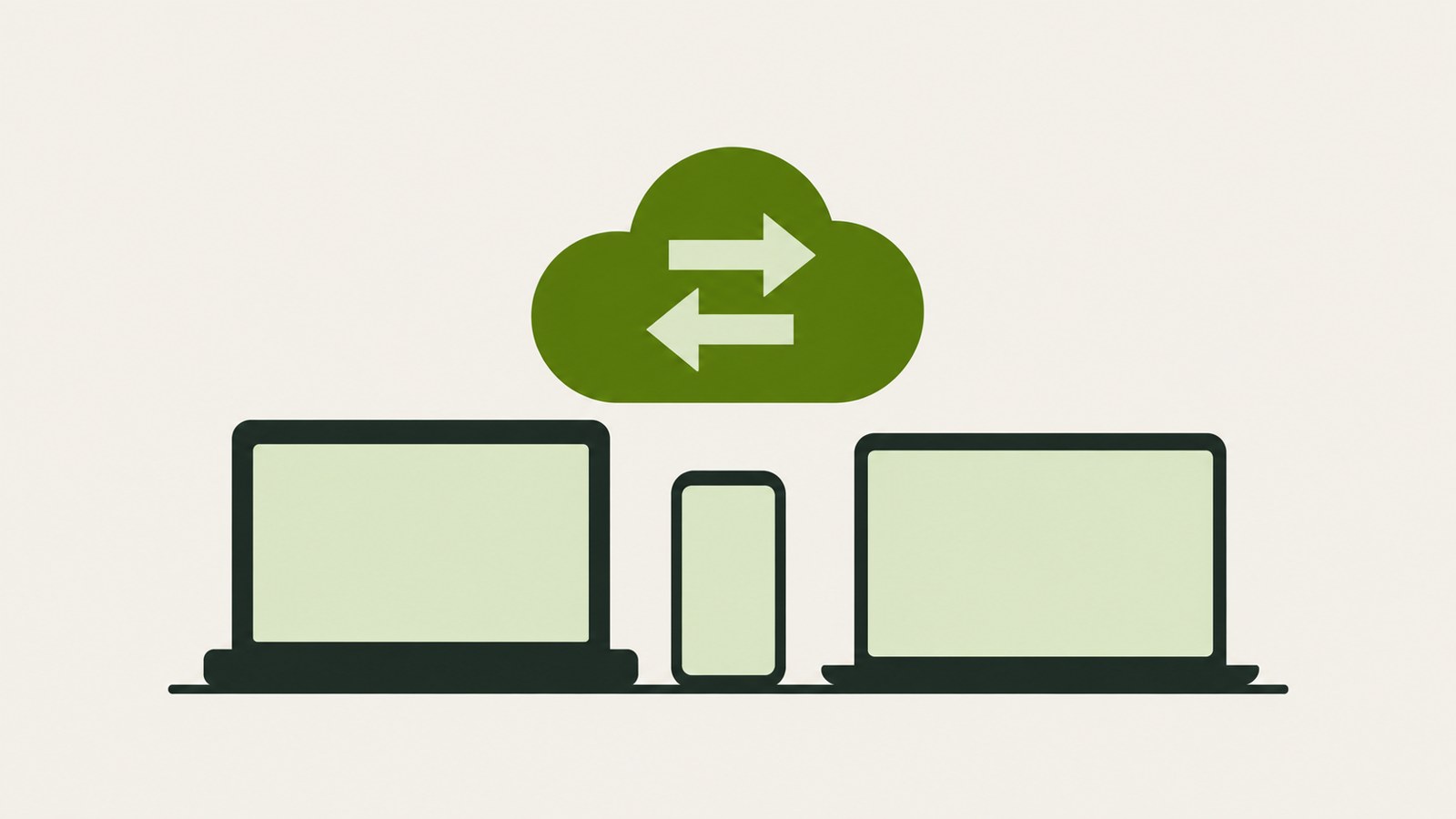
If you regularly upload a particular PC folder to Drive, choose it for syncing in Google Drive for desktop. Install the app on your Windows PC, sign in, then add a folder in Preferences. On a Mac, install the app and choose a folder in the same way.
Sign in to both computers with the same account to find synced files in Drive on either device. Files pass through the cloud rather than moving directly between computers. You can open the last synced files even when the other computer is turned off.
Files in a synced folder are not automatically copied into the other computer’s local folders. Find the files in Drive on that computer and open or download what you need. An internet connection is required, and recent changes may not appear until syncing finishes.
- Install Google Drive for desktop on Windows and sign in with your Google Account.
- In Preferences, open the folders on your computer and add the ones to sync.
- Install the app on macOS, sign in, and choose the folders to sync.
- Check the files on another device and confirm syncing has finished.
3. Fix Google Drive sharing permissions

If someone cannot view a file, or should not be able to edit it, check the email address and permission in the sharing menu. Select a file or folder, open Share, and enter the person’s email address to give them access. You can also copy and send a link.
Choose from Viewer, Commenter, and Editor. Set a file to Viewer when the recipient only needs to read it. Choose Editor when you are working on a document together, or Commenter when you only need their feedback.
With link sharing, people who receive the link can open the file according to the access range you set. Check that range before sending a work document or personal file. To review an existing share, open the sharing menu to see who has access, change their permissions, or stop sharing.
- Select a file or folder and open Share.
- Enter the recipient’s email address or choose link sharing.
- Set the needed permission: Viewer, Commenter, or Editor.
- After sharing, check the recipients and permissions in the menu.
4. Find missing files and free up space
If a file you just uploaded does not appear on another device, first check that the upload and sync are complete. A PC folder’s changes appear on other devices after they reach the cloud. Also make sure you are signed in to the same account.
Google Drive storage is shared with Gmail and Google Photos. The included storage is 15GB across these services, so email and photos may use space too. Cleaning up Drive files alone may not free up enough room.
To delete a file, right-click it and choose Move to trash. Deleted files stay in Trash for 30 days, during which you can restore them. Before permanently deleting anything, check that you do not need it and consider whether important files are stored elsewhere.
| What to check | Where to look | Next step |
|---|---|---|
| File is missing on another device | Upload or sync status and account | Check again when complete |
| Storage is full | Drive, Gmail, and Google Photos | Remove files you no longer need |
5. Choose between free storage and paid plans
When comparing Google Drive prices, remember that Gmail and Google Photos use the same free storage. The included amount is 15GB, and a Google One subscription can add more space. Check the terms shown in your account before paying.
The examples in the guide are Basic 100GB for about ₩2,400 per month, Standard 200GB for about ₩3,800 per month, and Premium 2TB for about ₩11,900 per month. These are prices from when the guide was written and may change with exchange rates or promotions. Confirm the amount on the signup screen.
The guide says Premium can be shared with up to 6 people. Check whether large files or Gmail messages are using your storage, then compare plans based on the space you need and the number of people sharing it. File sharing permissions still need to be checked for each file.
| Plan in the guide | Storage | Example monthly price |
|---|---|---|
| Basic | 100GB | About ₩2,400 |
| Standard | 200GB | About ₩3,800 |
Start with upload and sync status when learning Google Drive. Before sharing, check the recipient and their permissions. Before upgrading storage, review the space used by Gmail and Google Photos as well.
FAQ
Can I restore a Google Drive file after deleting it?
Deleted files stay in Trash for 30 days, and you can restore them during that time. Check for files you need before emptying Trash.
Is the free 15GB only for Drive?
No. The included 15GB is shared by Drive, Gmail, and Google Photos. Check how much space your email and photos use too.
Can I download a large file over mobile data?
Downloading a large file over LTE or 5G can use a lot of data. Connect to Wi-Fi if you want to save mobile data.
댓글
댓글 쓰기