
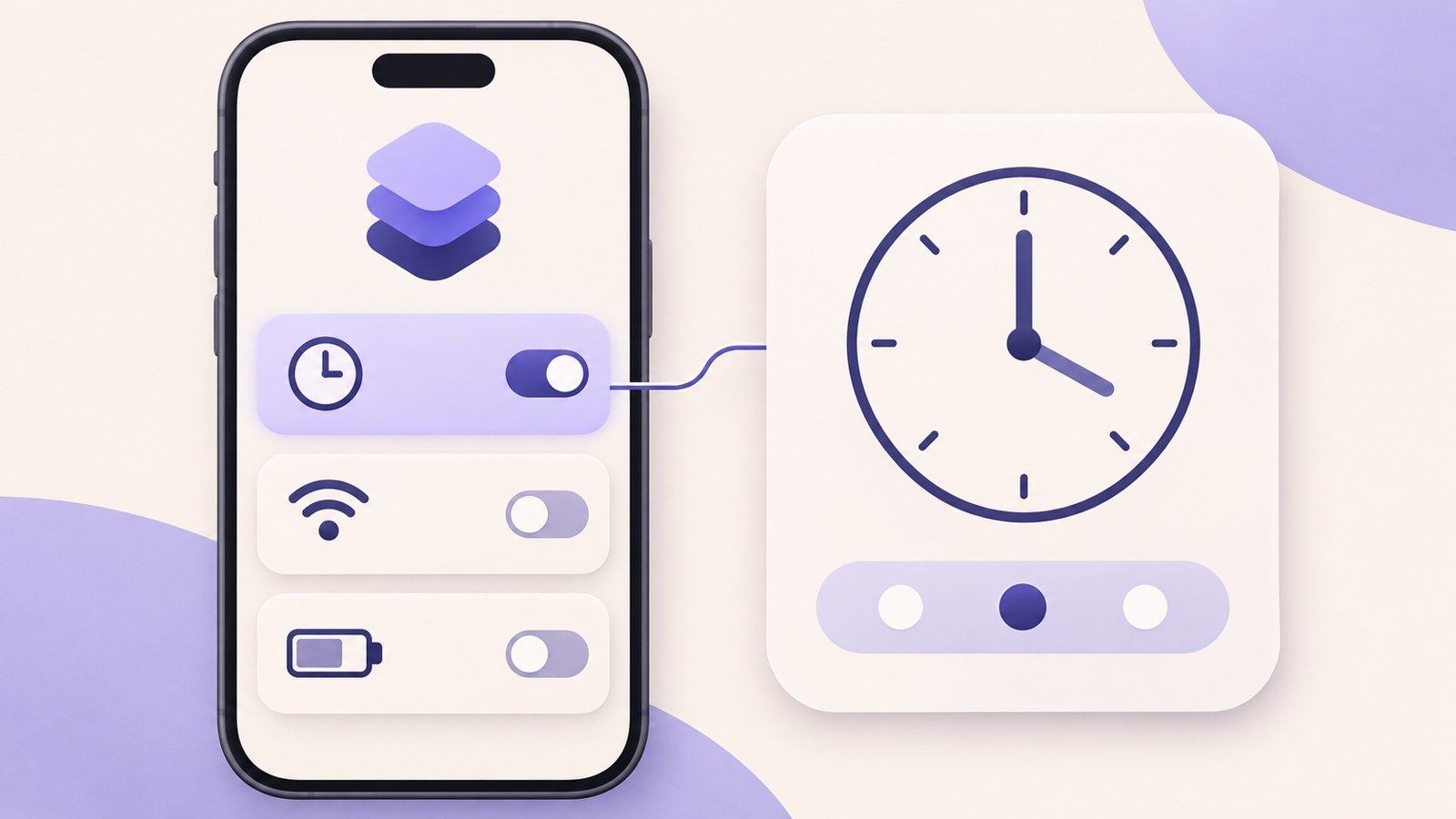
- Set up a trigger and action in the Automation tab.
- How you confirm a run depends on the trigger.
- After testing, you can turn an automation off or delete it.
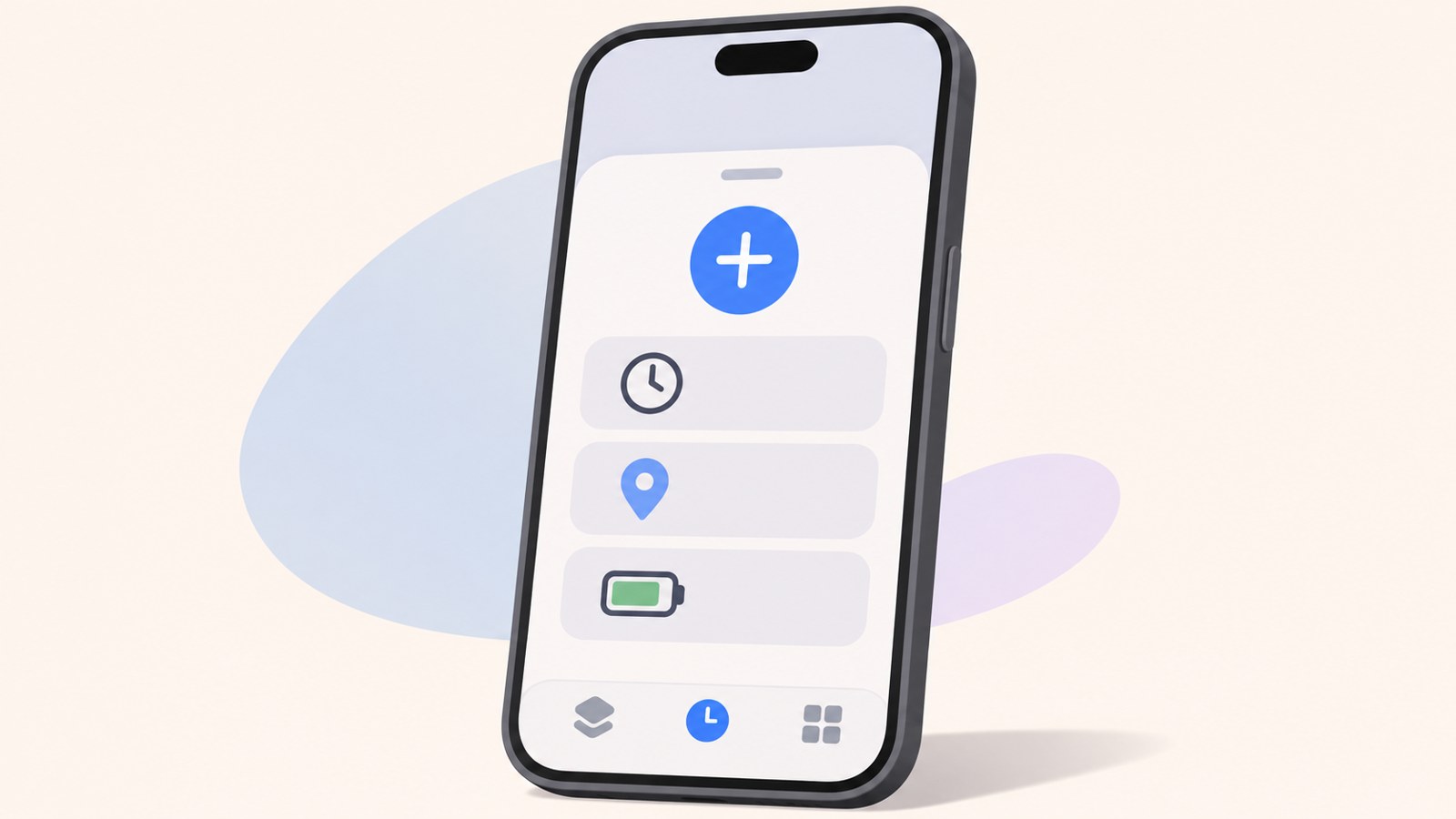
Start in the Automation tab
The Shortcuts app lets you create personal automations that run actions when chosen conditions are met. For example, you can set one to show an alert at a certain time or when you open an app.
To create one, start in the Automation tab. If you already have an automation, tap the plus icon in the top right, then choose to create a personal automation from the menu.
- Open the Shortcuts app and tap Automation at the bottom.
- If this is your first automation, start a new one. If you already have one, tap + in the top right.
- Choose to create a personal automation.
- Select a trigger and tap Next.
- Under Add Action, choose what it should do, then tap Done.
Choose a trigger and an action
You can choose conditions such as an alarm, sleep, arriving or leaving a location, opening an app, or connecting a charger, as well as a specific time. The options shown can vary by iOS version and trigger.
After adding an action, check that the automation appears in your list. You can open it later to add actions or change their order.
| Type | Example | What you set |
|---|---|---|
| Trigger | Every Monday to Friday at 8 a.m. | When it starts |
| Action | Show system notification | What it does |
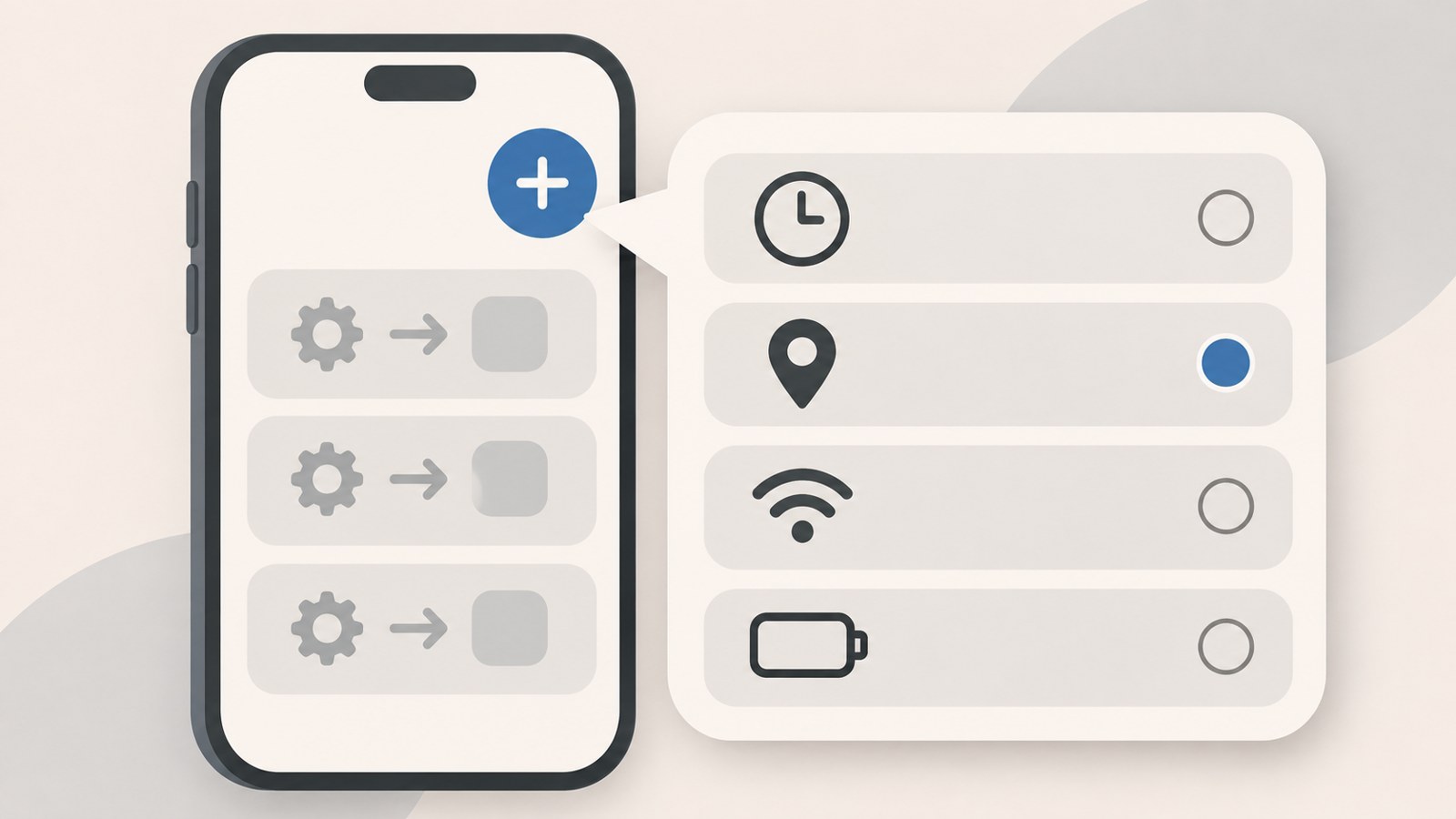
If you can’t find the personal automation option
Menu names and locations can vary between iOS versions. Some triggers also ask you to confirm before they run. An option you see for one trigger may not apply to every automation.
For example, an automation that predicts when you might commute and sends an alert is described as requiring you to tap the notification to run it. If you expected it to run automatically, check which trigger you selected.
- Open the Automation tab and look for the add icon in the top right.
- If you see Create Personal Automation, select it.
- If the trigger list appears right away, choose the condition you want.
- To check how a particular trigger runs, open that automation’s edit screen.
Example: show an alert at a set time
Choose a trigger, then add an action. Starting with one action makes it easier to tell whether a problem comes from the trigger or the alert settings.
In this example, set the time, repeat days, and alert text. Other automations may not offer the same options, so check the choices shown for the trigger you select.
- Choose a specific time from the trigger list.
- Set it to 8:00 AM, then select Monday through Friday under weekly repeat.
- On the next screen, choose a blank automation and tap Add Action.
- Find Show System Notification and enter the alert text.
- Review the settings and tap Done.
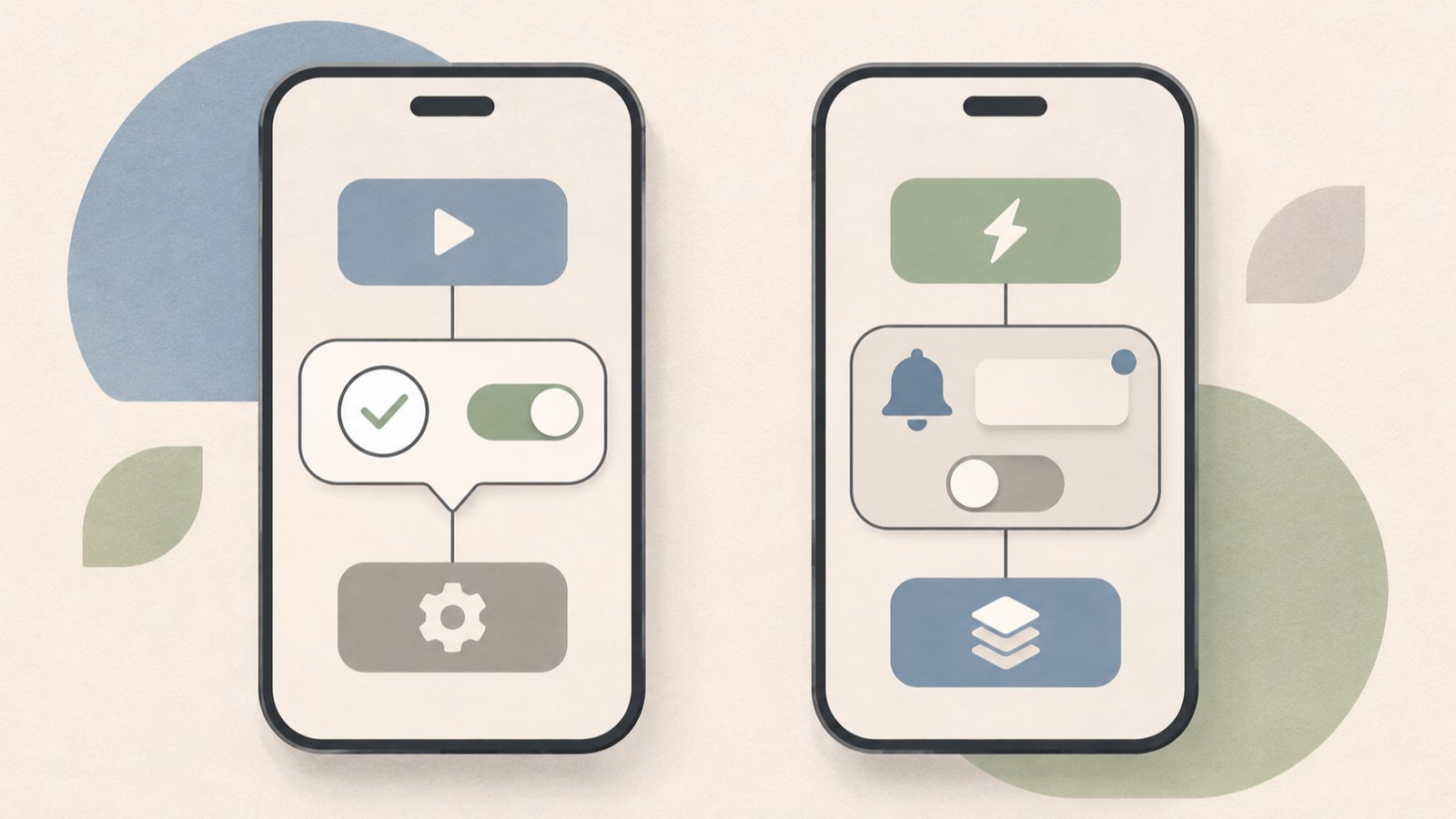
Ask Before Running and Run Immediately
Turning off Ask Before Running does not remove a system notification you added as an action. Check the approval alert separately from any message the automation displays as a result.
You can leave the confirmation on while you check the result the first time. Once you are familiar with it, decide whether you want the automation to run immediately, and check which options are available for that trigger.
- Open the automation from the Automation tab.
- Check the run setting or the Ask Before Running option.
- To run it immediately, choose the option shown on screen and tap Done.
Test, turn off, or delete an automation
You can deactivate an automation to stop it running while keeping its settings. Turn it back on from the same screen when you need it again. Deleting it removes the settings from your list, so you will need to create it again if you want to use it later.
Deactivate an automation when you only want to pause it; delete it when you no longer need it. Check the automation’s name before changing it to avoid selecting the wrong one.
- Open the automation and change its test time to a few minutes from now.
- Save it, then check for a confirmation prompt or result notification at the scheduled time.
- When the test is complete, restore the original time and repeat days.
- To pause it, turn off Enable This Automation and tap Done.
- To remove it, swipe left on its row in the automation list and choose Delete.
It is easier to manage an iPhone Shortcuts automation when you check its trigger, action, and run confirmation separately. For a new automation, temporarily move the time forward to test it, then save your preferred settings.
FAQ
What if there’s no Create Personal Automation button in the Automation tab?
Check whether the trigger list appears immediately. Depending on your iOS version and screen layout, you may be able to choose a new condition without first tapping a create button.
Will turning off Ask Before Running also stop my custom notification?
The approval prompt and a notification added as an automation action are separate. Notification display can also depend on action permissions or settings such as Focus.
Do I have to delete an automation to pause it?
No. Open the automation and turn off Enable This Automation to stop it running while keeping its settings.
댓글
댓글 쓰기