
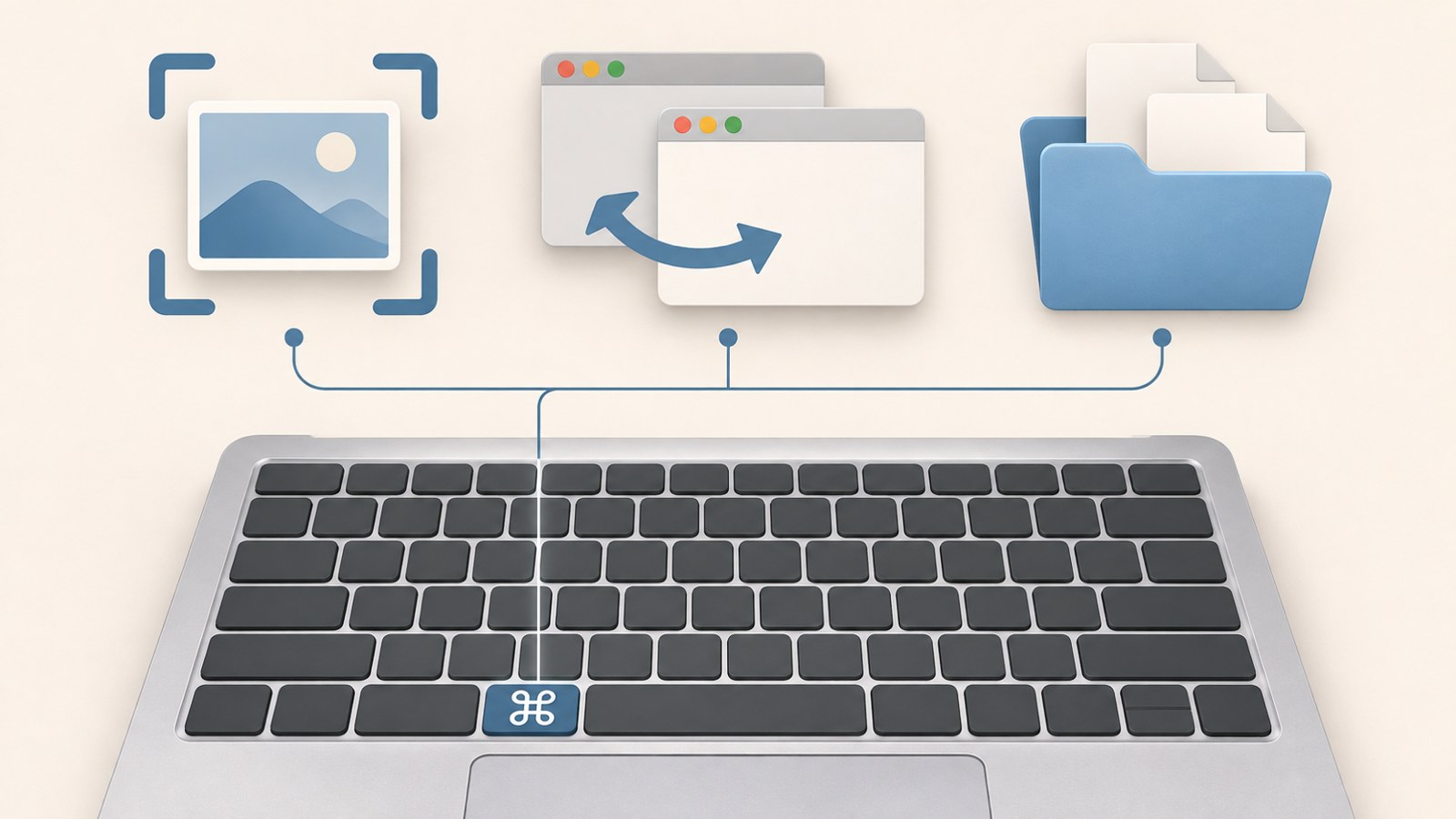
- Use Command for common actions like copying and pasting.
- Use Shift with the number keys to capture your screen.
- In Finder, preview files or create a new folder with shortcuts.
Copying on a MacBook: use Command instead of Ctrl
On a MacBook, many tasks you may know from Windows use the Command key instead of Ctrl. You’ll find Command on either side of the space bar. If a familiar Ctrl shortcut doesn’t work, try its Command-key equivalent.
These basic shortcuts cover common document tasks. Hold Command and press the letter key to copy or paste. You can also select everything or undo an action with a Command shortcut.
| Action | Shortcut | What it does |
|---|---|---|
| Copy | ⌘ + C | Copies the selected content |
| Paste | ⌘ + V | Pastes the copied content |
Start with the shortcuts you use most. If you’re unsure which key to press, look beside the space bar for Command.
Choose what to capture on screen

Press ⌘ + Shift + 3 to capture the full screen. For just part of the screen, press ⌘ + Shift + 4 and select an area. Press ⌘ + Shift + 5 to open the screenshot and screen recording controls.
To capture a window, press ⌘ + Shift + 4, then press Space. Screenshots save to the desktop by default. To choose another location, open the controls with ⌘ + Shift + 5 and select a location from Options. You can choose Documents, Downloads, or another location.
- Capture the full screen with ⌘ + Shift + 3.
- Capture part of the screen with ⌘ + Shift + 4, then select an area.
- Open screenshot and recording controls with ⌘ + Shift + 5.
The number key determines whether you capture the whole screen, a selected area, or open the controls.
Switch apps, close windows, and quit apps
Use ⌘ + Tab to switch between open apps. Hold Command and press Tab to show the list, then choose an app. To switch between windows in the same app, press ⌘ + '.
Closing a window and quitting an app are different actions. Press ⌘ + W to close the current window, ⌘ + Q to quit the app, or ⌘ + M to minimize the window.
An app may keep running after you click its red close button. A small dot under its Dock icon indicates that it’s still open. Use ⌘ + Q when you want to quit the app, or ⌘ + W to close only the current window.
Find and organize files in Finder

To search across your Mac, press ⌘ + Space to open Spotlight. Enter a file or app name to find it, or type a simple calculation. To search for files in Finder, press ⌘ + F.
Select a file and press Space to preview it without opening it. This is handy for checking photos or videos without opening each one.
For file cleanup, ⌘ + Shift + N creates a new folder, and ⌘ + Delete moves the selected file to the Trash. Use ⌘ + D to duplicate a file or ⌘ + I to view its information.
- Select a file in Finder.
- Press Space to preview it.
- Create a folder with ⌘ + Shift + N.
Press Space to get a quick look at the selected file.
Manage browser tabs and pages
In a browser, ⌘ + T opens a new tab and ⌘ + W closes the current tab. Press ⌘ + R to reload a page. These shortcuts help when you’re moving between several sites.
Press ⌘ + L to select the address bar and enter a web address or search. To find a word on the page, press ⌘ + F and type it into the search field.
If you make a mistake while editing, press ⌘ + Z to undo. To redo an undone action, press ⌘ + Shift + Z. The behavior can vary by app, so check the shortcuts in the app you’re using.
When an app freezes or you need to save
If an app stops responding, press ⌘ + Option + Esc to open the Force Quit Applications window. Select the app and choose Force Quit. Unsaved work may be lost, so use this when an app is unresponsive.
Press ⌘ + S to save a document and ⌘ + P to print. Use ⌘ + N to open a new document or window. To open the emoji and symbols picker, press Control + ⌘ + Space.
You don’t need to memorize every MacBook shortcut at once. Start with copying, screenshots, and file previews, then add the shortcuts you use regularly. Shortcuts can behave differently depending on your macOS version, keyboard settings, and the app you’re using.
FAQ
What should I do if Ctrl+C doesn’t copy on my MacBook?
Try the Command-key shortcut. On a MacBook, Command often handles tasks that use Ctrl in Windows.
Can I change where screenshots are saved?
Press ⌘ + Shift + 5, then choose a location from Options. You can select Documents, Downloads, or another location.
Why does an app keep running after I click its red close button?
The red button may close the window without quitting the app. Press ⌘ + Q to quit it.
댓글
댓글 쓰기