
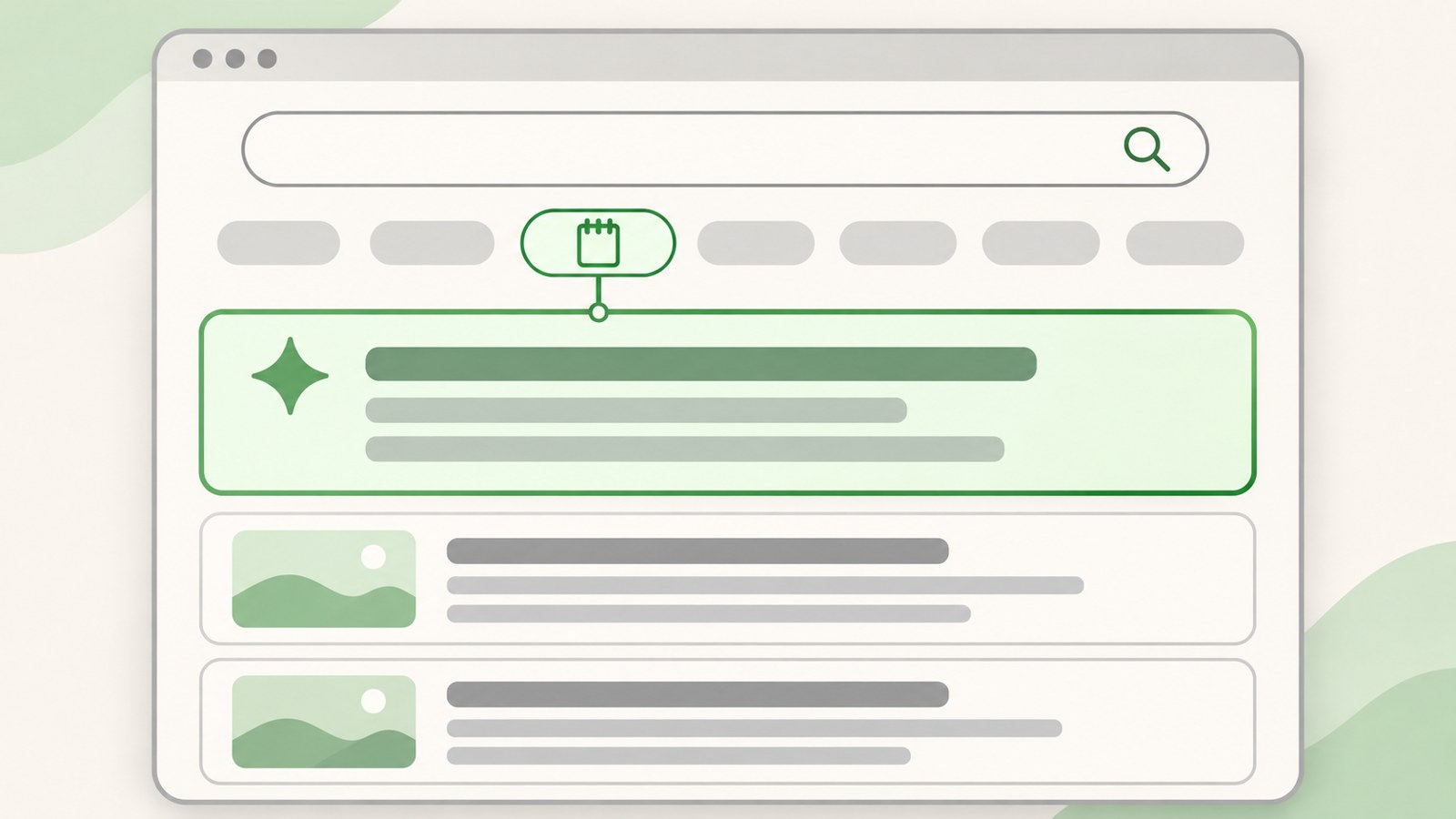
- Naver does not provide an ON/OFF setting for AI Briefing.
- Choose the Blog tab to view blog posts in search results.
- In Whale, you can hide the toolbar AI button in the AI settings.
Which Naver AI feature do you want to turn off?
Naver Search has two features that can look similar at first: AI Briefing and the AI Tab. A summary above the search results is AI Briefing. The AI Tab opens a chat screen when you select AI beside the search bar.
Whale Browser has separate settings for its toolbar AI button and Recommended Tasks. Identify where the AI feature appears before looking for its setting.
| Feature | Where it appears | What to do |
|---|---|---|
| AI Briefing | At the top of search results | Select the Blog tab |
| AI Tab | AI button beside the search bar | Use integrated search without selecting AI |
When the AI Briefing setting is missing
Naver currently provides no ON/OFF control for AI Briefing. It also does not appear for every search query. In one check of 11 queries, it appeared for 8.
The three-dot menu beside a briefing offered “Helpful,” “Not helpful,” and “Report.” It had no option to turn the feature off. To browse without the briefing, choose an individual search tab such as Blog.
- Find the row of tabs above the integrated search results.
- Select Blog to open the list of posts.
- Check whether the post list appears without AI Briefing.
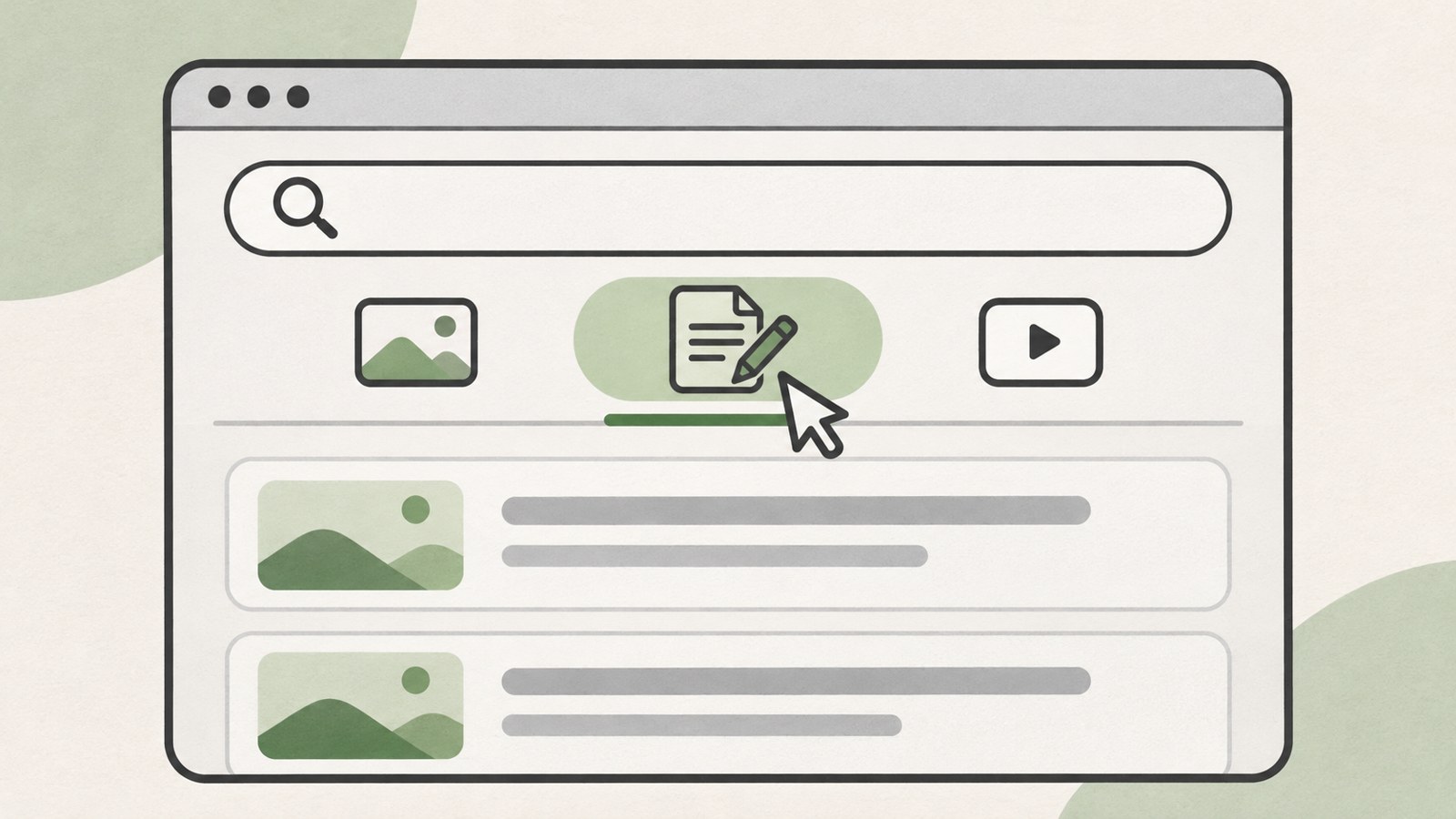
Selecting Blog takes you to a list of posts. Source
Search without opening the Naver AI Tab
Official guidance does not show a setting to turn off the entire AI Tab or restore the former Green Dot. Selecting AI in the tab row opens the AI chat screen. To keep using regular search, enter your query in the search bar and view the integrated results.
The AI Tab and AI Briefing are separate features. Avoiding the AI button does not turn off Briefing, so a summary may still appear in search results.
- Enter your query in the Naver search bar.
- View the integrated search results.
- If you do not want an AI conversation, leave AI in the tab row unselected.
Hide the AI button and Recommended Tasks in Whale
On PC Whale, open Settings and go to AI Features. There you can disable the toolbar AI button and Recommended Tasks separately. These controls hide items from view; they do not clear on-device AI or conversation history.
To turn off on-device AI, check the Performance and Others menu separately. According to Whale’s official update notice, turning off this setting deletes the downloaded AI model.
- Open Whale Settings.
- Go to AI Features and disable the toolbar AI button, Recommended Tasks, or both.
- To turn off on-device AI as well, disable the relevant setting under Performance and Others.
- Return to a webpage and check that the item is no longer displayed.
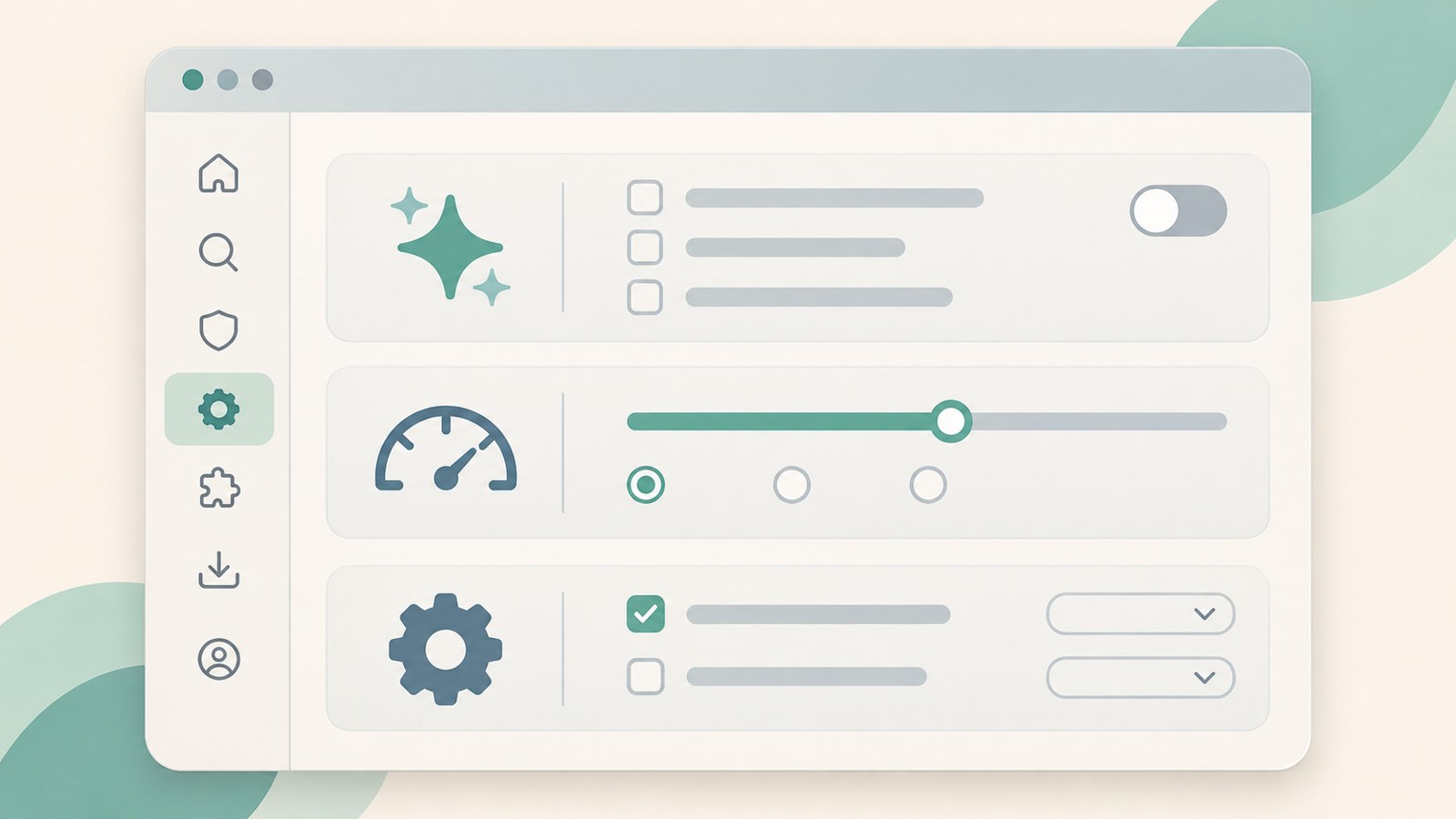
The display controls and on-device AI setting are in different menus. Source
If an AI feature is still visible
First identify what remains on screen: AI Briefing in search results, the AI Tab in Naver Search, or the Whale toolbar button. These features have different settings and scopes, even though all include “AI” in their names.
If you cannot find the Whale setting, check whether you are using PC or mobile Whale and note your version. The instructions for PC Whale v5 do not necessarily apply to mobile settings.
- Check where the AI item appears on screen.
- For the Whale toolbar button or Recommended Tasks, open AI Features in Settings.
- For a briefing in search results, select the Blog tab.
- For the AI Tab, leave its button unselected and use integrated search from the search bar.
FAQ
Will AI Briefing keep appearing after I select Blog in search results?
In one check, the Blog tab showed a post list for all 4 queries where a briefing had appeared. Results may vary by query and screen, so check the results after selecting the tab.
Does hiding only the AI button in Whale turn off every AI feature?
No. The toolbar button display and the on-device AI setting are separate. Whale says that turning off on-device AI deletes the downloaded AI model.
Is chat history saved if I never open the AI Tab?
You need to select the AI button and open the chat screen to use the AI Tab. Signed-in AI Tab conversations are kept for 12 months. Whale says they are deleted without delay if you delete them yourself.
댓글
댓글 쓰기