
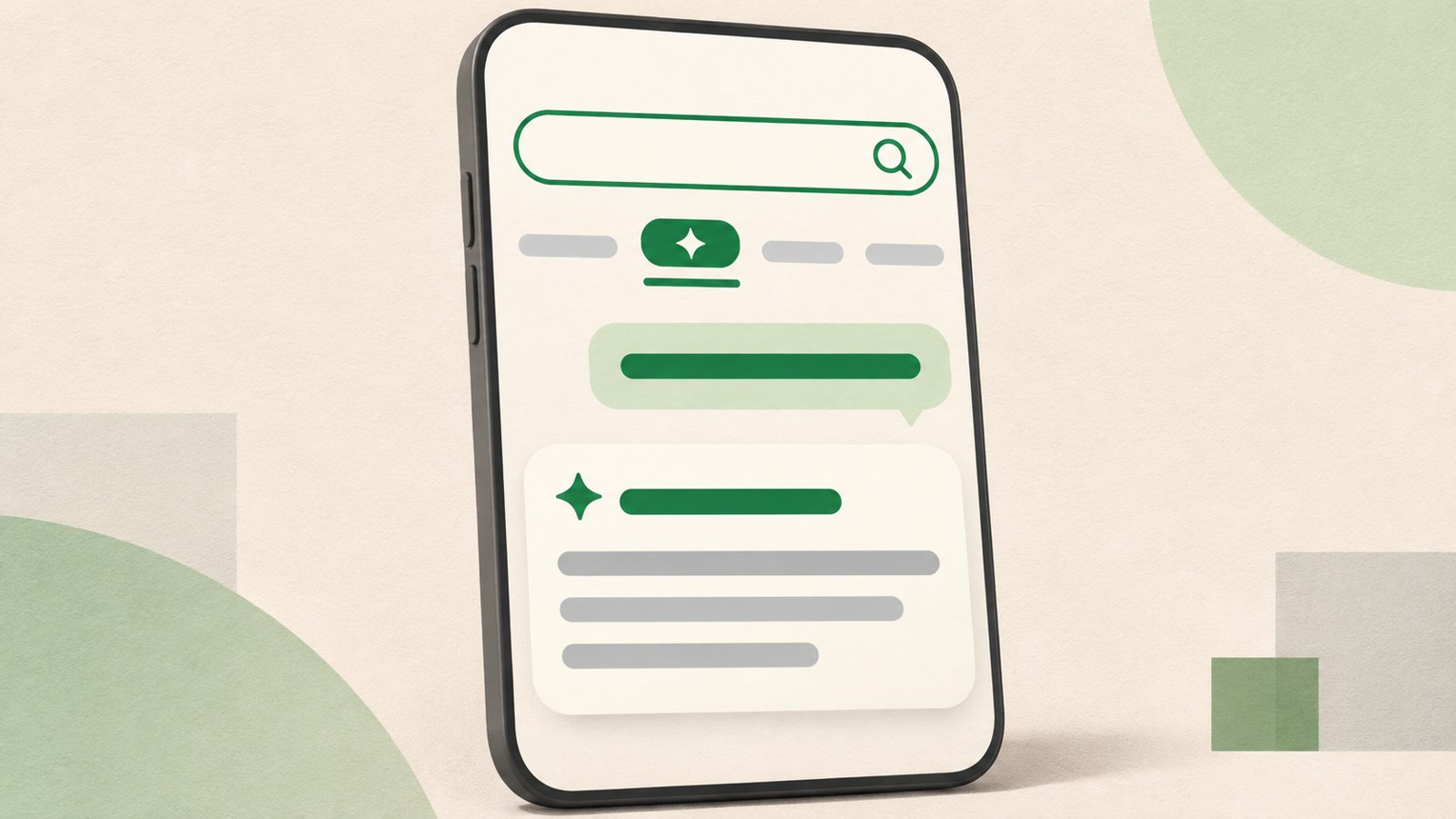
- AI Tab lets you ask follow-up questions in a conversation.
- AI Briefing summarizes key points from search results.
- Check opening hours and prices on Naver Map or the business’s official information.
Where to start with Naver AI Search
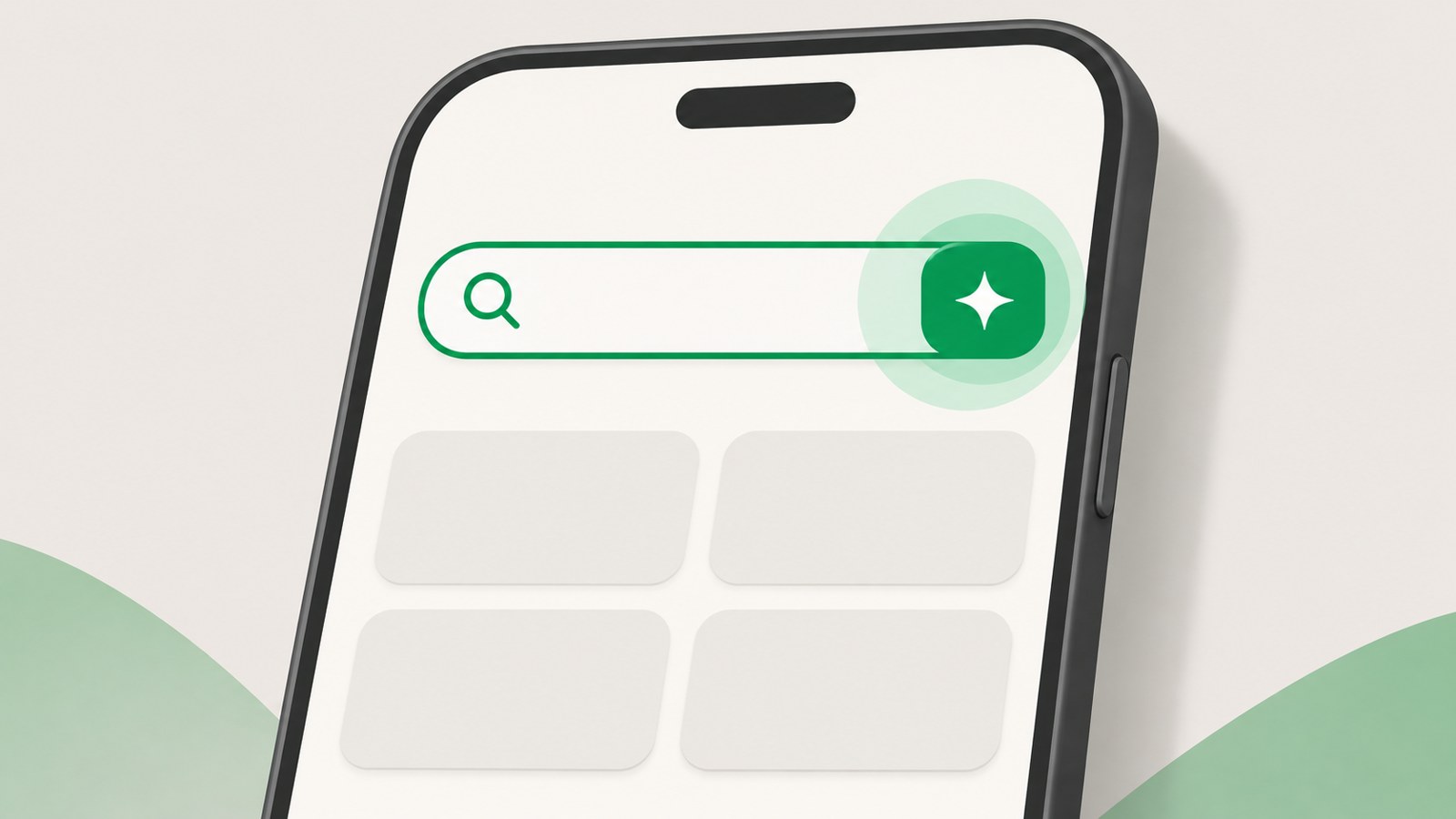
To use Naver AI Search, open the Naver app or visit Naver on your PC and look for the AI button by the search box. Tap or click it, then type your question in a sentence to see an answer.
AI Tab has been available to everyone on PC, the mobile web, and the Naver app since late June 2026. The app version or screen layout may change, so check the guidance in the app for current details.
- Open the Naver app, or go to the Naver home page on your PC.
- Tap or click the AI button below or beside the search box.
- Type your question as you would normally ask it.
- If the answer needs more detail, add a condition in a follow-up question.
AI Tab and AI Briefing: What’s the difference?
AI Briefing summarizes the main points from several documents based on your search query. It can help you scan an answer first and find information worth checking in more detail.
With AI Tab, you ask the AI a question and continue the conversation to narrow down what you need. You can add conditions and ask it to compare options or make recommendations.
| Feature | AI Briefing | AI Tab |
|---|---|---|
| Where it appears | Search results | AI button by the search box |
| How it works | Summarizes key points from several documents | Questions and follow-up conversation |
What to check if the button isn’t visible
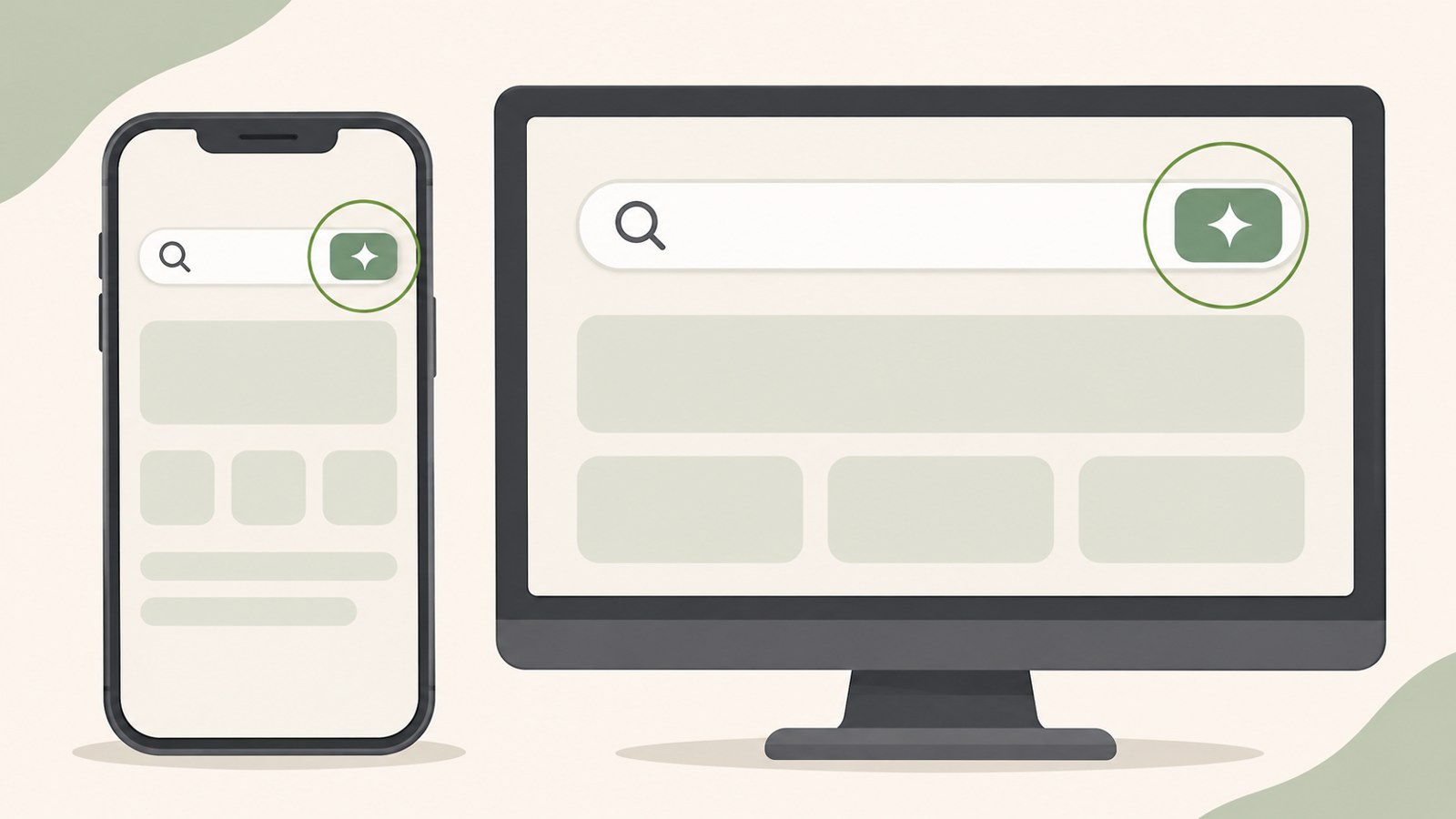
If you can’t see the AI button by the search box, first check whether the Naver app is up to date. If you’re unsure where to look, check the lower-left area beneath the search box in the app, or beside the search box on a PC.
The button’s position may vary with the screen layout. The guidance in the app can help you find it and check the current conditions for using it.
- Check whether the Naver app needs an update.
- Look for the AI Tab button below the search box on the left side of the app.
- On a PC, check beside the search box for the AI button.
- If you still can’t find it, read the usage guidance in the Naver app.
Start with one question, then add details
You don’t need to list every condition at the start. For example, if you’re looking for a Korean restaurant to visit with your parents, ask about a neighborhood and parking. After you see the answer, add any other conditions you need.
For everyday questions, describe the situation to get an answer that fits what you’re looking for. You could ask about the steps for washing a comforter or what to consider when choosing an electric heating pad. Treat health-related answers as general information. If symptoms continue, ask a doctor or pharmacist.
Check dates and details in the answer
AI answers can be incorrect or out of date. For details that can change, such as opening hours, prices, or dates, check Naver Map or the business’s official information.
Before making an important decision, compare the answer with information from another source. Don’t enter your resident registration number, bank account number, card number, password, or home address in the question box. Share only the information needed, such as your neighborhood.

FAQ
What should I do if the AI button doesn’t appear in the Naver app?
Check whether the app needs an update. Look below the search box on the left in the app and beside the search box on a PC. If you can’t find the button, check the guidance in the app.
Can I continue a conversation in AI Briefing?
AI Briefing summarizes key points from search results, while AI Tab lets you continue with follow-up questions. Tap the AI button by the search box to ask more questions in AI Tab.
Can I rely on the opening hours in an AI answer?
Opening hours can change, and an AI answer may be wrong. Check Naver Map or the business’s official information.
댓글
댓글 쓰기