
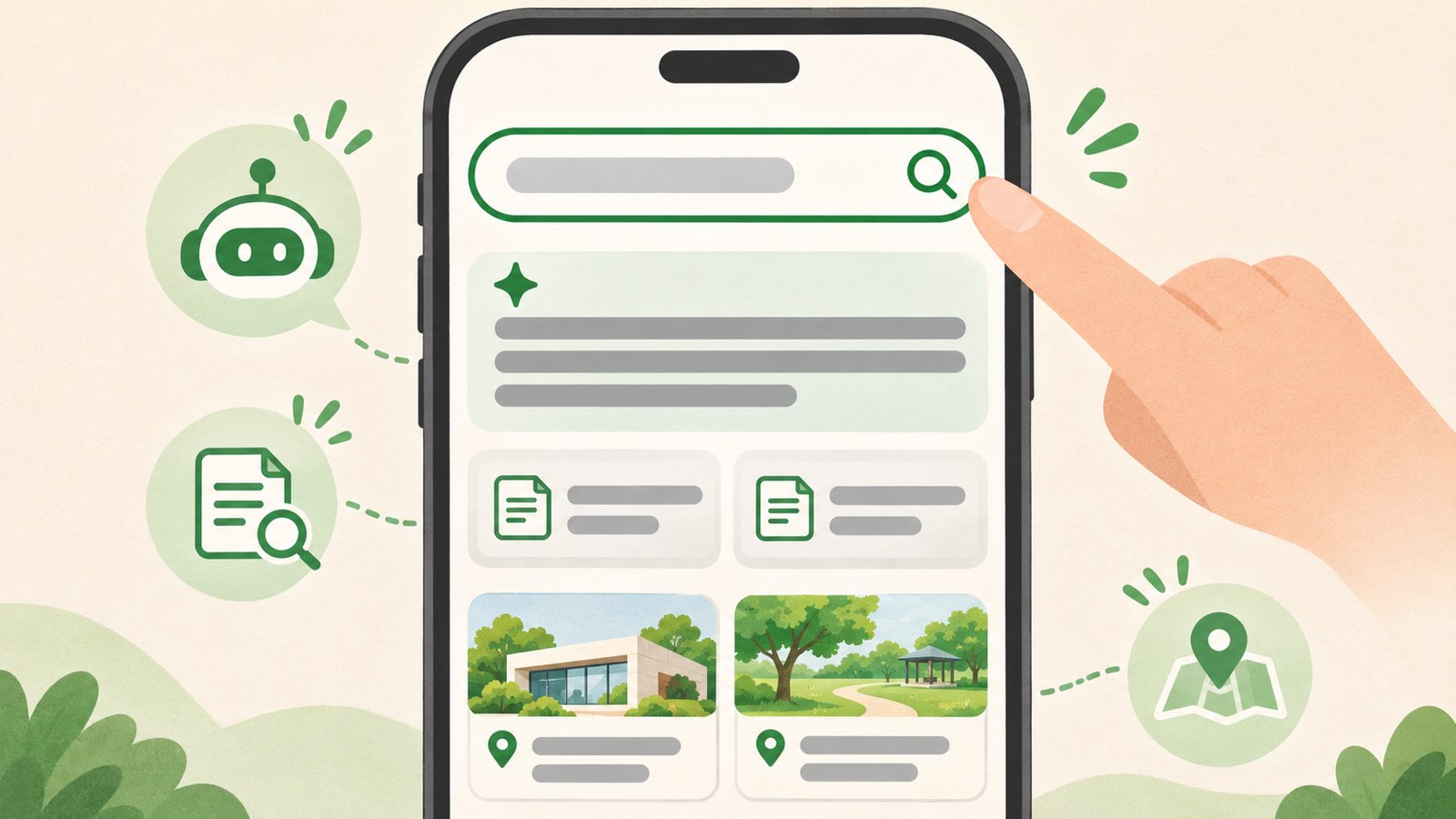
- Tap the AI button in search and ask a question in a sentence.
- AI Briefing summarizes results; AI Tab lets you ask follow-up questions.
- Check place and booking details on the related screens.
What is Naver AI Tab?
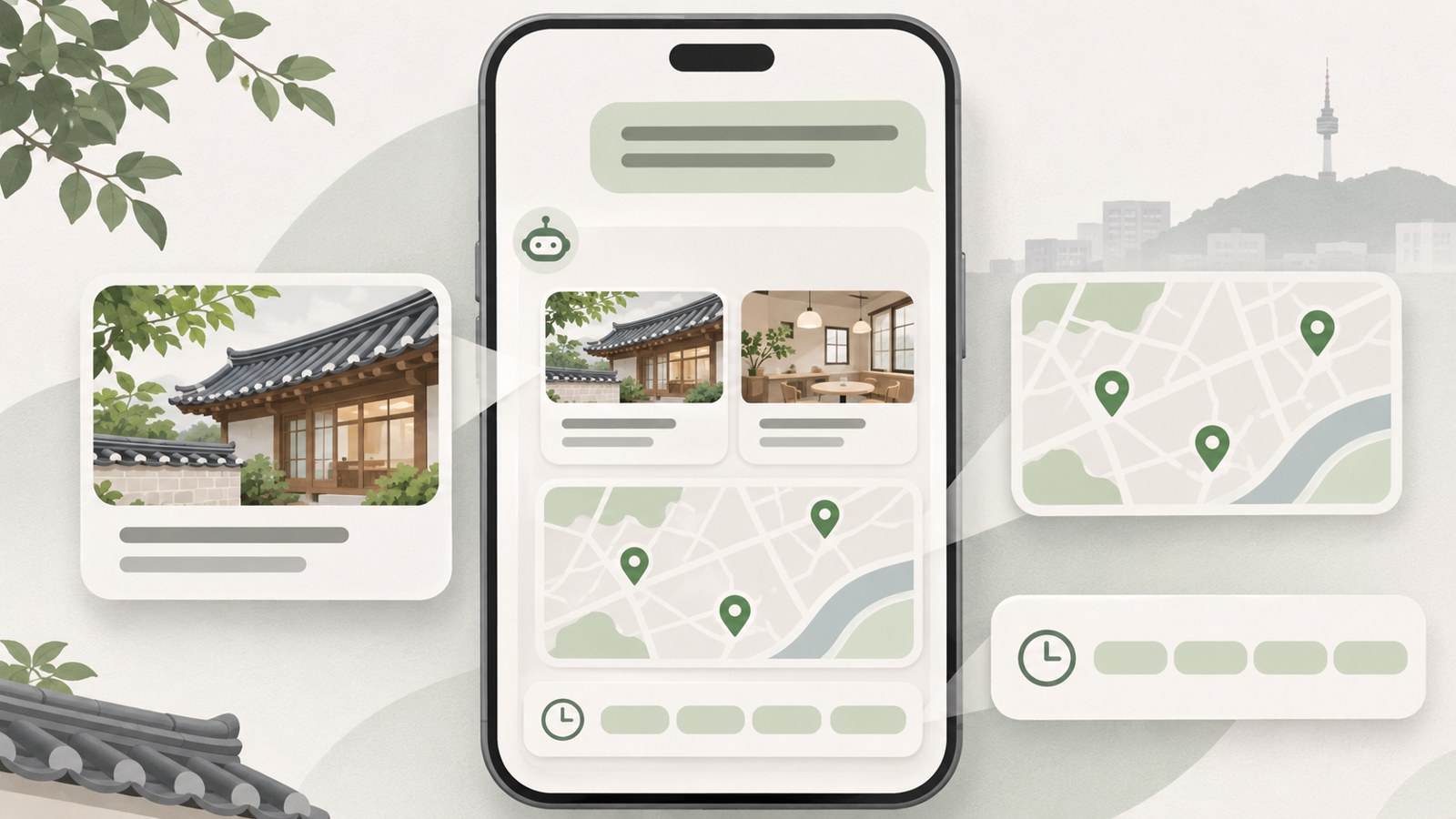
Naver AI Tab is a search service where you can ask a question and continue the conversation with follow-ups. Naver describes it as a search experience that can extend to shopping, finding places, and making reservations. You can describe what you are looking for in a sentence instead of entering a short search term.
For example, ask, “Recommend a wine bar where three people can make a reservation for 8 p.m. tomorrow.” The response may include place cards, Naver Map, and available booking times. You can add more conditions in a follow-up question.
According to S1, which cited Naver’s announcement, the beta began in April 2026 for Naver Plus Membership users. The service officially launched for all users on June 26, 2026. As of the announcement on July 15, it had more than 10 million users.
Can’t find the AI button in search?
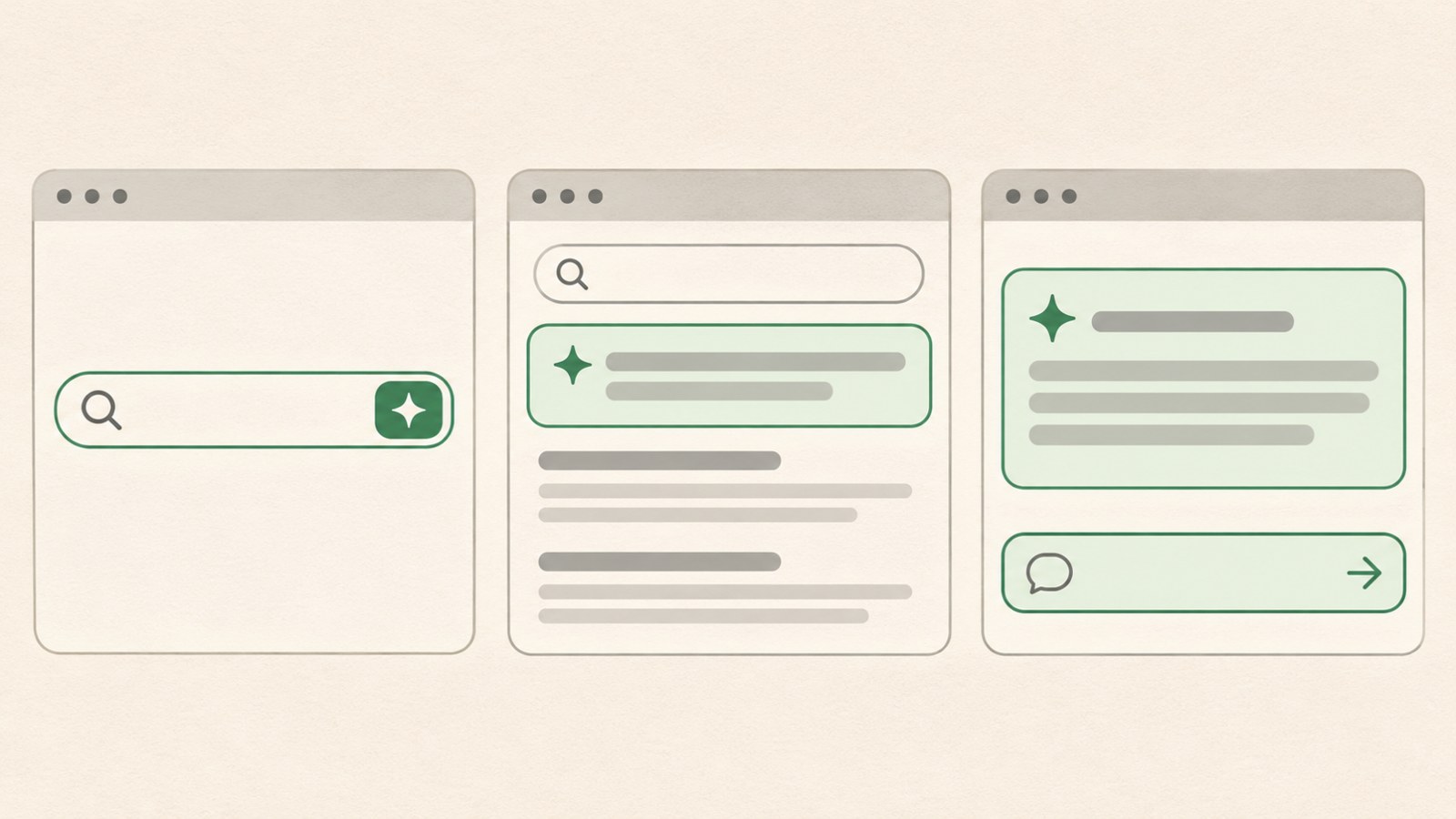
If you don’t see an AI button in the search box, look for the AI item near the top of the integrated search results. Naver lists the AI button in mobile and PC search, along with the AI item in search results, as ways to open the service. S1 also says you can ask a follow-up in the chat box below AI Briefing.
S2 suggests updating and reopening the Naver app if the button is missing. Its appearance and location may change with app updates. On a PC, check the Naver search box.
- Open the search box in the Naver app or on a PC.
- Look for the AI button in the search box or the AI item at the top of the results.
- If neither is visible, check for a chat box below AI Briefing.
- If you’re using the app and still can’t find it, update the app and reopen it.
AI Briefing and AI Tab: what’s the difference?
AI Briefing summarizes information at the top of the search results. AI Tab is where you ask questions and follow-ups. S2 describes the two features in these terms. If a summary leaves you with another question, use the chat box below the briefing to continue.
You can also enter a question in AI Briefing and continue in AI Tab. To explore the search results further, check other search tabs, such as Blog or Cafe. S2 says you can select a source in an answer to open the original post.
| Screen | Main function | Next step |
|---|---|---|
| AI Briefing | Search result summary | Ask a follow-up in the chat box below |
| AI Tab | Questions and follow-up questions | Review the answer and its sources |
Ask with specific conditions, then follow up
You can include the item you want and your conditions in the same question. S2 gives examples such as including the party size and area when looking for a restaurant, or the recipient and budget when asking for gift ideas. Once you get a response, add any remaining conditions in a follow-up.
For example, ask, “Recommend a restaurant in Jongno that can seat three people.” Then follow up with, “Which of those have parking?” S2 uses this as an example of a continuing conversation. Add conditions as they come up in your search.
- Include what you’re looking for and details such as the area, time, or number of people.
- Review the place or product information in the response.
- If you have another condition, ask about it in a follow-up.
- Check the displayed details before making a purchase or reservation.
How shopping and place information fit in
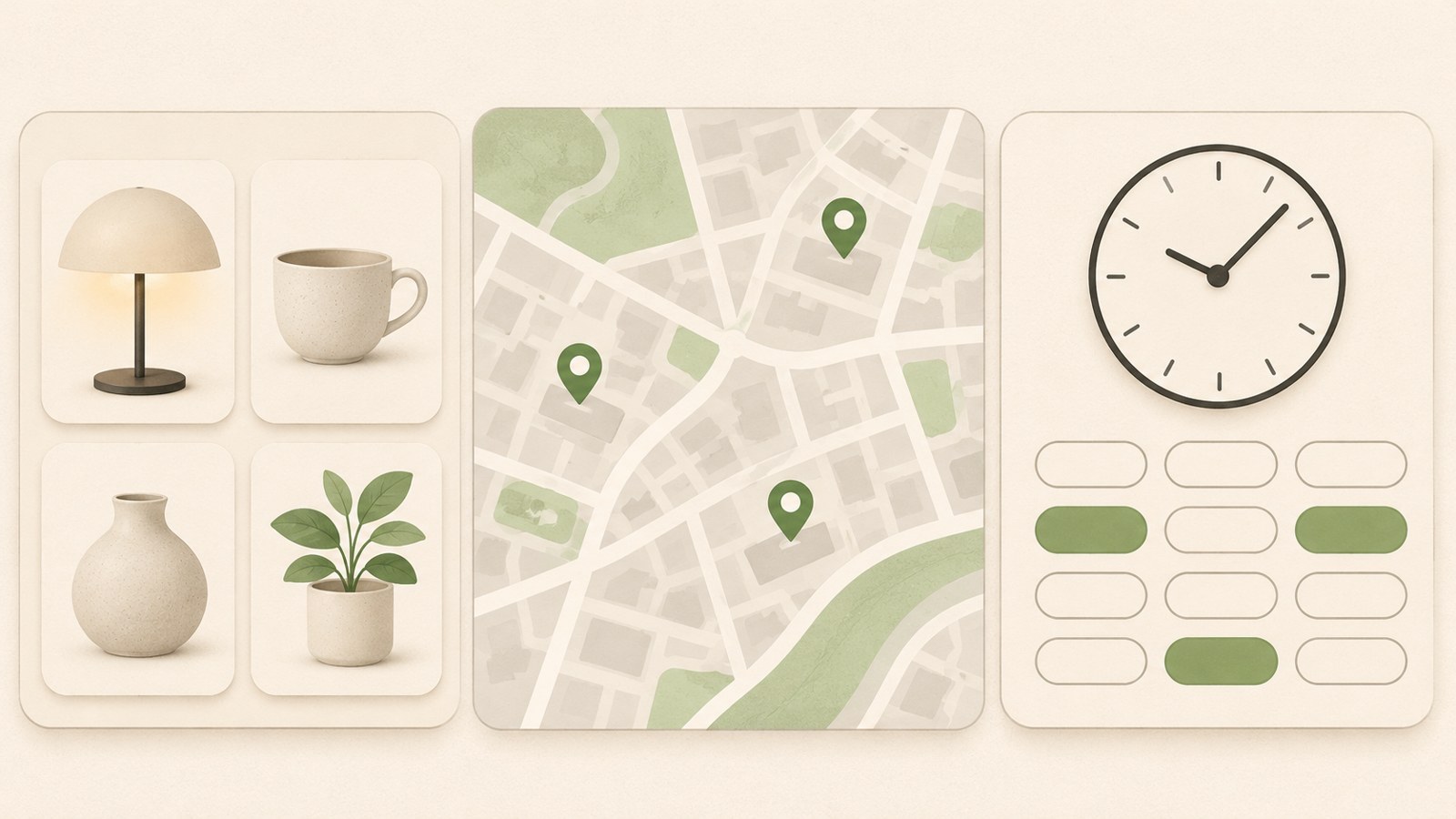
Naver says its recommendations for electronics, household goods, and fashion draw on purchase data, shopping reviews, and user content such as Blog and Cafe posts. It has also introduced a feature that works with Smart Lens: upload a product photo, review key details, ask follow-up questions, and continue to a purchase.
Place responses may include Naver Map and real-time available booking times. Naver has described a flow where users check available times in AI Tab and continue to Place booking. Purchases and reservations can be completed on the related screens.
According to S1, responses may show product cards and place cards. Naver has not disclosed the criteria used to decide which cards appear first. Check the information shown on screen rather than assuming a particular product or business will appear in a set order.
Check answers and booking details
S2 describes an example where a notice says an AI answer may contain inaccurate information. If an answer includes source links, open them to read the original posts. You can also check business hours and prices on Naver Map or the business’s own listing.
S1 advises checking whether the available booking times match the business’s actual operating hours. For businesses that use Naver Booking, review the hours, closing days, break times, menu, and prices. Check the date and time shown on the booking screen as well.
According to Naver figures summarized by S1, during the beta period, click-through rates for product cards and place cards were each above 20%. Users who visited AI Tab 11 or more times clicked product cards 2.7 times as often and place cards 2 times as often as users who visited once. These figures come from Naver’s reported usage data.
FAQ
Where can I start if the AI button isn’t in the search box?
Look for the AI item at the top of the integrated search results or the chat box below AI Briefing. If you can’t find it in the app, update the app and reopen it.
Does a question entered below AI Briefing continue in AI Tab?
Yes. S1 and S2 say you can continue asking questions in AI Tab through the chat box below AI Briefing.
Can I rely on the available booking times shown in an answer?
Check the time on the booking screen before you confirm. You can also compare it with the business’s actual operating hours.
Include details such as the area, time, and party size in your question. Review the sources attached to the response and confirm the details on the related screen before booking a place or buying a product.
댓글
댓글 쓰기