
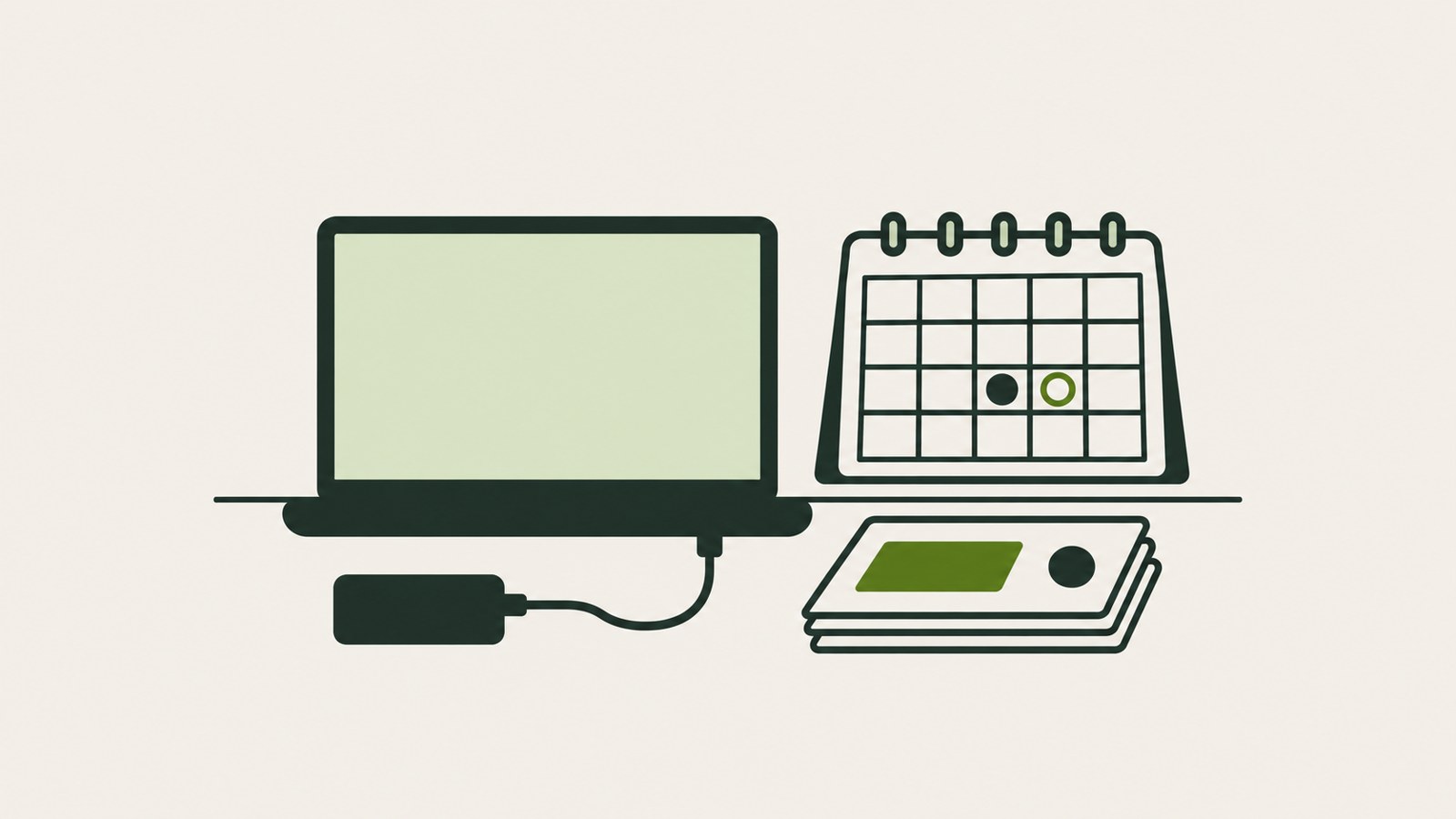
- Pause updates by choosing an end date up to 35 days from today.
- A new end date does not add to the days left in the current pause.
- A metered connection can still receive important updates.
How to pause Windows updates by choosing a date
Pausing Windows updates is a way to delay installation through Windows Update, not a permanent off switch. In Windows 11, go to Start > Settings > Windows Update, then select Choose a date next to Pause updates.
The calendar lets you choose an end date up to 35 days from today. While updates are paused, Windows will not download or install updates that require a restart, and your PC will not restart automatically to finish installing them. Applying the setting cancels any update currently in progress.
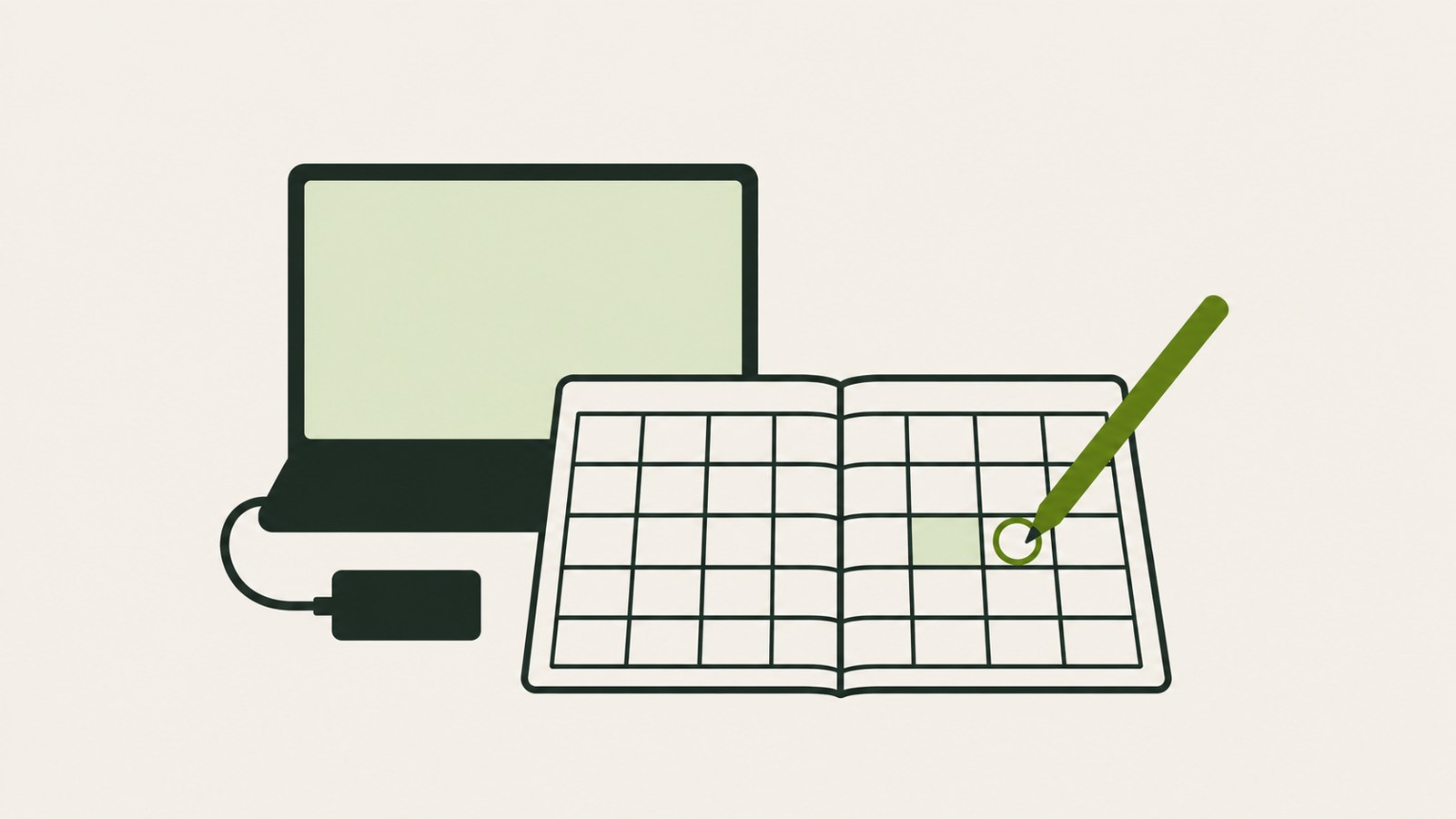
- Open Settings from the Start menu.
- Select Windows Update.
- Select Choose a date next to Pause updates.
- Choose the end date on the calendar.
When the date you want is unavailable
First check whether the date is more than 35 days away. The date picker only allows an end date within 35 days, so you cannot delay updates in one step until a later date.
If you have a presentation or exam with a fixed end date, you can choose the following day as the pause end date. Leave time to install pending updates after the pause ends, because Windows will check for updates again. If your schedule moves earlier, you can resume updates in Windows Update.
When you resume the pause, your PC checks for updates again. In some cases, Windows may need to download and install a file again from the beginning. It can help to wait until your urgent work is over and you have time to connect your PC to power.
- Check the last day of your important event.
- See whether you can choose the following day on the calendar.
- When the event is over, open Windows Update, end the pause, and check for updates.
If you cannot extend the pause after 35 days
Guidance describes the extension rule in two different ways. One says you can choose a new end date and that the days remaining in the previous pause are not added to it. Another says you must install the latest updates before pausing again once you reach the pause limit.
If you can still choose a date, select a new end date. The new pause can last up to 35 days from the day you extend it; it does not carry over unused days. If date selection is unavailable or you have reached the limit, install the latest updates and then check whether you can pause updates again.
Choose the next step based on what Windows Update allows: select an end date if the calendar is available, or install the latest updates if you cannot choose one.
| Current status | Next step | What to check |
|---|---|---|
| Date selection is available | Choose a new end date | The new date must be within 35 days |
| You have reached the limit and cannot choose a date | Install the latest updates | Check whether you can pause updates afterward |
Set active hours to avoid a restart during work
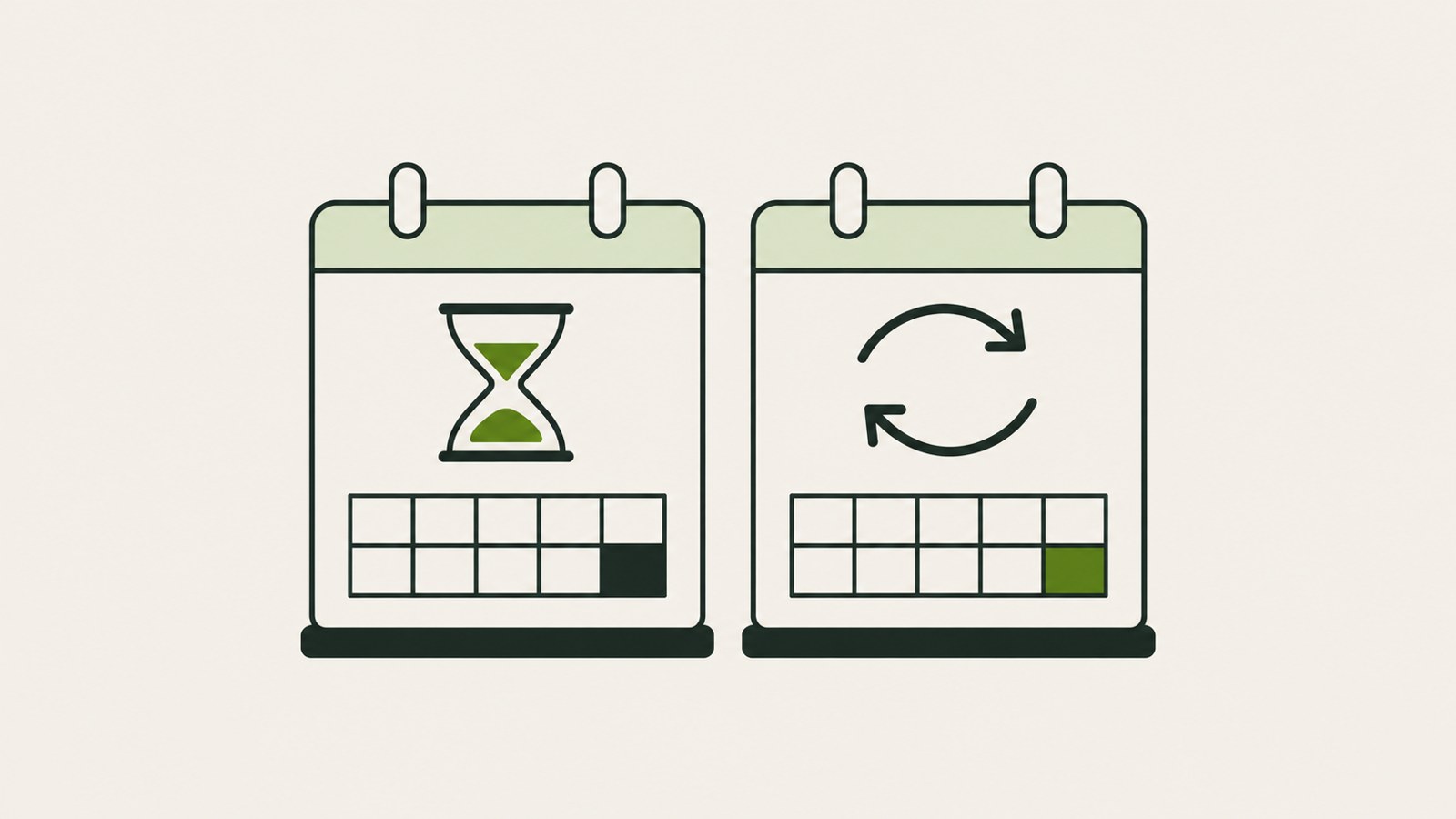
If you are concerned about a restart during work, you can set active hours instead of delaying update installation. Active hours define when you usually use your PC. Windows can choose them automatically, or you can set the start and end times yourself.
Active hours do not turn off updates permanently. Find Active hours in the advanced options for Windows Update and use the setting to manage when a restart can happen. To delay updates until a particular date, use Pause updates.
Use active hours to manage restart timing during urgent work. Use the date picker when you need to delay update installation for several days.
- Open Windows Update in Settings.
- Select Active hours in the advanced options.
- Choose automatic or manual. If you choose manual, set the start and end times when you usually use your PC.
A metered connection can still receive important updates
To limit internet data use, check the metered connection setting. Go to Settings > Network & Internet > Wi-Fi, open the network you are connected to, and turn on Metered connection.
This setting does not block every update. Some updates may not install automatically, but important updates can still come through. It also does not pause updates for a set period like the date picker does.
If the setting is grayed out and unavailable, your PC may be managed by an organization. For a work or school device, ask your IT administrator about the setting. Stopping the Windows Update service or editing the registry is not presented as a general-user setting in this guidance, and blocking updates can affect security updates too.
- Open Network & Internet in Settings.
- Select Wi-Fi and open the network you are currently using.
- Turn on Metered connection.
After a presentation or deadline, set aside time to check and install updates. Once they are installed, you can set active hours to match your usual PC schedule.
FAQ
Will turning on a metered connection stop all updates?
No. Some updates may not install automatically, but important updates can still come through.
What should I do if I cannot choose an extension date?
One guidance source says that after reaching the limit, you must install the latest updates before pausing again. Install updates, then check whether date selection is available.
Does Windows 10 use the same path?
One guidance source gives the Windows 10 path as Settings > Update & Security > Windows Update. It says Windows 10 support ended on 2025 October 14.
댓글
댓글 쓰기