
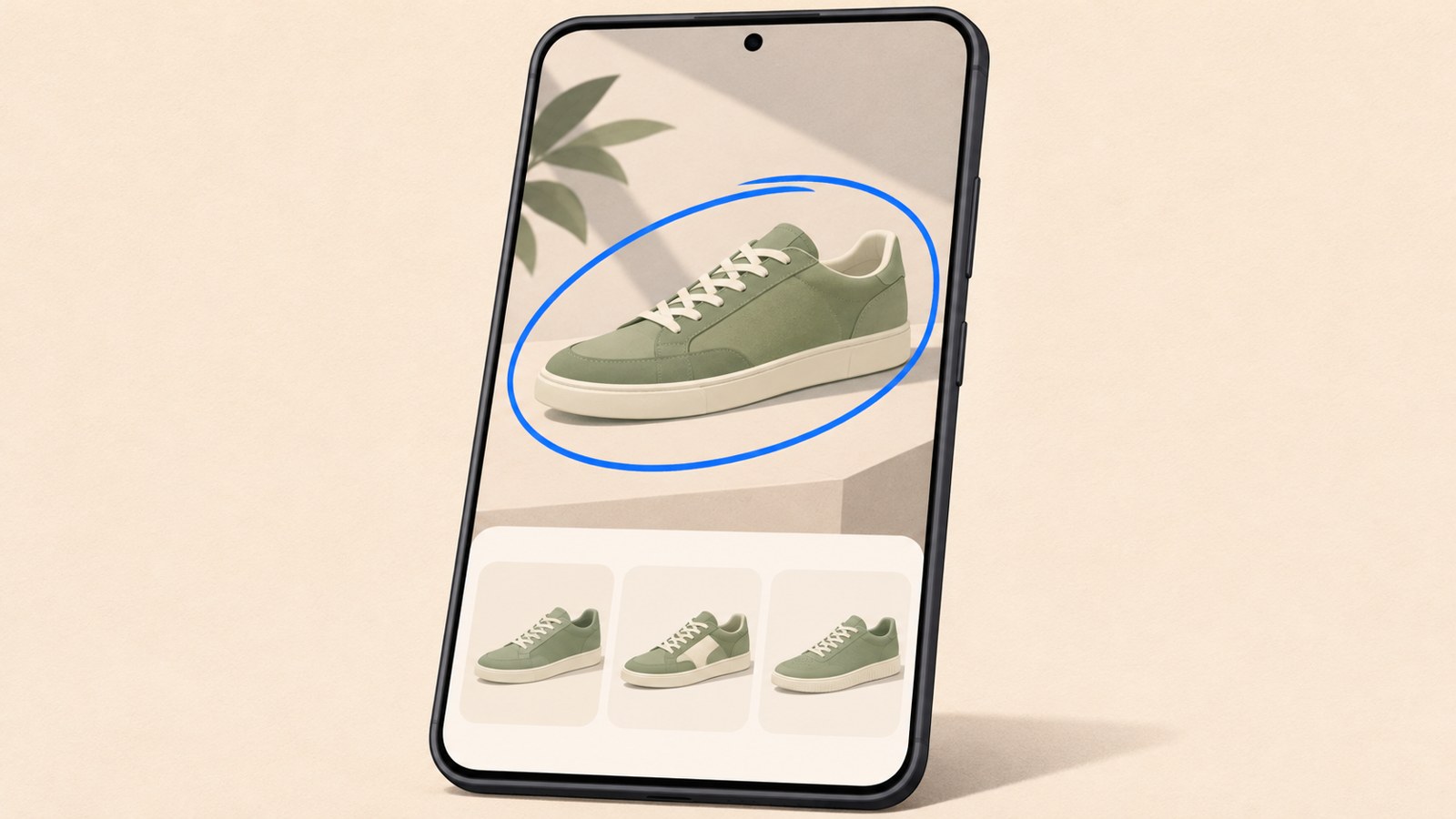
- Find the setting under Display and Navigation bar.
- Start a search by long-pressing the Home button or bottom handle.
- The feature may not work in apps that block screen capture.
Check device support if the setting is missing
Samsung Circle to Search lets you select an image or text on your screen and search for it. You can search without leaving the app to type a query or saving a separate screenshot.
Samsung says the feature is available on some Galaxy phones and tablets running Android 14 and One UI 6.1 or later. Meeting those software requirements does not guarantee support on every device.
Samsung's supported-device guidance includes the Galaxy S24 and S25 series, some Galaxy S21 series devices, select Z Fold and Z Flip models, and the Tab S series. Availability can vary by exact model, region, and update status, even within the same series.

Turn on Circle to Search in Settings
If your device supports the feature but it does not start, check that its switch is on. Open the Display menu in the Settings app, then look under Navigation bar. Menu names and locations can vary slightly by device and software version.
- Open the Settings app.
- Tap Display.
- Open Navigation bar.
- Turn on the Circle to Search switch.
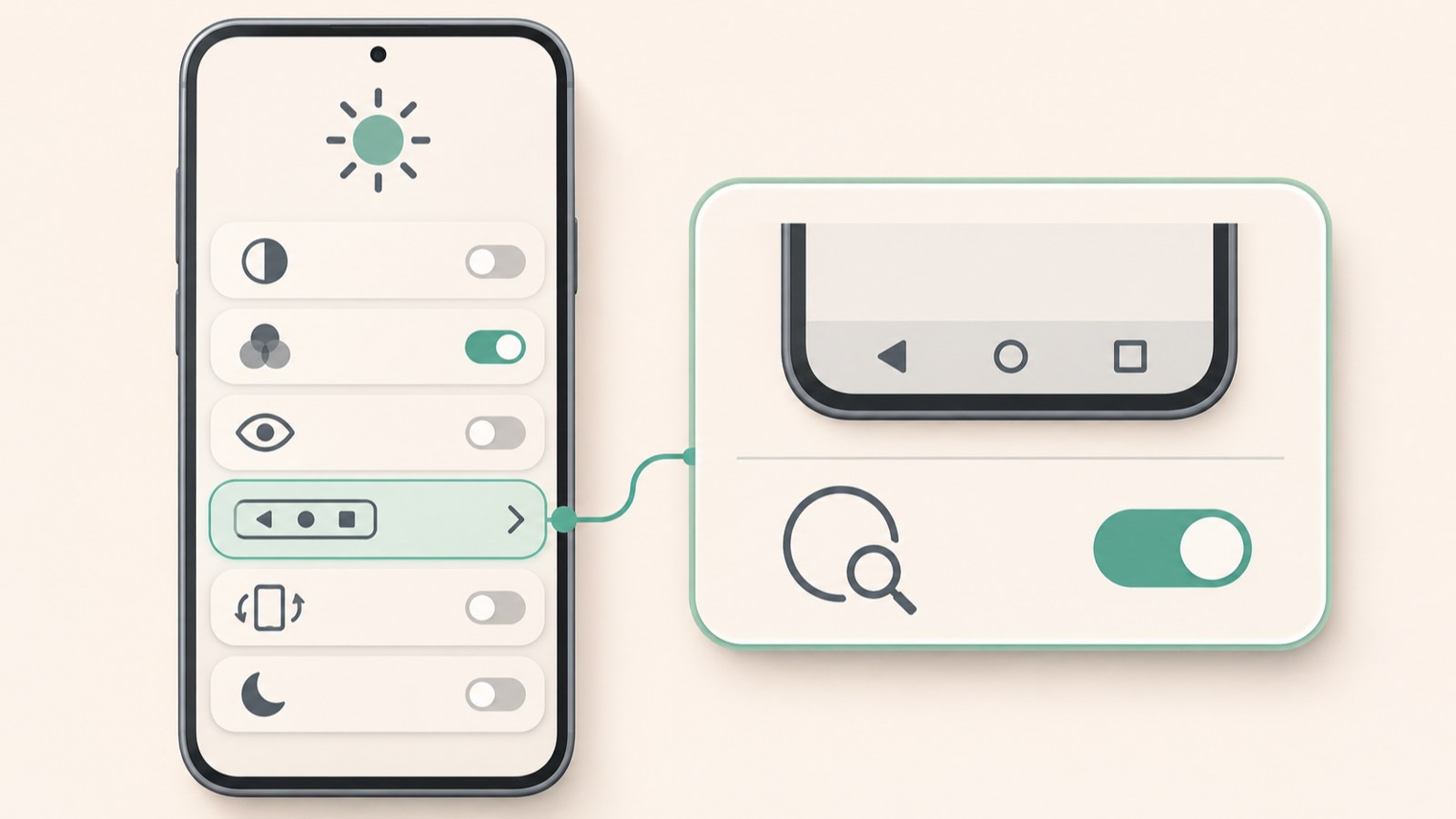
Start a search with a long press
Open the photo, video, or text you want to search. Depending on your navigation style, long-press the Home button or the handle at the bottom of the screen. When the search interface appears, select an object or text. You can draw a circle, tap, underline, or swipe over the area.
- Open a screen that shows the item you want to find.
- With button navigation, long-press the Home button.
- With gesture navigation, long-press the handle at the bottom of the screen.
- Select the object or text, then check the results.
| Navigation style | How to start | How to select an item |
|---|---|---|
| Button navigation | Long-press the Home button | Circle, tap, underline, or use another selection gesture |
| Gesture navigation | Long-press the bottom handle | Circle, tap, underline, or use another selection gesture |
Search for objects and translate text
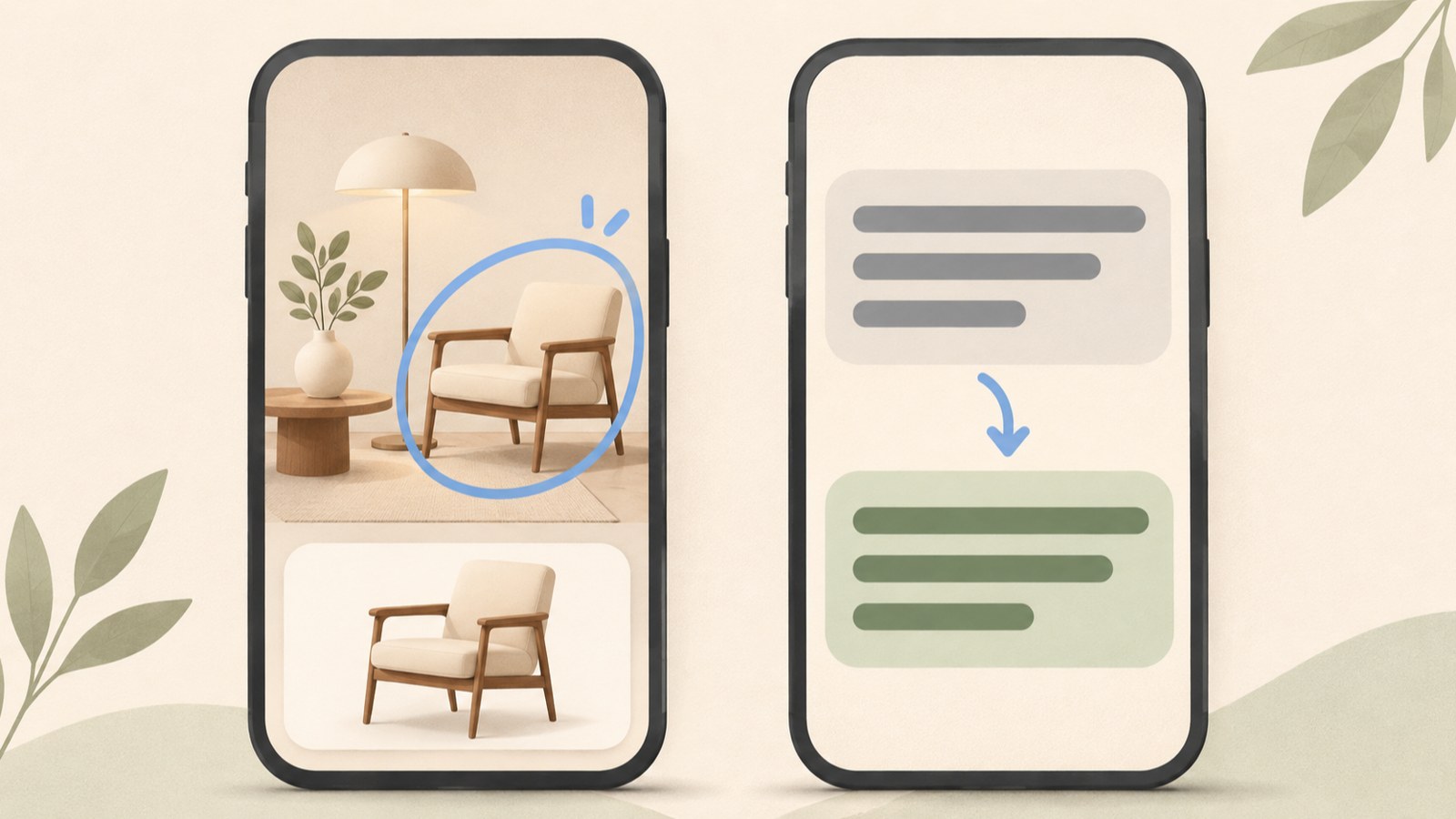
Select an unfamiliar item in a photo or video, such as shoes, a bag, or furniture, to find related information or similar products. Search results may show a similar item rather than the exact same product. If a logo or model name is visible, check that too.
You can select foreign-language text to search for it. If a translate button appears, you can translate the whole screen. For a long screen, choose the option to scroll and translate to continue. Text in videos or GIFs may not be translated.
The examples below show selecting an object or a sentence on screen. If the target is small or blurry, the selection may include the wrong area. Adjust the outline or narrow the selection and check again.
When a long press does nothing
First, check that Circle to Search is switched on in Navigation bar. Also check your Wi-Fi or mobile data connection, since the feature needs internet access to load search results.
If it fails only in one app, that app may restrict screenshots. Circle to Search may not work where screen capture is blocked for security or copyright reasons.
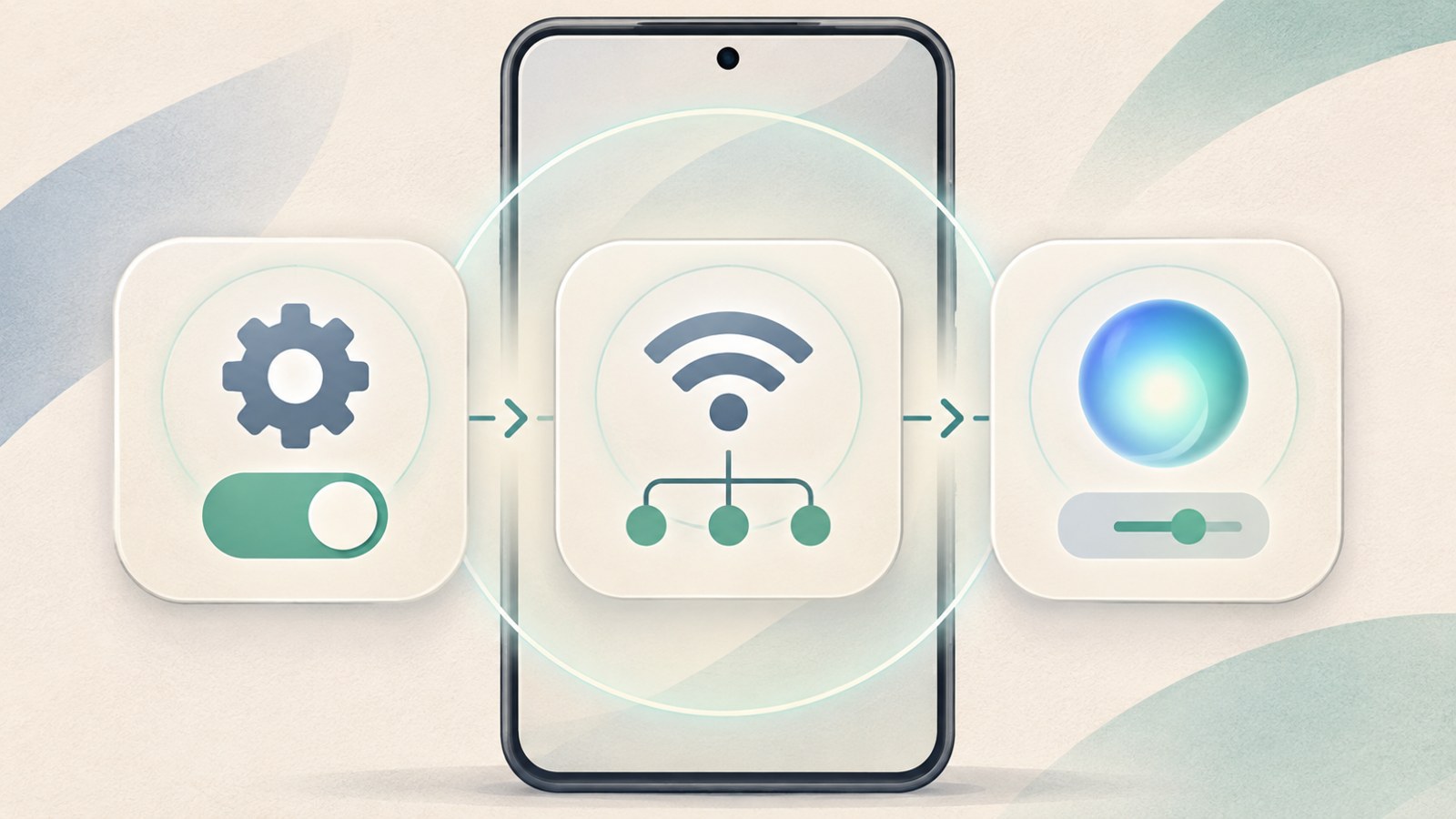
If you see a message saying screen search is unavailable, check the digital assistant settings. In Settings, open Apps, choose Default apps, then Digital assistant app. Look for the option to use screen and app data. Menu labels may differ by software version.
- Check that the feature switch is on in Navigation bar.
- Check your internet connection.
- Review the digital assistant app and the screen and app data setting.
- Check for updates to the Google app and your device software, then try again.
When results look wrong or you want to turn it off
If the results are off, adjust the selection outline to narrow the search area. You can also add details about the item, such as its color or size, in the search box.
To turn off the feature, return to Settings, Display, and Navigation bar, then switch off Circle to Search.
Results can vary with image quality and the area you select. A blurry photo or small object may be recognized as something else, so review the result details.
FAQ
What should I do if long-pressing the Home button does nothing?
Check that Circle to Search is on under Settings, Display, and Navigation bar. Check your internet connection and digital assistant settings as well, and see whether the app blocks screen capture.
Why can’t I find Circle to Search on my Galaxy?
Android 14 and One UI 6.1 or later are the basic software requirements, but the feature is not supported on every device. Availability can depend on your model and software update status.
Do I have to draw a precise circle to search?
No. You can draw a circle, tap, underline, or swipe over the area you want to select.
댓글
댓글 쓰기