
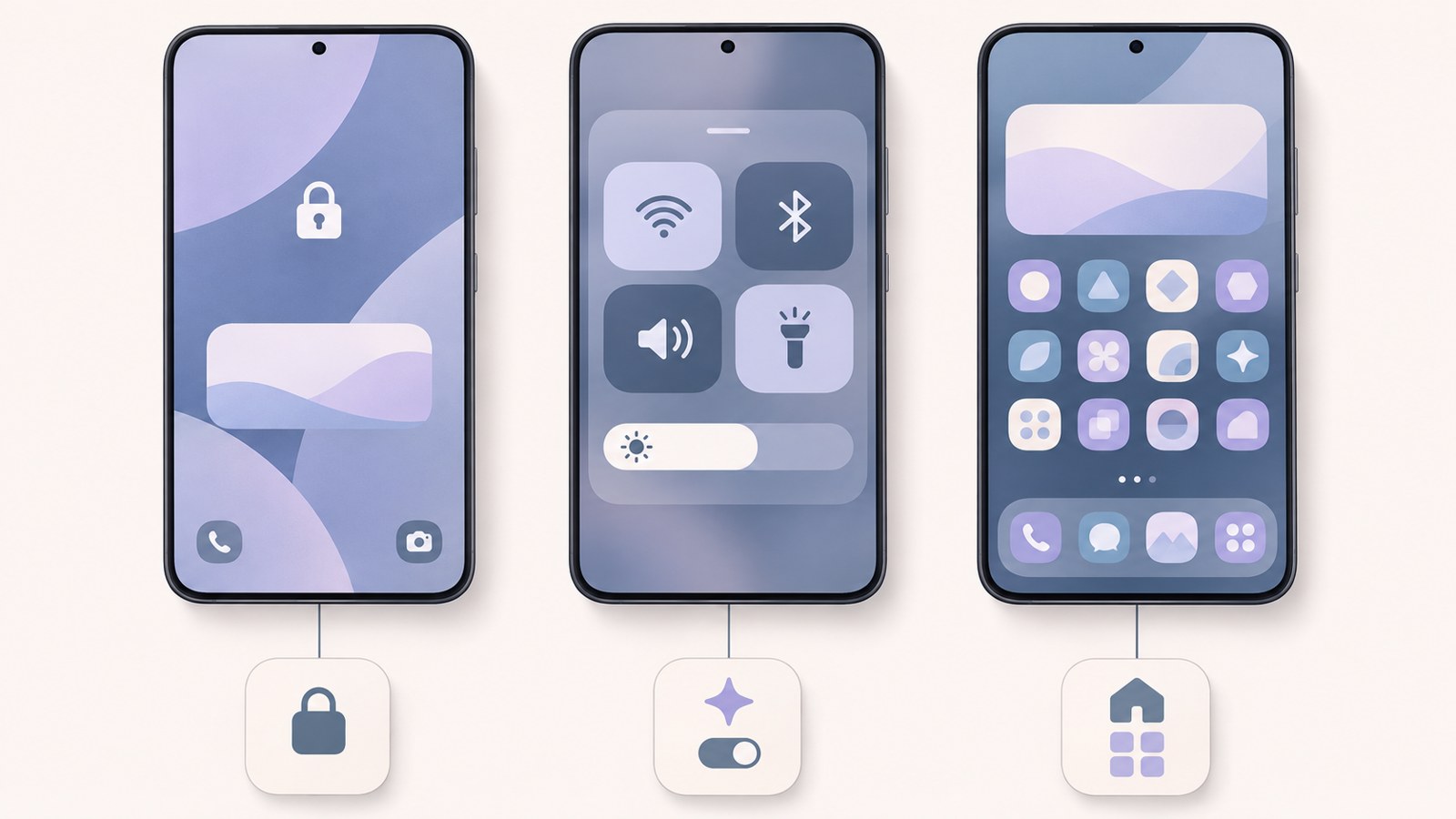
- Install Good Lock, then download the modules you need.
- Choose a module for the screen you want to change and apply settings one at a time.
- Available modules depend on your device and software version.
Good Lock is Samsung’s collection of customization modules. Installing the Good Lock app does not change your screens by itself. Open the app, choose a module for the feature you want to adjust, and download it. Start with the screen that bothers you most, such as the lock screen clock or status bar, then find its module.
1. Install Good Lock and download modules
Search for Good Lock in the Galaxy Store. After installing it, open the app and tap Continue on the consent screen. Choose the modules you need, download them, and check whether updates are available.
- Search for Good Lock in the Galaxy Store and install it.
- Open the app and tap Continue on the consent screen.
- Download the modules you need and check for updates.
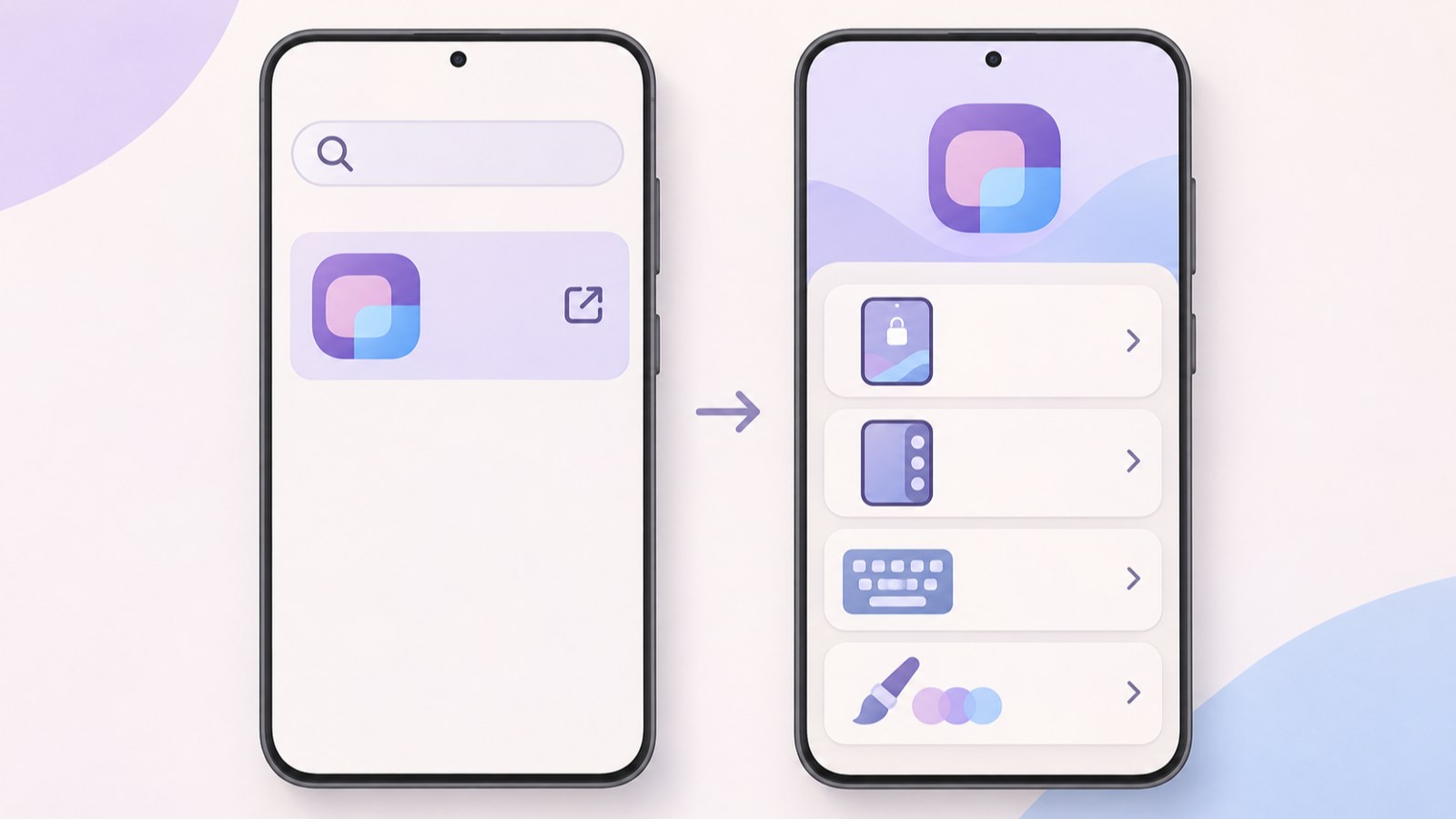
2. Choose a Good Lock module for each screen
Start with the screen you want to customize. LockStar handles the lock screen and AOD. QuickStar is for Quick Settings and the status bar, while Home Up covers the home screen and recent apps.
Use NavStar to adjust the navigation bar, or Theme Park to change colors and themes. Each module controls different features, so check its description and install only what you need. The available modules can vary by device and software version.
| What you want to change | Module | Main features |
|---|---|---|
| Lock screen and AOD | LockStar | Clock design and element placement |
| Quick Settings and status bar | QuickStar | Hide icons and adjust the panel |
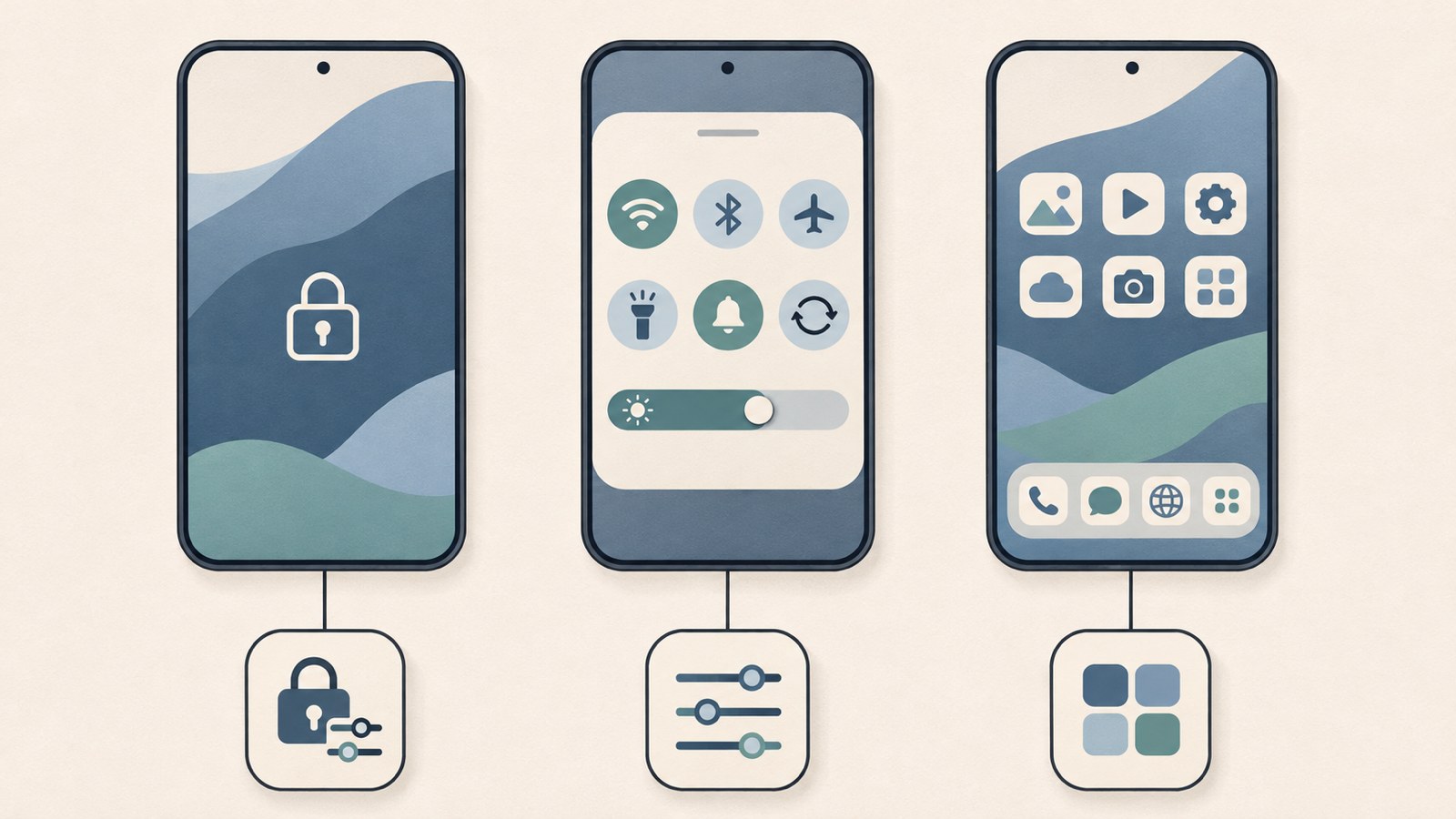
3. Change the lock screen and AOD clock
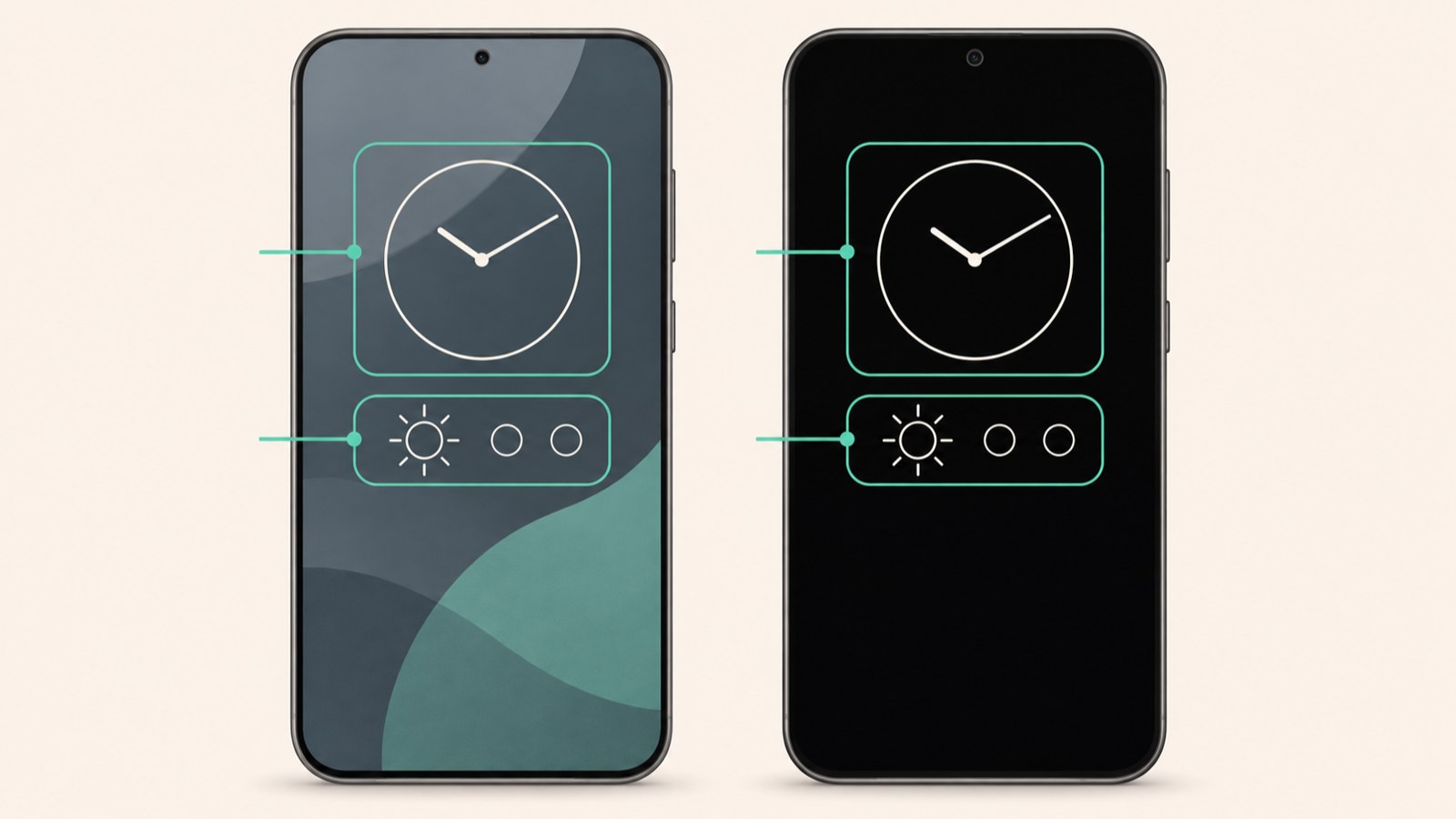
LockStar lets you adjust clock design, element placement, stickers, and widgets on the lock screen and AOD. An article covering Samsung Electronics Service guidance describes using LockStar when you want to change only the AOD clock.
AOD brightness controls vary by One UI version. The described method applies when manual brightness is no longer available in the standard settings from One UI 6.1: turn off AOD auto brightness in LockStar, then set the brightness yourself. LockStar’s lock screen sync feature is described as available on One UI 7.0 or later.
- Install and open LockStar from the Good Lock app.
- Choose the lock screen or AOD and select what you want to change.
- Adjust the clock design, position, or other available items.
4. Adjust Quick Settings and the home screen
For status bar icons or the Quick Settings panel, open QuickStar. Its listed options include hiding icons, changing themes and button grids, splitting the panel left and right, and showing network speed.
Home Up adjusts the home layout, folder style, recent apps screen, and Edge panels. NavStar is where you can change the navigation bar or gesture handle. The available features may depend on your software version.
- Select the module for the screen you want to change in Good Lock.
- Install it, then adjust the options you need one at a time.
- If an option is missing, check for updates to the app and module.
5. When a module is missing or a feature does not work
A module missing from Good Lock does not necessarily mean there is an error. According to an article covering Samsung support documents, available modules can vary by device and software version. A module that appears on a friend’s Galaxy may not appear in your list.
One UI 9 compatibility has been described separately for each module. Update reports have named supported versions for QuickStar and LockStar, while Home Up, NavStar, and other modules are directed to check for the latest status in the app. Look for module updates in Good Lock and check whether the module appears grayed out.
- Open Settings, go to About phone, and check Software information.
- Look for update notices in Good Lock and in the module itself.
- If the feature still does not work, check the module’s latest supported version.
6. Check module updates if settings reset
If your settings seem to reset after a One UI update, the module may not yet match the new software. Modules can receive separate updates for new versions, so check Good Lock for module updates before applying your settings again.
Saved settings may also disappear if you selected Reset all settings or deleted Good Lock or Galaxy Store data. If a particular feature keeps resetting after you install the latest module, the issue may be with the module. Check its update information.
- Check whether you recently installed a One UI update or deleted app data.
- Look for updates to the modules installed through Good Lock.
- Check whether Reset all settings was selected by mistake.
FAQ
I installed Good Lock, but the module I want is missing. What should I check?
Available modules can vary by device and software version. Check the module list in Good Lock and your device’s software version.
What should I do if Good Lock settings reset after a One UI update?
First, check Good Lock for updates to your installed modules. The module version may not match the new software, or you may have selected a settings reset option.
Can I change the lock screen clock and AOD clock?
The article covering Samsung Electronics Service guidance describes using LockStar. Available features can vary by One UI version.
댓글
댓글 쓰기